
Article
13 min read
Best Desk Setup for Working from Home in 2026
IT & device management

Author
Dr Kristine Lennie
Last Update
February 11, 2026

Table of Contents
Setup 1: Apple MacBook Air M4 standard remote setup (macOS)
Setup 2: Dell Latitude standard remote setup (Windows)
Setup 3: High-performance dual-monitor engineering setup (macOS or Windows)
Setup 4: Apple MacBook Pro Creative Studio setup
Setup 5: Lightweight laptop + portable monitor, remote, and travel setup
Setup 6: Chromebook-first scale-ready remote setup
Setup 7: Ergonomic-first long-hours home office setup
Equip your global workforce with Deel IT
Key takeaways
- For HR teams, People Ops, and IT managers, choosing the right desk setup means aligning hardware, ergonomics, and collaboration tools with how different roles actually work, while maintaining consistency across a distributed workforce.
- As remote and hybrid work matures, companies must move beyond one-size-fits-all setups and adopt role-appropriate desk configurations that reduce fatigue, support productivity, and scale as teams grow globally.
- Deel IT gives teams access to a global equipment catalog, making it easy to build, standardize, and deploy desk setup combinations—from everyday home offices to mobility-focused setups—across 130+ countries.
Desk setup is no longer a discretionary perk—it directly shapes productivity, secures posture, and determines employee experience in distributed teams. In 2026, there is no single “best” desk setup: effectiveness depends on role requirements, working patterns, and the tools employees rely on every day. As remote work has matured, expectations around speed, comfort, and collaboration have increased, making desk setup a foundational part of how work gets done.
For HR, People Ops, and IT teams, desk setup has become an operational challenge rather than a one-time decision. Inconsistent equipment leads to slower onboarding, higher support request volumes, and uneven employee experiences. Standardized, role-appropriate desk setups reduce this friction by making equipment decisions clearer, more consistent, and easier to repeat as teams grow.
This guide outlines seven practical desk setups that support different roles, working styles, and employee needs across remote teams.
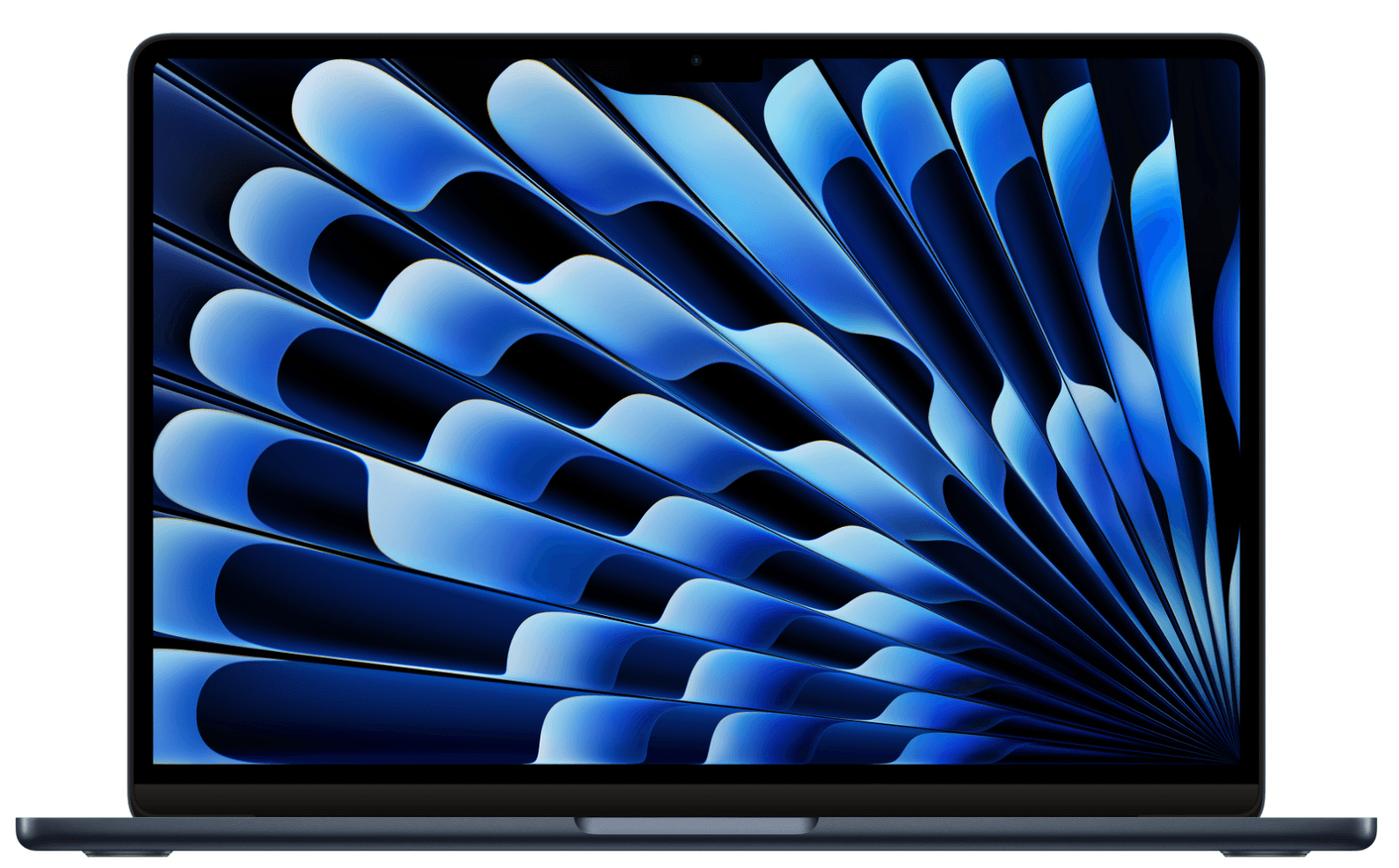
Setup 1: Apple MacBook Air M4 standard remote setup (macOS)
A straightforward, well-balanced Mac setup for everyday work. This setup is designed for employees who prefer or require macOS and need a reliable, comfortable desk setup at home, without over-engineering. The setup combines a lightweight laptop with a single external monitor and essential peripherals to cover the majority of remote roles.
| Equipment | Recommended model | Why this works |
|---|---|---|
| Laptop | Apple MacBook Air 13.6″, M4, 16–24GB RAM, 256–512GB SSD | Delivers quiet, all-day performance for general remote work on macOS. |
| Monitor | Dell P2425H 24″ Full HD | Provides a second screen for multitasking while keeping the setup minimal. |
| Laptop stand | Aluminium Laptop Stand | Improves posture by raising the laptop to eye level. |
| Keyboard | Apple Magic Keyboard (USB-C) | Native macOS experience with minimal setup. |
| Mouse | Logitech MX Anywhere 3S | Portable, precise, and comfortable for daily use. |
| Headset | Jabra Evolve2 40 SE (USB-C) | Reliable audio quality for frequent video meetings. |
Approximate total cost (setup): ~$1,500–$1,800, depending on configuration and region.
What makes it stand out: This setup offers the lowest friction path to a complete Mac-based home office. It balances employee preference for macOS with a sensible, standardized desk configuration.
When to choose this setup: Choose this setup when macOS is the preferred or required operating system and the role involves a mix of collaboration, document work, and browser-based tools. It’s the right choice when you want a dependable default that works well across most departments without special hardware requirements.
Best for: General staff, people managers, and executives who prefer macOS and work primarily from home. Ideal for roles that rely on collaboration tools, documents, and browser-based workflows.
Looking to equip your new hires? Learn more with: Top 6 IT Essentials Every New Hire Needs on Day One
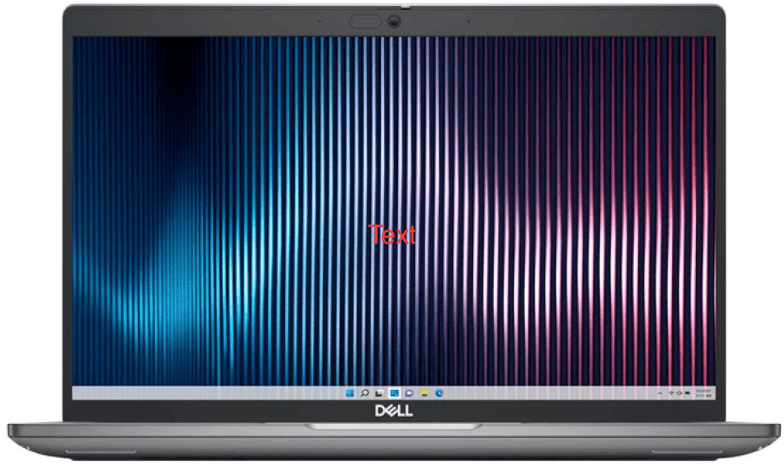
Setup 2: Dell Latitude standard remote setup (Windows)
The Windows equivalent of a standard remote home office setup. This configuration mirrors the Mac setup above, but is built around the Windows ecosystem. It supports Microsoft-based tools, internal systems, and security requirements while delivering the same level of comfort and productivity, making it easy to standardize across teams that prefer or require Windows.
| Equipment | Recommended model | Why this works |
|---|---|---|
| Laptop | Dell Latitude 5440 or 7450, 14″, Ultra 5/7, 16GB RAM, 512GB SSD | Windows laptop suitable for standardized, centrally managed remote setups. |
| Monitor | Dell P2425H 24″ Full HD | Consistent, reliable external display for everyday desk work. |
| Laptop stand | Aluminium Laptop Stand | Aligns the laptop screen with the external monitor height to improve posture. |
| Keyboard & mouse | Logitech MK545 Wireless Combo | Comfortable, durable input designed for long workdays. |
| Headset | Logitech Zone 305 Wireless Headset | Clear audio with wireless flexibility for meetings. |
Approximate total cost (setup): ~$1,600–$1,900, depending on configuration and region.
What makes it stand out: This setup provides a predictable Windows environment that can be rolled out repeatedly across regions and teams. It balances high-performance Dell engineering with dependable Logitech peripherals to create a resilient, no-nonsense workstation for day-to-day business operations.
When to choose this setup: This setup offers a straightforward, standardized path to a complete Windows-based home office. It balances compatibility with Windows tools and systems with a comfortable, repeatable desk configuration that scales easily across teams.
Best for: HR, finance, operations, customer support, and any roles dependent on Windows-based tools or Microsoft ecosystems. Well-suited for organizations aiming to standardize hardware across distributed teams.
Find out how to choose IT equipment for any role.
Setup 3: High-performance dual-monitor engineering setup (macOS or Windows)
A performance-driven setup built for engineering and technical roles. This setup intentionally steps up in processing power, memory, and screen real estate to support sustained deep work. It’s designed for employees whose productivity depends on responsiveness, multiple windows, and long focus sessions.
| Equipment | Recommended model | Why this works |
|---|---|---|
| Laptop | Apple MacBook Pro 14.2″, M4 or M5 (24GB RAM, 1TB SSD) or Lenovo ThinkPad P14s Gen 5, Ultra 7 (32GB RAM, 1TB SSD) | High-performance option for compiling and multitasking. |
| Monitors | 2× Dell P2425H 24″ Full HD or Dell P2725D 27″ QHD | Dual displays support parallel workflows and complex tasks. |
| Monitor arms | Humanscale M8.1 Dual Monitor Arm | Enables ergonomic positioning and maximizes desk space. |
| Keyboard | Microsoft Sculpt Ergonomic Keyboard | Reduces strain during long coding or typing sessions. |
| Mouse | Logitech MX Master 4 | Precision control for technical workflows. |
| Headset | Plantronics Blackwire 5220 | Reliable wired audio for focused work environments. |
Approximate total cost (setup): ~$2,300–$2,900, depending on platform and monitor configuration.
What makes it stand out: This setup is built for sustained performance rather than convenience or portability. It removes common bottlenecks (screen space, memory limits, and ergonomics) that slow down technical work.
When to choose this setup: Choose this setup when roles involve software development, data analysis, complex spreadsheets, or technical tooling. It’s appropriate when a standard single-monitor setup would actively limit output quality or speed.
Best for: Software engineers, data analysts, technical specialists, and power users. Also suitable for roles that spend most of the day in complex tools or multi-window workflows.
Find out more about the top IT procurement challenges faced by employers and how to solve them.
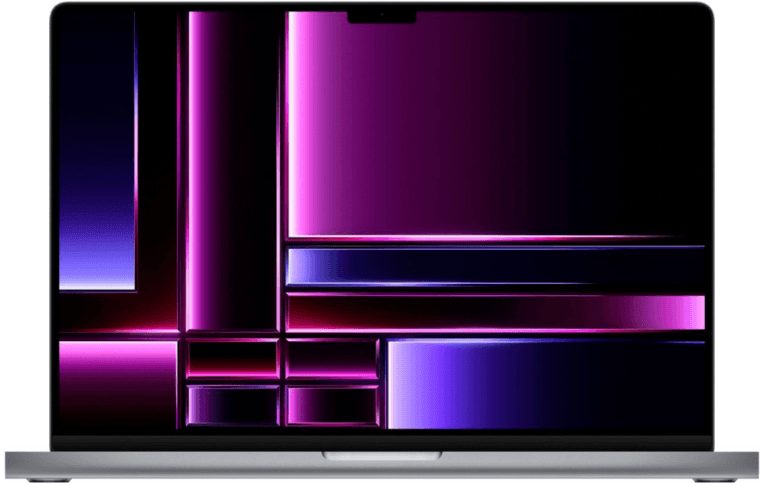
Setup 4: Apple MacBook Pro Creative Studio setup
A high-performance desk setup designed for visually demanding creative work. This setup pairs a powerful laptop with a large, high-quality external display, precision input devices, and immersive audio to support long creative sessions and detail-oriented workflows.
| Equipment | Recommended model | Why this works |
|---|---|---|
| Laptop | Apple MacBook Pro 14.2″, M4 or M5, 24GB RAM, 1TB SSD | Provides sustained performance for creative applications without throttling. |
| Monitor | Dell U2722D 27″ UltraSharp or Dell P3225DE 32″ QHD | Large, high-quality display improves visual accuracy and provides more working space. |
| Laptop stand | Kensington Easy-Riser Laptop Stand | Allows the laptop to function as a secondary screen at eye level. |
| Input devices | Apple Magic Trackpad and/or Magic Keyboard | Precision control for creative workflows. |
| Headset | Apple AirPods Max or Jabra Evolve2 85 | Immersive sound and strong noise cancellation support focus. |
| Mouse (optional) | Logitech MX Master 3S | Adds precision for detailed editing and design work. |
Approximate total cost (setup): ~$2,600–$3,400, depending on configuration, monitor choice, and region.
What makes it stand out: This setup is optimized for visual quality and sustained performance rather than portability. It enables creative teams to work comfortably for long sessions without compromising precision or output.
When to choose this setup: Choose this setup when roles depend on visual accuracy, high-resolution assets, or performance-intensive creative tools. It’s appropriate when screen quality and sustained performance directly affect output quality.
Best for: Designers, marketers, content creators, product designers, and brand teams. Particularly well-suited for roles where display quality and performance directly impact deliverables.
Your Global IT & HR Strategy Kit
Eliminate the guesswork and drive efficiency with these essential resources:
- Optimize your IT budget. Download our free IT policy template to help you control costs.
- Find out how to streamline your hardware lifecycle. Use this Strategic IT Onboarding & Offboarding Guide for Distributed Teams.
- Ensure that your 2026 planning is scalable and eliminates operational bottlenecks with our IT Strategy Toolkit: 2026 Guide for IT and HR Leaders.
Setup 5: Lightweight laptop + portable monitor, remote, and travel setup
A flexible, compact setup for employees who don’t work from a single desk. This setup recreates a productive dual-screen environment wherever employees are working, without requiring a permanent home office or bulky equipment.
| Equipment | Recommended model | Why this works |
|---|---|---|
| Laptop | Apple MacBook Air 13.6″ M4 or Dell Latitude 5330 13.3″ | Lightweight devices reduce travel fatigue while maintaining performance. |
| Portable monitor | ASUS ZenScreen MB16ACE 15.6″ or Dell Portable Monitor P1424H | Restores dual-screen productivity in mobile setups. |
| Keyboard & mouse | Logitech MK295 Silent Wireless Combo | Compact and quiet for shared or temporary workspaces. |
| Headset | Poly Voyager 5200 or Jabra Evolve2 Buds | Clear calls in variable and noisy environments. |
| Adapters | Apple World Travel Adapter Kit + USB-C Multiport Adapter | Ensures connectivity across regions and display types. |
Approximate total cost (setup): ~$1,500–$1,900, depending on device selection and region.
What makes it stand out: This setup prioritizes flexibility and speed of deployment over desk permanence. It allows employees to quickly recreate a functional workstation wherever they are.
When to choose this setup: Choose this setup when employees frequently change locations, travel across regions, or work from temporary spaces. It’s designed for roles that prioritize mobility while still needing a reliable, professional setup.
Best for: Sales teams, consultants, contractors, and globally mobile employees. Ideal for organizations with frequent travel or distributed, location-agnostic roles.
Looking to establish a clear and fair device strategy? Read: How to Create a Fair Laptop Fresh Policy.
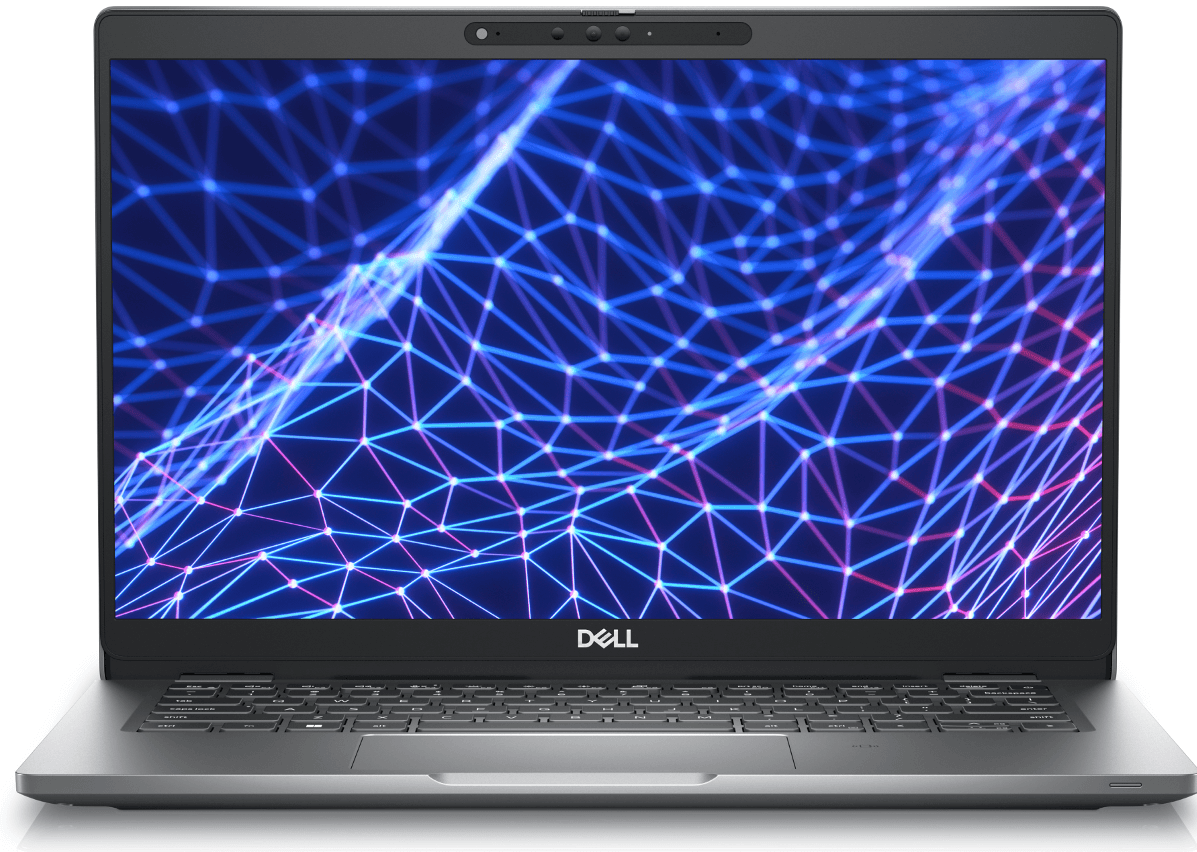
Setup 6: Chromebook-first scale-ready remote setup
A streamlined, cloud-native setup designed for large, distributed teams. This setup is built for roles that work primarily in web-based tools and rely on centrally managed access to systems and applications. It prioritizes fast deployment, consistent security enforcement, and cost efficiency at scale, without sacrificing governance or visibility.
| Equipment | Recommended model | Why this works |
|---|---|---|
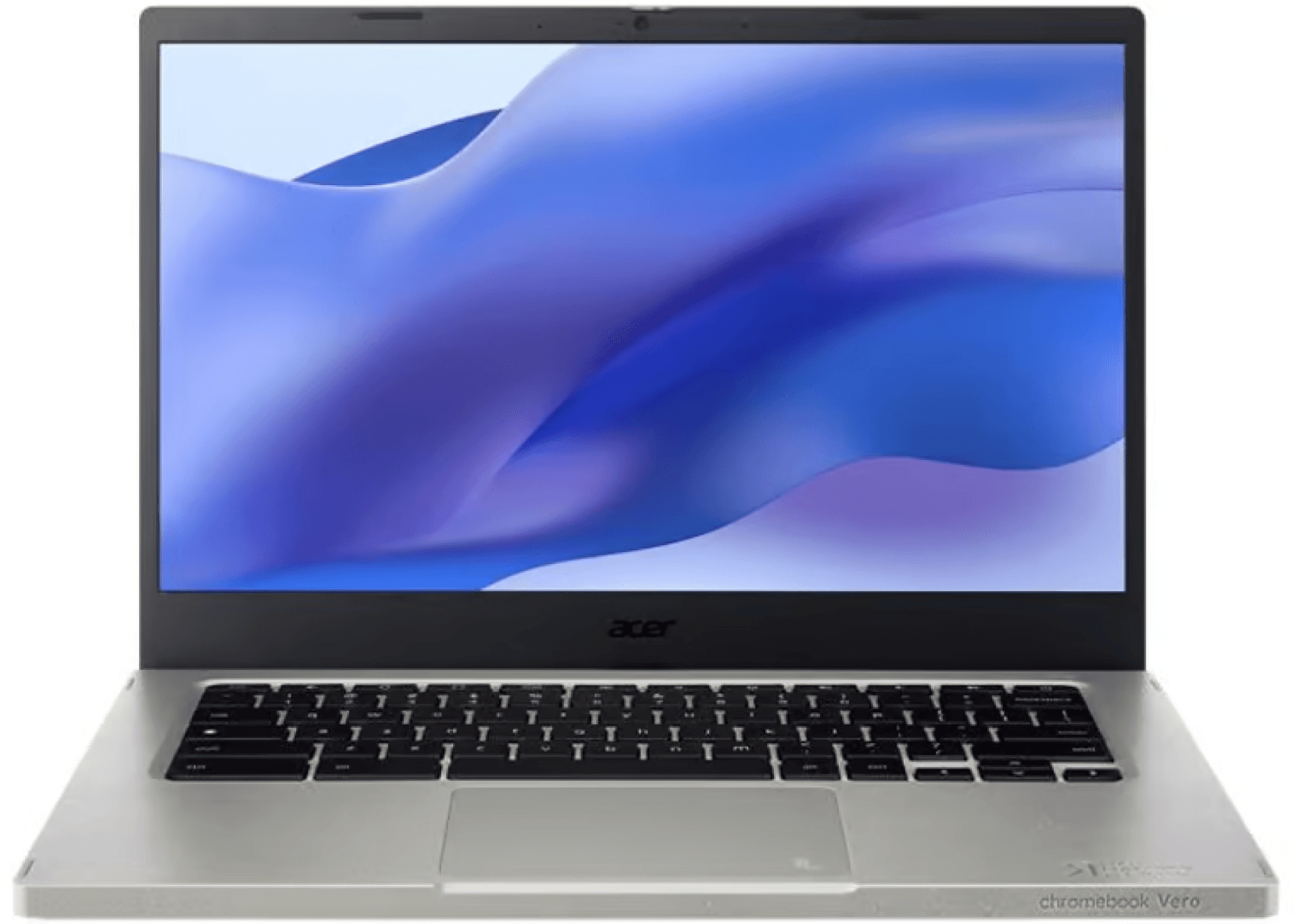
| Laptop | Acer Chromebook Vero 514, i5, 8GB RAM, 256GB SSD | Supports fast boot times and cloud-native workflows while enabling centralized device policies. |
| Monitor | Dell P2225H 21.5″ Full HD | Adds a second screen using a low-cost monitor that significantly improves productivity while keeping the overall setup intentionally cost-controlled. |
| Laptop stand | Aluminium Laptop Stand | Improves posture and ergonomics in a simple desk setup. |
| Keyboard & mouse | Logitech MK295 Silent Wireless Combo | Affordable, reliable input for everyday browser-based work. |
| Headset | Logitech H390 | Consistent, wired audio for meetings and training sessions. |
Approximate total cost (setup): ~$900–$1200, depending on region and availability.
What makes it stand out: This setup enables secure, centrally managed remote work using a lighter hardware footprint. It’s optimized for scale, allowing IT teams to enforce access and security policies consistently without increasing operational complexity.
When to choose this setup: Choose this setup when roles are cloud-first and browser-based, and when teams need to be equipped quickly and consistently across regions. It’s especially effective for high-volume hiring scenarios where devices must be easy to provision, secure, and redeploy through centralized IT workflows.
Best for: Customer support teams, junior roles, contractors, seasonal workers, and high-volume hiring initiatives. Particularly effective for organizations standardizing on cloud-based tools and centrally managed access controls.
See also: 4 Reasons to Use Zero Touch Deployment to Supply Devices to Remote Workers
Setup 7: Ergonomic-first long-hours home office setup
A comfort-optimized setup for employees who spend full days at their desk. This setup prioritizes ergonomics and physical well-being, reducing strain and fatigue for employees who work long hours from a fixed home office.
| Equipment | Recommended model | Why this works |
|---|---|---|
| Laptop | Dell Pro 14 Plus, Ultra 5, 16GB RAM, 512GB SSD | Reliable performance without excessive heat or noise. |
| Monitor | Dell P2725D 27″ QHD | Larger, higher-resolution display that reduces eye strain. |
| Monitor arm | Humanscale M2.1 Single Monitor Arm | Enables precise screen positioning for posture support. |
| Footrest | Humanscale Foot Rocker | Encourages movement and supports circulation. |
| Keyboard | Microsoft Surface Ergonomic Wireless Keyboard | Designed for natural wrist and hand positioning. |
| Mouse | Logitech MX Master 3S | Reduces hand strain during long sessions. |
| Headset | Jabra Evolve2 65 | Comfortable for all-day wear with clear audio. |
Approximate total cost (setup): ~$1,900–$2,300, depending on configuration and region.
What makes it stand out: This setup is intentionally designed around employee well-being rather than raw performance. It helps reduce fatigue and discomfort over long workdays.
When to choose this setup: Choose this setup when roles involve extended screen time and limited movement throughout the day. It’s ideal when employee health, comfort, and long-term sustainability are key concerns.
Best for: Full-time remote employees, knowledge workers, and roles with extended focus periods. Particularly relevant for organizations prioritizing retention and employee health.
Find out about the best IT accessories for boosting employee productivity.
Equip your global workforce with Deel IT
Designing the right desk setup is only half the challenge—getting that equipment into employees’ hands, configured securely, and supported over time is where most teams feel the strain. Deel IT turns desk setups from one-off purchases into a scalable, end-to-end system for global teams.
Deel IT helps you equip remote employees anywhere in the world by centralizing procurement, shipping, configuration, security, and lifecycle management in a single platform. With access to a curated catalog of 240+ laptops, monitors, and peripherals—including the desk setups outlined above—teams can standardize equipment without slowing down hiring or increasing IT overhead.
Here is what that means in practice:
- Global delivery: Ship complete desk setups or individual devices directly to employees in 130+ countries, with customs, taxes, and local logistics fully handled, and a 99.5% on-time delivery rate
- Pre-configured setup and security: Devices arrive with company settings, security policies, and required software already applied, so employees can log in and start working securely on day one
- Centralized lifecycle tracking: Track laptops, monitors, and peripherals from onboarding through offboarding in a single dashboard, ensuring IT teams always know which equipment is assigned to whom, where it’s located, and when it needs attention
- Maintenance and repairs, globally: Coordinated local repairs or replacements through trusted regional partners—when needed, Deel IT can arrange temporary loan devices to minimize downtime and disruption
- 24/7 global IT support: Always-on support for employees across time zones, covering device issues, access changes, and troubleshooting—without expanding internal IT teams
- Secure and sustainable offboarding: Automatically lock and remotely wipe devices at offboarding, with automated retrieval, so devices can be reused
Book a demo to see how Deel IT streamlines everything from shipping desk setups to secure offboarding.
Deel IT

FAQs
What is the proper way to set up a desk?
The proper way to set up a desk is to position your screen at eye level, keep your keyboard and mouse within easy reach, and sit with your feet flat on the floor to support good posture. Use an external monitor, keyboard, and mouse where possible to reduce strain, and adjust your chair and desk so your arms rest comfortably at about a 90-degree angle. The goal is to minimize physical fatigue while keeping everything you use frequently within a natural, comfortable reach.
What is the 90-90-90 rule for sitting?
The 90-90-90 rule for sitting means your hips, knees, and elbows should each form roughly 90-degree angles while you’re seated. Your feet should rest flat on the floor, your thighs should be parallel to the ground, and your forearms should be level with the desk or keyboard. This posture helps reduce strain on your back, shoulders, and wrists during long periods of sitting.
Which direction is best to sit when working from home?
When working from home, it’s best to sit facing natural light, such as a window, rather than having it directly behind or in front of you. This reduces glare on your screen and prevents harsh backlighting during video calls. If natural light isn’t available, position your desk so light sources are to the side and keep your screen perpendicular to windows to minimize eye strain.
Dr Kristine Lennie holds a PhD in Mathematical Biology and loves learning, research and content creation. She had written academic, creative and industry-related content and enjoys exploring new topics and ideas. She is passionate about helping create a truly global workforce, where employers and employees are not limited by borders to achieve success.


