
Article
11 min read
Best Docking Stations for Hybrid Workers in 2026
IT & device management

Author
Dr Kristine Lennie
Last Update
January 30, 2026

Key takeaways
- Hybrid teams move between multiple work environments, which means they need equipment setups that keep them productive in each one.
- Docking stations are an effective way to provide hybrid employees with a consistent workspace, enabling them to easily connect monitors and peripherals anywhere.
- Deel IT streamlines the procurement, shipment, and management of IT equipment from a single platform, ensuring hybrid and remote employees have what they need to do their best work.
Hybrid teams, an increasingly common structure in the modern workplace, split their time between office and home environments. For HR, People Ops, and IT teams responsible for equipping employees, this creates the challenge of ensuring everyone remains productive no matter where they work. Docking stations offer a simple and effective way to deliver a consistent, reliable workspace. However, choosing the right one can be difficult: laptops, role requirements, and display needs vary widely across employees and device models.
In 2026, this means selecting a docking station that offers strong connectivity, supports multi-monitor setups, and works seamlessly across different environments. With over 4,000 employees in 100+ countries, Deel understands the importance of dependable, scalable hardware that keeps hybrid teams productive wherever they are. Here are key factors to consider when outfitting your team, along with our top five docking stations for 2026.
What to prioritize when equipping hybrid teams with docking stations
Docking stations vary widely in power, ports, and display support, so choosing the right one depends on your team’s specific setup needs. Here’s a checklist to help you evaluate what matters most:
| Criteria | Why it matters | Example options (and why) |
|---|---|---|
| Role-based needs | Tailoring docking stations to role-specific needs ensures employees have the right connectivity and display support for their daily work. | General staff: A compact USB-C hub with core ports such as HDMI, USB-A, and Ethernet is sufficient for everyday accessories and a primary monitor (e.g., StarTech USB-C 7-in-1). Engineers, analysts, creatives: Dual/triple 4K display support and high-speed ports are needed for data-heavy or visual workflows (e.g., Belkin USB-C 11-in-1). Executive and client-facing roles: Premium Thunderbolt docks are required for seamless transitions across locations (e.g., Lenovo ThinkPad Universal Thunderbolt 4 Smart Dock). |
| USB-C vs. Thunderbolt compatibility | USB-C hubs are affordable and widely compatible, while Thunderbolt docks offer faster data transfer and stronger multi-display support. | Review your organization’s laptop fleet to determine compatibility. Use USB-C docks for most laptop models and standard workflows (e.g., StarTech USB-C 7-in-1). Choose Thunderbolt docks only for laptops that support Thunderbolt and for roles needing faster data speeds or multi-4K displays (e.g., Lenovo ThinkPad Universal Thunderbolt 4 Smart Dock). |
| Power delivery (PD) | Docking stations need enough wattage to both charge the laptop and power peripherals. Too little PD leads to throttling, disconnects, or poor performance. | Standard users: 65–100W PD (e.g., Belkin USB-C 6-in-1, StarTech USB-C 7-in-1). High-performance laptops: 100W+ PD (e.g., Dell WD19S or Lenovo Thunderbolt 4 Smart Dock). |
| Display support | Not all docks can support dual or high-resolution displays. Ensuring the dock aligns with each team’s workflow needs is essential for smooth, efficient work. | Dual-monitor docks (e.g., Belkin 11-in-1 USB-C or Dell WD19S) are ideal for multitasking or visual-heavy roles such as designers or analysts, while single-monitor docks (e.g., Belkin USB-C 6-in-1 or StarTech 7-in-1) suit more focused or communication-led roles like HR or customer support. |
| Port variety | Ensures workers can seamlessly connect mice, keyboards, webcams, Ethernet, drives, and other peripherals. | General staff: Standard ports, such as HDMI/DP for a primary monitor and USB-A ports for everyday peripherals (e.g., Belkin USB-C 6-in-1). Hybrid office users: USB-A/C ports for common accessories, plus an Ethernet port for stable office connectivity (e.g., StarTech USB-C 7-in-1). Design and content teams: USB-C for fast transfers, SD/microSD for media import, and HDMI/DP for multi-display creative work (e.g., Belkin USB-C 11-in-1). Power users: Multiple USB-C ports and dual video outputs for high-resolution, multi-monitor, and intensive workloads (e.g., Lenovo Thunderbolt 4 Smart Dock). |
| Global availability | Hybrid teams depend on fast replacements and consistent equipment across regions. | Choose brands with international delivery networks, such as Dell, Belkin, and Lenovo, which provide globally supported docks that are easier to manage for multi-region teams. |
Learn about the top IT procurement challenges faced by employers and how to solve them.
Best docking stations for hybrid workers in 2026
The docking stations you choose should balance employee needs with budget considerations, ensuring teams have reliable setups that keep productivity high. Here are our recommended docking station options for a hybrid workforce.
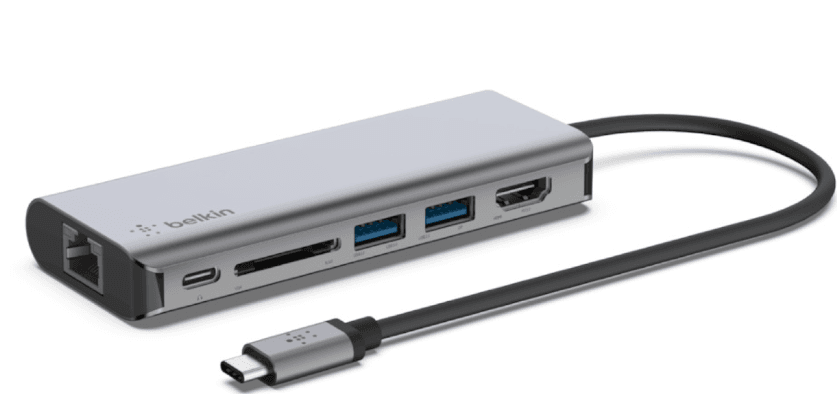
1. Belkin USB-C 6-in-1 Multiport Adapter
A portable USB-C hub that provides the essential connectivity hybrid workers need for a smooth setup anywhere.
| Key specifications | |
|---|---|
| Ports | HDMI, USB-C (PD), 2× USB-A, SD/microSD |
| Power Delivery | Up to ~100 W |
| Display support | 4K @ 30Hz (single display) |
| Connectivity | USB-C |
| Approximate cost | From $70 |
What makes it stand out: It delivers the key ports employees need while remaining lightweight, simple, and cost-effective for large teams.
Best for: General workforce roles, HR and People Ops, customer support, early-career staff, and employees who need a simple, reliable dock to connect a monitor and essential accessories.
Find out about the top 6 IT essentials every new hire needs on day one.
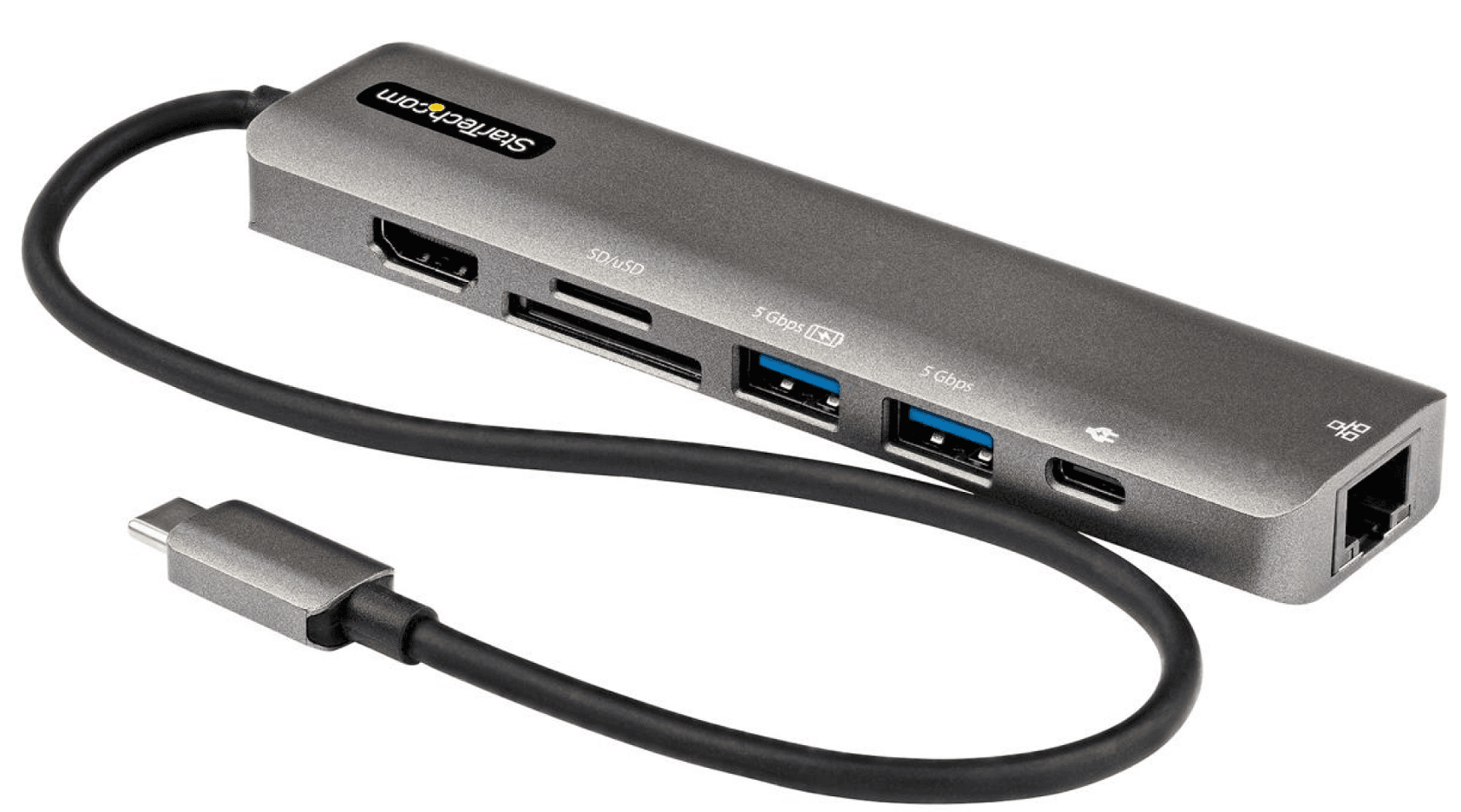
2. StarTech USB-C 7-in-1 Multiport Adapter
A versatile mid-range hub with enhanced connectivity, including wired Ethernet for stable video calls and shared office environments.
| Key specifications | |
|---|---|
| Ports | HDMI, Ethernet (RJ45), USB-C PD, USB-C data, 2× USB-A, SD/microSD |
| Power Delivery | Up to 100 W |
| Display support | 4K @ 60Hz (single display) |
| Connectivity | USB-C |
| Approximate cost | From $91 |
What makes it stand out: The integrated Ethernet port ensures stable connectivity for calls and collaboration (particularly useful in spaces with inconsistent Wi-Fi), while the 4K @ 60Hz output ensures clearer, smoother displays for productivity-heavy tasks.
Best for: Hybrid employees who work across office, home, and coworking spaces and benefit from having both wired and wireless connectivity options to stay reliably connected during interviews, team meetings, and everyday collaboration (e.g., HR specialists, hiring managers, project leads).
Read also: 6 IT Accessories for Boosting Employee Productivity.
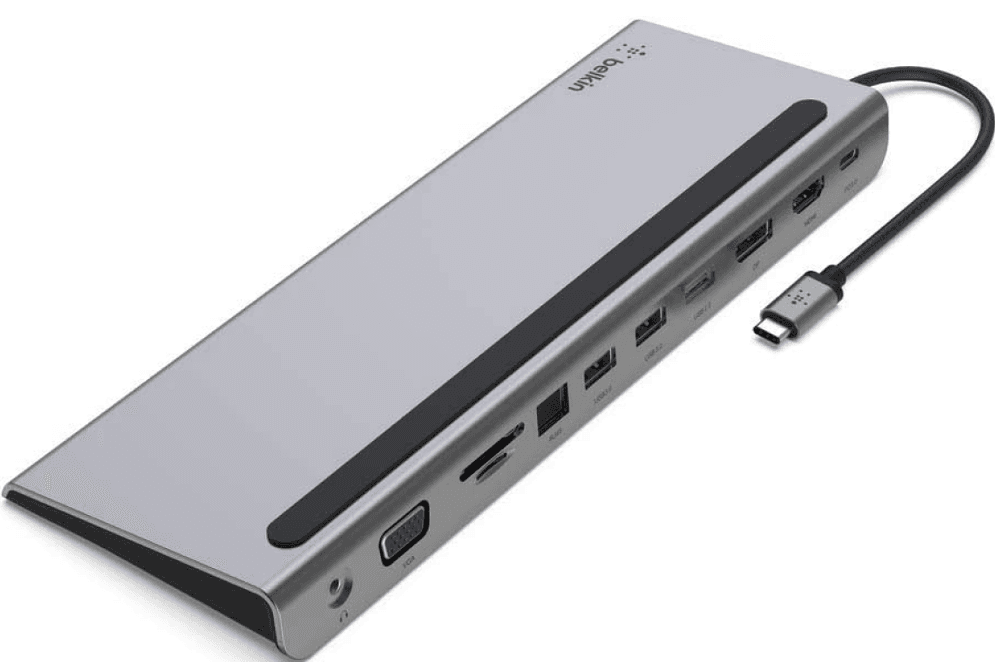
3. Belkin USB-C 11-in-1 Multiport Dock
A high-capacity USB-C dock ideal for hybrid employees who need extensive ports and dual-monitor support for their daily workflows.
| Key specifications | |
|---|---|
| Ports | HDMI, DisplayPort, Ethernet, USB-C, multiple USB-A, SD/microSD, audio |
| Power Delivery | Up to 100 W |
| Display support | Dual 4K (device-dependent) |
| Connectivity | USB-C |
| Approximate cost | From $120 |
What makes it stand out: Unlike smaller hubs, the 11-in-1 can anchor a complete workstation (dual monitors, wired peripherals, fast storage devices, and SD card workflows). It’s compatible with many different laptop models and delivers advanced functionality without the premium price tag of the Thunderbolt options.
Best for: Hybrid employees who maintain full workstation setups with dual monitors at home and in the office, including designers, analysts, software engineers, content creators, and operations teams.
Each role can have different equipment needs when it comes to their daily responsibilities. Find out how to choose IT equipment for any role.
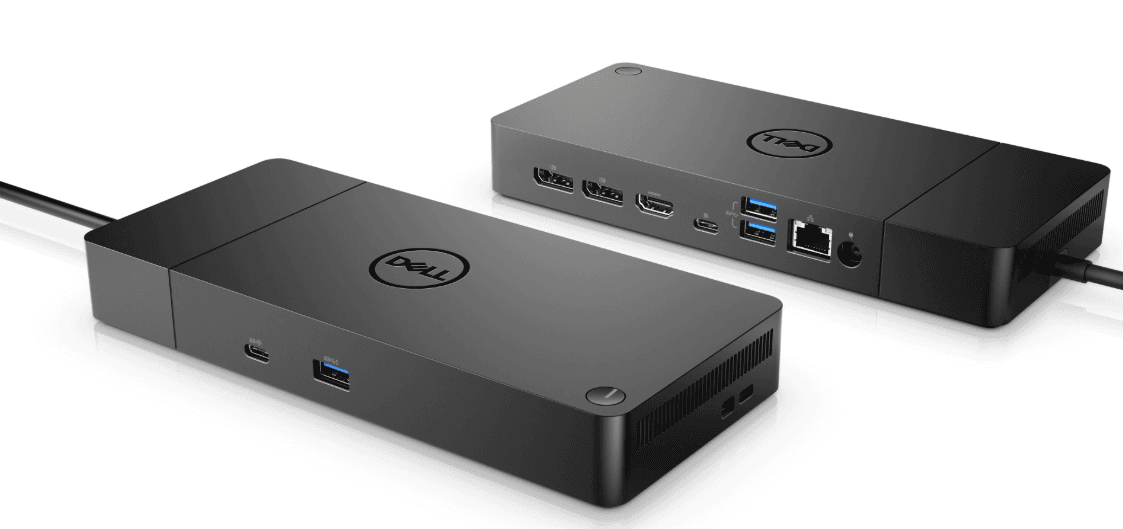
4. Dell WD19S Dock
A durable, high-performing dock that supports hybrid employees with reliable power, solid connectivity, and consistent dual-monitor capability.
| Key specifications | |
|---|---|
| Ports | Multiple USB-A/C, HDMI/DP, Ethernet, audio |
| Power Delivery | 90 W–130 W |
| Display support | Dual 4K or triple 1080p |
| Connectivity | USB-C |
| Approximate cost | From $200 |
What makes it stand out: The Dell WD19S offers consistently stable connections, dependable charging, and seamless dual-monitor performance, creating a smooth plug-and-work experience for hybrid employees.
Best for: Hybrid employees who rely on a dock built specifically for stable dual-monitor use and strong power delivery across shared or rotating desks (engineering, analytics, and business operations teams).
Need help choosing external monitors? Discover our recommendations in this guide to the best monitors for remote workers.
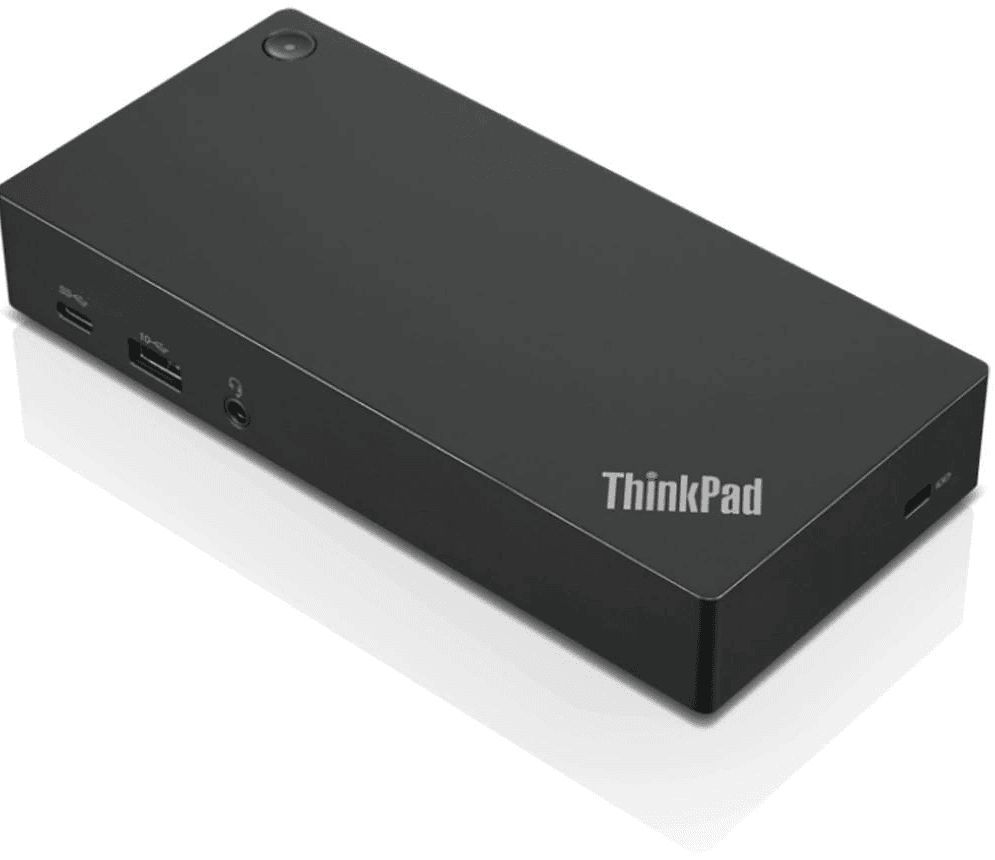
5. Lenovo ThinkPad Universal Thunderbolt 4 Smart Dock
A high-capacity Thunderbolt 4 dock designed for hybrid power users who depend on ultra-fast data transfer and multi-monitor performance.
| Key specifications | |
|---|---|
| Ports | Thunderbolt 4, USB-A/C, Ethernet, dual HDMI/DP options |
| Power Delivery | Up to 100 W |
| Display support | Single 8K or up to four 4K displays (device-dependent) |
| Connectivity | Thunderbolt 4 |
| Approximate cost | From $265 |
What makes it stand out: Among the most capable Thunderbolt 4 docks on the market, it combines ultra-fast connectivity with robust multi-display support and “smart” features that allow IT teams to push updates and manage docks remotely. This makes it ideal for hybrid teams running demanding or high-resolution applications.
Best for: Executives, engineers, developers, creatives, data analysts, and anyone who needs stable multi-display support, high-speed peripherals, and a seamless hybrid workstation experience.
If you're equipping hybrid or remote employees, you may also find these guides useful: Best Webcams for Remote Workers in 2026 and Best Laptops for Remote Workers in 2026.
Procure, ship, and manage equipment for hybrid teams with Deel IT
Deel IT simplifies equipment management for your hybrid teams, so you can equip employees with the right docking stations, monitors, and peripherals, no matter where they are. Consolidate procurement, shipping, device security, and lifecycle tracking into one global system, allowing you to set up new hires quickly and ensure current ones always have what they need to stay productive.
With Deel IT, companies unlock:
- Seamless global delivery: Ship laptops, docking stations, and peripherals to employees in 130+ countries, with customs, taxes, and local logistics fully handled
- Easy, scalable equipment selection: Choose equipment from a 240+ item catalog to match your organization’s performance, security, and budget requirements
- Centralized visibility: Track devices, warranties, and refresh cycles in one unified dashboard, ensuring clear oversight and fewer surprises
- Streamlined repairs and replacements: Manage repairs and replacements through our local partners, reducing downtime and keeping employees productive
- Secure, seamless offboarding: Easily retrieve, refurbish, or recycle docking stations and other IT equipment as employees offboard, ensuring assets stay secure and accounted for
- 24/7 global IT support: Always-on support to handle access issues, device problems, and security-related requests across time zones
Book a demo to discover how Deel IT can simplify equipment procurement and delivery for your hybrid workforce.
Deel IT

FAQs
Is there a downside to USB hubs?
USB hubs are convenient and affordable, but they do come with a few limitations. Because they split a single USB-C port across multiple devices, they typically offer less power delivery, slower data transfer speeds, and more restricted display support compared to full docking stations. This can lead to issues like reduced charging performance, limited ability to run multiple monitors, or occasional instability when too many high-power peripherals are connected at once. For light workflows, hubs work well, but hybrid employees who rely on multi-monitor setups, wired networks, or consistent desk configurations usually benefit more from a dedicated docking station.
What is the best setup for working from home?
The best work-from-home setup depends on an employee’s role and day-to-day responsibilities, but generally, it should create a comfortable and distraction-free environment that supports sustained productivity. At minimum, this includes a reliable laptop or desktop, complemented by accessories that enhance consistency and reduce friction, such as a docking station for dependable connectivity and one or two external monitors to improve focus and minimize context-switching. Pairing this with ergonomic essentials like a supportive chair, a height-adjustable desk, an external keyboard and mouse, and proper lighting helps reduce fatigue during long workdays and creates a workspace that feels both professional and sustainable.
Are docking stations bad for laptop batteries?
No. Modern laptops are designed to handle long periods of being plugged in, and their built-in power management systems prevent overcharging by switching to AC power once the battery is full. Using a docking station can actually help battery health by keeping temperatures stable and reducing frequent charge-and-discharge cycles. While any lithium-ion battery will slowly age over time, docking does accelerate that process, and many laptops even offer battery optimization settings that make long-term use while docked even more battery-friendly.
Is Thunderbolt 4 better than USB-C?
In general, yes, but the right choice depends on what you need. Thunderbolt 4 uses the same USB-C connector, but it supports faster data transfer, more powerful display options (like dual 4K or single 8K monitors), and more reliable daisy-chaining for multiple devices. It also guarantees higher minimum performance standards than regular USB-C. That said, USB-C is perfectly sufficient for everyday hybrid-work setups, and it’s generally more affordable and widely compatible. For power users, creators, engineers, or anyone running multi-monitor workstations, Thunderbolt 4 can increase speed and stability.
What docking station do I need for two monitors?
For two monitors, you’ll need a docking station that explicitly supports dual-display output. Look for a more capable dock such as the Belkin USB-C 11-in-1 Multiport Dock, which supports dual 4K displays on many devices, or an enterprise option like the Dell WD19S, which delivers dual 4K or triple 1080p setups and is widely used in hybrid offices.
Dr Kristine Lennie holds a PhD in Mathematical Biology and loves learning, research and content creation. She had written academic, creative and industry-related content and enjoys exploring new topics and ideas. She is passionate about helping create a truly global workforce, where employers and employees are not limited by borders to achieve success.


