
Article
15 min read
Best Monitors for Remote Workers in 2026
IT & device management

Author
Dr Kristine Lennie
Last Update
January 30, 2026

Key takeaways
- External monitors are one of the simplest yet most effective ways to improve employee productivity and well-being, helping people stay focused and comfortable throughout the workday.
- Selecting the right monitor means balancing employee needs, specs, and budget to maximize comfort, efficiency, and long-term ROI.
- Deel IT enables you to seamlessly procure, ship, manage, and retrieve IT equipment—including laptops, external monitors, and accessories—helping teams stay productive wherever they work.
High-performing remote and hybrid teams often juggle multiple tasks, complex workflows, and constant collaboration. But doing all of that on a single laptop screen can quickly become a barrier to focus and efficiency.
One simple, high-impact solution is the use of external monitors, which expand screen space and improve comfort for everyday work. For HR and People Ops teams, this introduces a new challenge—sourcing the right monitors for different roles and ensuring new hires have the right equipment ready on day one.
In 2026, that decision goes beyond aesthetics or screen size. Monitors now need to keep pace with growing demands in multitasking, data-heavy workflows, and AI-driven tools and graphics performance. This article highlights seven top monitors to consider in 2026, spanning a variety of price points, performance needs, and sizes.
Find out also about the top IT procurement challenges faced by employers and how to solve them.
What to prioritize when equipping remote teams with monitors in 2026
Providing remote employees with well-matched monitors can significantly improve comfort, productivity, and long-term ROI. A monitor’s specs matter more for some roles than others, but when an external display is needed, a thoughtful choice pays off. Here’s a checklist to help you prioritize the features that matter most:
| Criteria | Why it matters | Example options (and why) |
|---|---|---|
| Role-based needs | Different roles demand different display types and resolutions, and matching employee needs with the right equipment prevents overspending while improving comfort, productivity, and focus. | General staff: Most do not require an external monitor. However, for roles that involve extended screen time or detailed work, a 21–24″ Full HD display (e.g., Samsung Essential S3) can improve comfort and productivity. Designers, engineers, and developers: A 27″ FHD or 4K monitor (e.g., Acer V277, Dell U2723QE) provides extra workspace and color accuracy, ideal for coding, visual design, or technical analysis. Leaders and analytical roles: A 34″ curved display (e.g., Dell P3425WE) supports complex, multitask-heavy work such as managing dashboards, reviewing data, or coordinating across multiple tools and projects. |
| Size and ergonomics | Screen size and adjustability affect posture and eye strain. Ergonomic stands with tilt and swivel options help reduce fatigue and improve overall employee well-being. | 21–24″ models (Samsung LF24T350, Dell P2422H) suit compact desks and everyday workflows, while 27″ screens (Acer V277, Dell P2722H) provide more space for split-screen multitasking and comfortable viewing distance. Monitors with tilt, height, and swivel adjustability offer added flexibility and comfort for extended use. |
| Resolution and clarity | Sharper, higher-resolution displays make text, visuals, and graphics clearer, reducing eye strain and improving work accuracy. | Full HD (1080p) suits general productivity needs (e.g., Acer V277), while 4K (2160p) delivers the detail required for visual and creative roles (e.g., Dell U2723QE). |
| Connectivity and docking | USB-C hubs simplify setup and reduce desk clutter by handling power, data, and display through one cable. | USB-C hub monitors (Dell U2723QE) are ideal for employees who work at a fixed desk and need seamless docking and charging, while portable USB-C displays (ASUS ZenScreen MB16ACE) suit hybrid workers who move between locations and need extra screen space on the go. |
| Portability and flexibility | Portable monitors enable hybrid and traveling employees to maintain dual-screen productivity anywhere. | 15.6″ USB-C portable displays (ASUS ZenScreen MB16ACE) suit employees who travel or work across multiple locations, while compact, lightweight desktop monitors (e.g., Samsung Essential S3) support hybrid staff who move between home and office but do not require a fully mobile screen. |
| Color accuracy and panel type | Consistent color and wide viewing angles ensure accurate visuals for design, content, and data work. | IPS and LED panels (e.g., Dell U2723QE, Acer V277) deliver accurate color and wide viewing angles for creative and analytical roles, while standard TN or VA panels (e.g., Samsung Essential S3) offer an affordable choice for general office work. |
| Global availability and support | Consistent model availability ensures standardization across regions and simplifies warranty and replacement logistics. | Dell Premier, Samsung, and Acer all offer cross-region stock, replacements, and same-day business support. |
Read also: 6 IT Accessories for Boosting Employee Productivity
Best monitors for remote workers in 2026
Different teams have different setup needs and budgets, which affect what kind of equipment makes the biggest impact. Below, we’ve highlighted seven monitor options that meet a range of performance, ergonomic, and cost requirements for global teams.
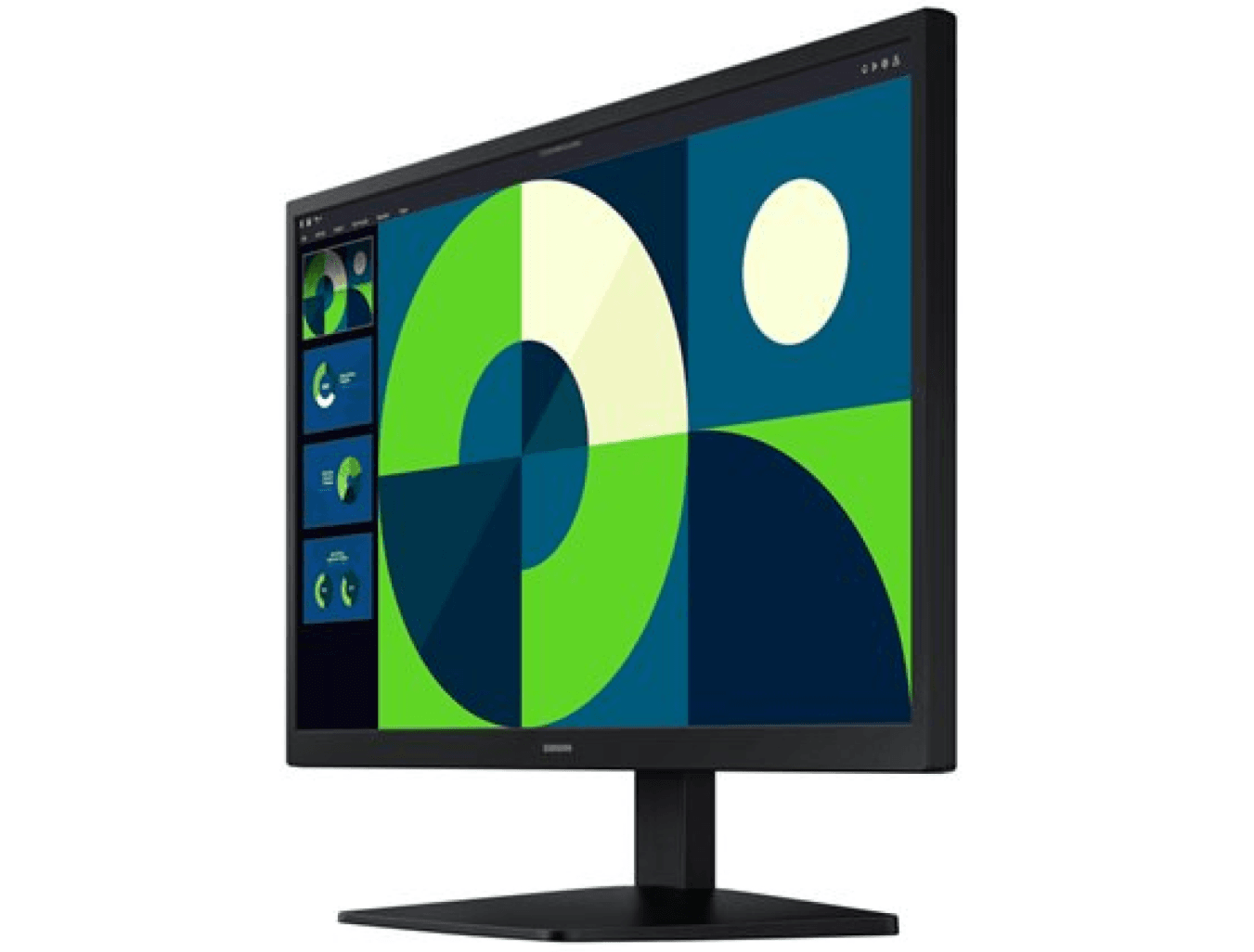
1. Samsung Essential S3 FHD 22″
A compact, budget-friendly monitor for teams that need some extra screen space without unnecessary features or added cost.
| Key specifications | |
|---|---|
| Display | 22″ Full HD (1920×1080) |
| Panel type | VA (LED-backlit) |
| Connectivity | HDMI, VGA |
| Adjustability | Tilt |
| Approximate cost | $57 |
What makes it stand out: An affordable and dependable option for scaling or growing teams that need to cover baseline equipment needs without overspending.
Best for: Suitable for most roles that benefit from a bit of extra screen space (e.g., administrative, support, and operations staff) but do not require high-end performance.
Setting up a new employee? Here are the top 6 IT essentials every new hire needs on day one.
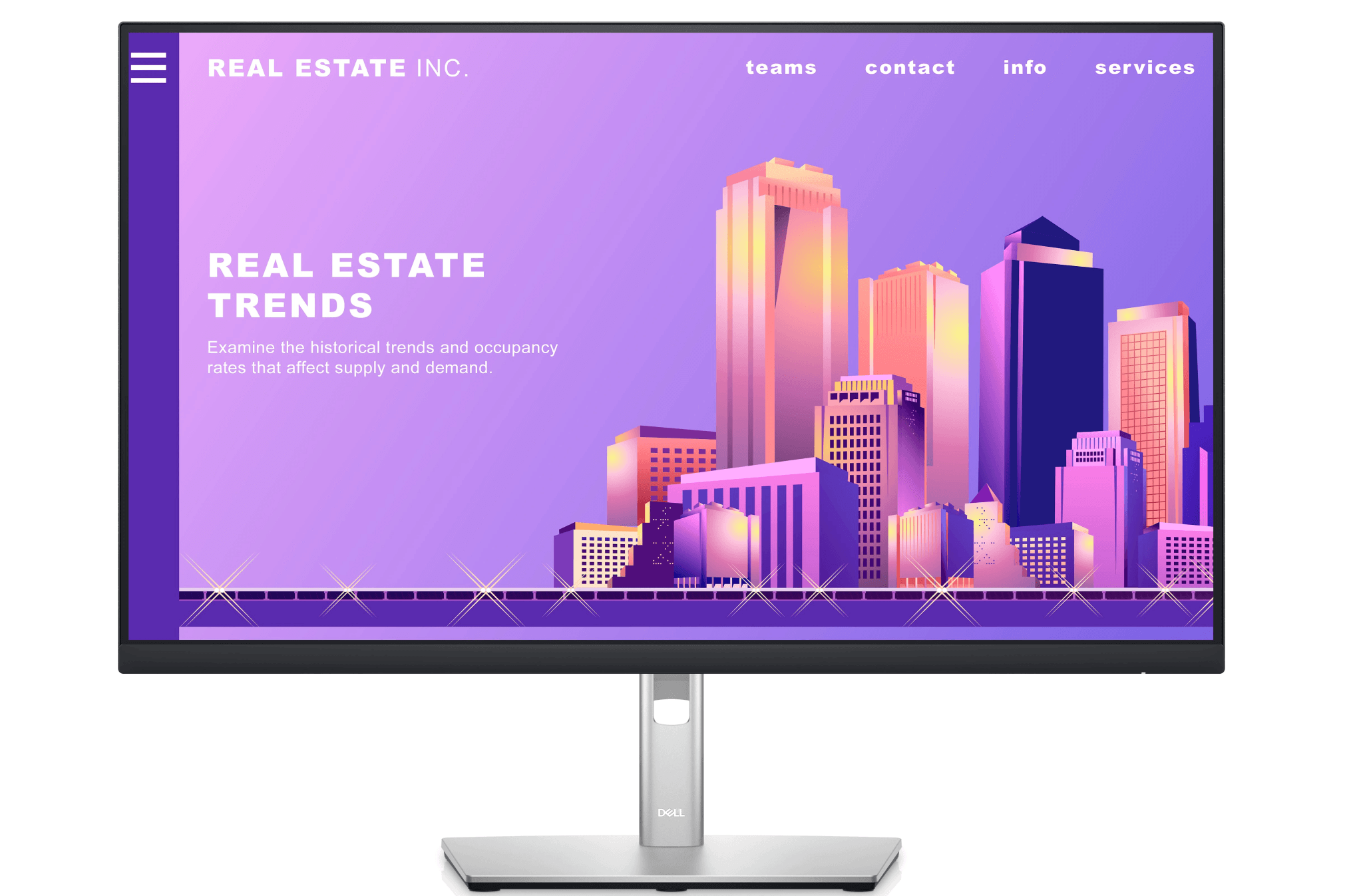
2. Dell P2722H (27″ Full HD)
A comfortable, medium-to-large 27″ monitor that supports long, focused work sessions with adjustable ergonomics and crisp Full HD resolution.
| Key specifications | |
|---|---|
| Display | 27″ Full HD (1920×1080) |
| Panel type | IPS |
| Connectivity | HDMI, DisplayPort, VGA |
| Adjustability | Height, tilt, swivel, pivot |
| Approximate cost | $230 |
What makes it stand out: A 27″ ergonomic monitor optimized for comfort and consistent image quality, designed to support everyday productivity, multitasking, and clear visuals throughout long workdays or video calls.
Best for: HR, finance, and operations professionals who spend much of the day across documents, dashboards, and video calls, and need a comfortable, reliable, ergonomic setup.
Find out how to choose IT equipment for any role.
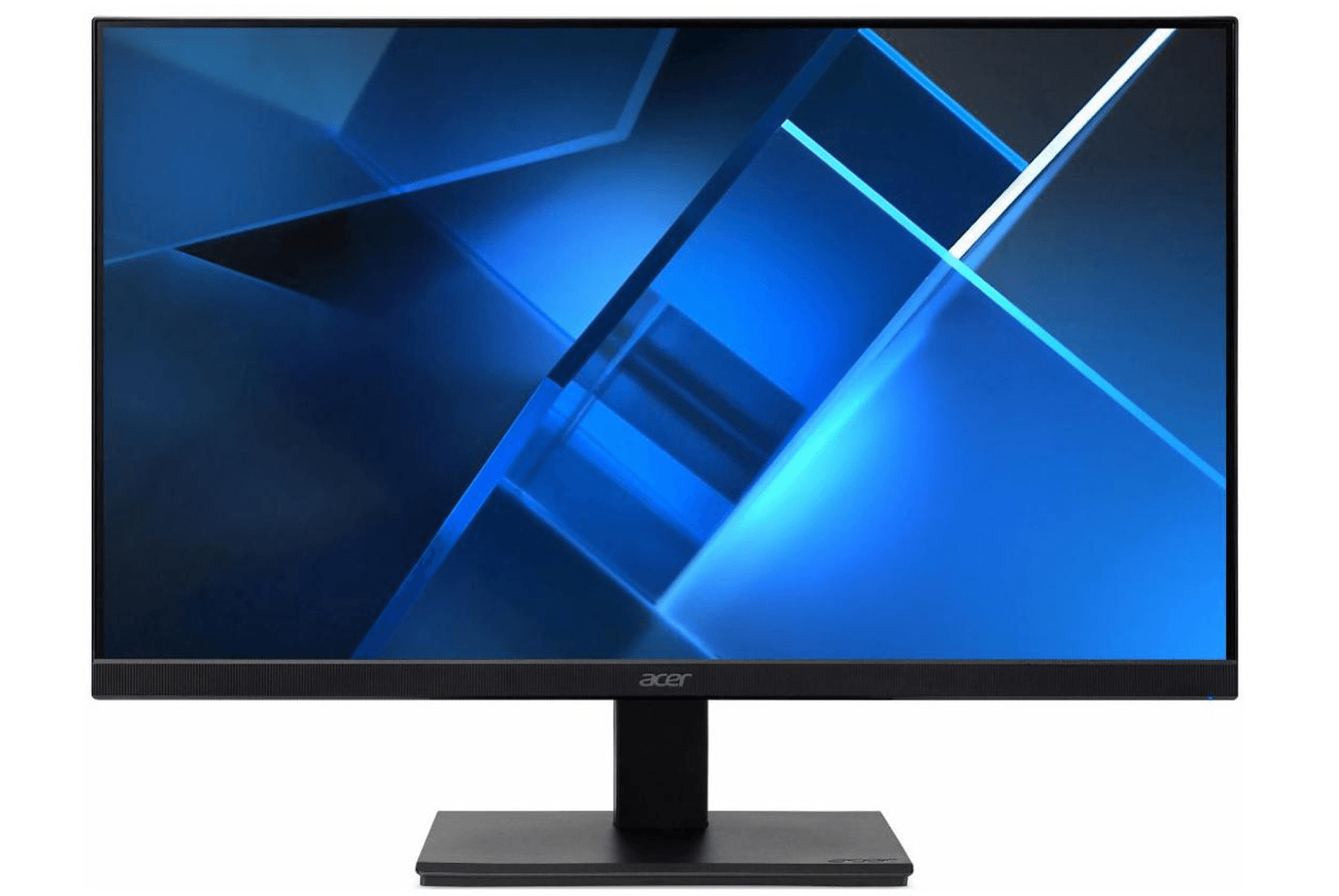
3. Acer V277 (27″ Full HD)
A cost-effective 27″ display that combines ample workspace with reliable everyday performance.
| Key specifications | |
|---|---|
| Display | 27″ Full HD (1920×1080) |
| Panel type | IPS |
| Connectivity | HDMI, VGA |
| Adjustability | Tilt |
| Approximate cost | $155 |
What makes it stand out: Combines a spacious 27″ display with clear Full HD visuals and a slim, modern design that fits easily into most workspaces. It’s an affordable way to boost productivity and comfort for teams that need more room to work without moving to higher-cost 4K models.
Best for: Marketing, operations, and project teams that juggle several tools or documents at once and benefit from a larger, comfortable workspace.
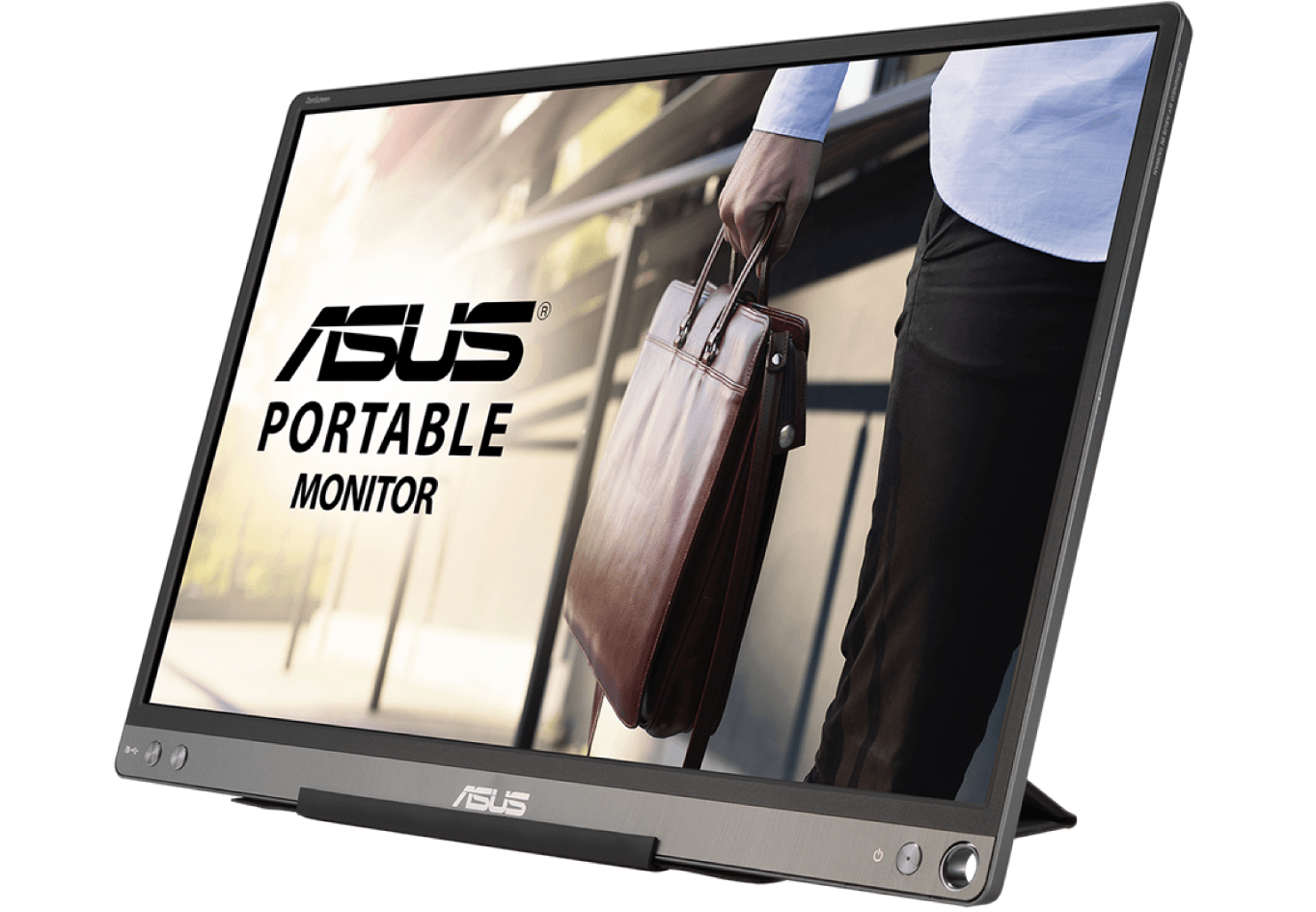
4. ASUS ZenScreen MB16ACE (15.6″ Portable USB-C)
A compact, lightweight, USB-C-powered display that extends screen space for laptops. Its portable design is especially practical for roles where flexibility and mobility are essential.
| Key specifications | |
|---|---|
| Display | 15.6″ Full HD (1920×1080) |
| Panel type | IPS |
| Connectivity | USB-C |
| Adjustability | Foldable smart case stand |
| Approximate cost | $234 |
What makes it stand out: A small screen that slips easily into a bag, making it ideal for employees who regularly move between locations and need extra workspace on the go. USB-C connectivity means it connects instantly with a single cable.
Best for: Field sales, consultants, customer success, and other client-facing professionals who benefit from extra screen space when working on the go.
See also: How to Create a Secure IT Policy for Hybrid Teams: A Complete Guide
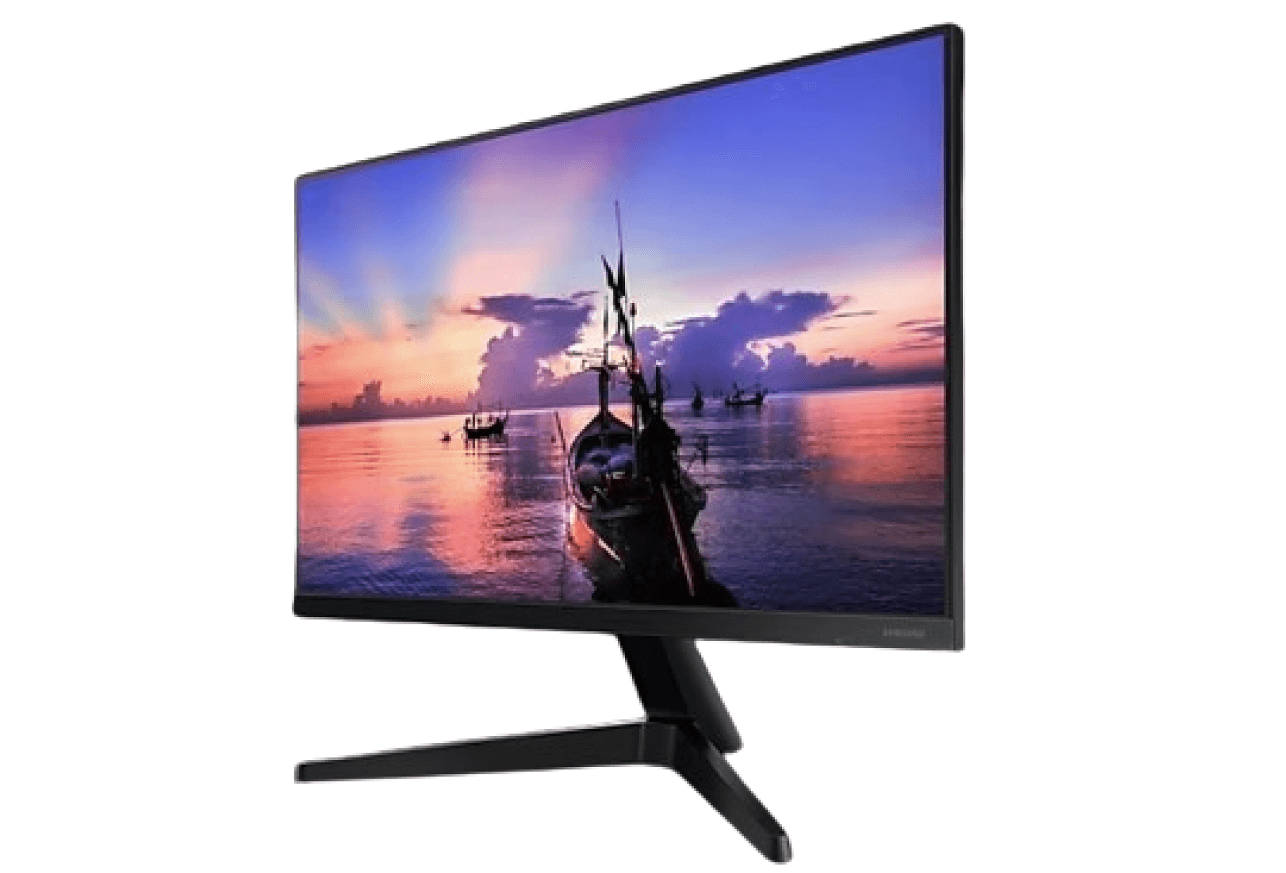
5. Samsung LF24T350 (24″ Full HD LED Monitor)
A small-to-medium 24″ monitor with a slim, modern design and features that support ease of use, suitable for everyday work at home, or hybrid setups.
| Key specifications | |
|---|---|
| Display | 24″ Full HD (1920×1080) |
| Panel type | IPS |
| Connectivity | HDMI, DisplayPort |
| Adjustability | Tilt |
| Approximate cost | $210 |
What makes it stand out: Combines sleek design, thin bezels, and eye-comfort features that help reduce strain during long workdays.
Best for: Remote professionals in HR, customer experience, or operations roles needing a dependable everyday monitor.
Also, find out about the top 17 remote work tools and software for a productive team.
6. Dell U2723QE (27″ UltraSharp 4K USB-C Hub)
A high-resolution 27″ display built for roles that demand precision and clarity, from design and engineering to data visualization.
| Key specifications | |
|---|---|
| Display | 27″ 4K (3840×2160) |
| Panel type | IPS Black |
| Connectivity | USB-C, HDMI, DisplayPort, Ethernet |
| Adjustability | Full ergonomic stand |
| Approximate cost | $580 |
What makes it stand out: Delivers sharp 4K resolution, exceptional color accuracy, and full ergonomic adjustability, giving teams the visual clarity and workspace needed for detailed, design-heavy, or analytical work.
Best for: Designers, engineers, and data specialists who need precise, reliable visuals.
Looking to streamline how you ship, deliver, and manage devices for remote teams? See: Equipment Provisioning for Remote and Global Teams Policy Template.
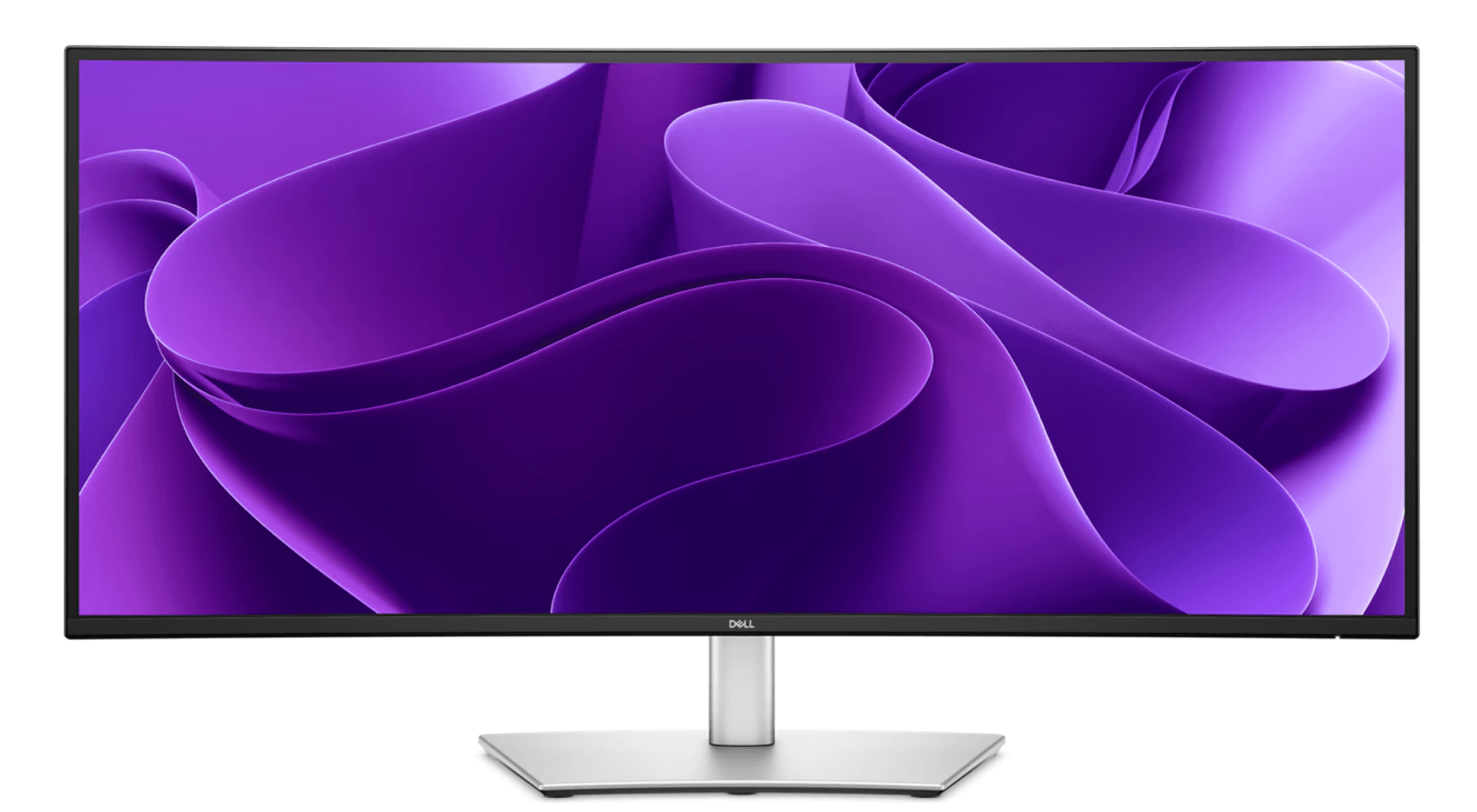
7. Dell P3425WE (34.1″ Curved USB-C)
A 34″ curved ultra-wide monitor that creates an immersive workspace for power users and data-heavy roles.
| Key specifications | |
|---|---|
| Display | 34.1″ WQHD Curved |
| Panel type | IPS |
| Connectivity | USB-C Hub, HDMI, DisplayPort |
| Adjustability | Tilt and height |
| Approximate cost | $673 |
What makes it stand out: With its large 34″ curved screen, this ultra-wide display keeps users focused by bringing key windows and tools into one natural viewing area. It’s built to enhance concentration and reduce strain during long, data-heavy work sessions.
Best for: Developers, designers, project managers, and analysts who work across multiple applications or dashboards and benefit from a wide, immersive workspace.
Manage and deliver the right monitors, anywhere, with Deel IT
Deel IT is your end-to-end solution for equipping global teams. Procure devices from our extensive catalog (including any of the top monitor choices above) and securely ship, track, manage, and retrieve them when needed, all from a single platform.
Here’s how Deel IT transforms your equipment management:
- Global delivery made easy: Ship laptops, monitors, and accessories directly to employees in 130+ countries, with customs, tax, and regional logistics fully handled
- Standardization at scale: Choose from 240+ pre-vetted, high-quality equipment models that align with your organization’s security, ergonomics, and performance standards
- Centralized visibility: Manage and monitor devices, warranties, and refresh cycles across all regions in one unified dashboard
- Seamless repairs and replacements: Resolve issues locally through Deel’s trusted partners, sending replacement equipment to reduce downtime and IT overhead
- Responsible offboarding: Retrieve, refurbish, or recycle monitors and other IT equipment sustainably
Book a demo to see how Deel IT helps you deliver high-quality, secure, and ergonomic work setups for your global workforce.
Deel IT

FAQs
Do portable monitors work with all laptops?
Most portable monitors work with modern laptops, but compatibility depends on the laptop’s ports. Models with USB-C (DisplayPort Alt Mode or Thunderbolt) connect with a single cable for power and video, while laptops that only have HDMI may need an adapter and a separate power connection.
To make sure employees can connect easily, HR and IT teams should check port types before ordering and, where possible, standardize on USB-C portable monitors for a simple, plug-and-play setup across the company.
Is a 27″ or 32″ monitor better for office work?
For most office work, a 27″ monitor is the better all-around choice. It provides ample screen space for documents, calls, and multitasking while fitting comfortably on standard desks.
A 32″ monitor works well for employees who rely on multiple windows or detailed visuals (such as designers, engineers, or data analysts). The added size improves multitasking but also demands more desk depth and comes with higher hardware and shipping costs, so it’s best reserved for roles that will make full use of the extra display.
For HR and IT teams standardizing equipment, 27″ monitors are easier to deploy globally and offer the best balance between comfort, clarity, and cost.
Does an external monitor improve productivity?
Yes, an external monitor generally improves productivity across most roles, not just for remote or hybrid employees. Laptops offer portability and convenience, but their smaller screens can limit efficiency during detailed or multitasking work. Adding an external monitor gives employees more room to work, helping them complete tasks faster and with fewer errors. Specific roles such as designers, engineers, analysts, and HR or operations professionals particularly benefit from the ability to view multiple applications or documents at once, reducing tab-switching and improving focus. A well-positioned monitor also helps reduce eye strain and supports better posture, making work more comfortable and sustainable over time.
Find out how to safely ship laptops and IT equipment internationally.
Do three monitors slow down a computer?
Yes, three monitors can slow down a computer if the hardware isn’t powerful enough. Running multiple displays increases demand on the graphics card, processor, and RAM. This is why, when choosing laptops for employees who need multi-screen setups, HR teams should look for devices with a dedicated GPU or newer integrated graphics, at least 16 GB of RAM, and multiple USB-C or HDMI ports to enable seamless performance and stable connections. For HR and IT teams, the key is to balance these specs with employee needs and cost: triple-monitor setups make sense for engineers, designers, or analysts, while most other roles perform well with one or two screens.
Dr Kristine Lennie holds a PhD in Mathematical Biology and loves learning, research and content creation. She had written academic, creative and industry-related content and enjoys exploring new topics and ideas. She is passionate about helping create a truly global workforce, where employers and employees are not limited by borders to achieve success.


