
Article
22 min read
Top 6 IT Essentials Every New Hire Needs on Day One
IT & device management

Author
Dr Kristine Lennie
Last Update
January 30, 2026

Table of Contents
1. Laptop
2. Power and adapters
3. Keyboard, mouse, and monitor
4. Headset and webcam
5. Connectivity and dongles
6. Security and device protection
Before shipping: what software, accounts, and access must be in place for new employees?
How to manage equipment logistics for a global workforce
Procure, track, secure, and manage IT equipment with Deel IT
Key takeaways
- Ensuring new hires have the right IT equipment on day one enables them to start contributing immediately, reduces costs and unnecessary IT tickets, and boosts the overall employee experience.
- IT equipment goes beyond a laptop: it also includes peripherals like a mouse and keyboard, plus tools that improve connectivity and security, depending on each employee’s needs.
- Deel IT streamlines the procurement and shipment of equipment in 130+ countries, allowing you to track devices, manage lifecycles, and maintain security from a single platform.
HR teams are often the ones coordinating the procurement, shipment, and setup of IT hardware and software for new hires, usually without the technical background to know exactly what’s needed. Without a clear list of must-have items for day one, it’s easy to miss something critical. The result is lost hours, disrupted onboarding, frustrated managers, and real costs from delays, extra IT tickets, and avoidable replacement purchases or shipping.
These challenges are even more pronounced with a distributed workforce that operates across multiple locations and time zones, where a late delivery, the wrong device, or a laptop that fails to meet role requirements can put someone days behind before they’ve even started.
Here, we will walk through the essential IT equipment every new hire should have on day one.
1. Laptop
The most essential item in any IT setup is the laptop, which sits at the center of modern workflows, collaboration, communication, and access to business tools.
Why it matters
Bring Your Own Device (BYOD) policies were once seen as a flexible, cost-saving way to get new hires up and running—especially in startups and smaller teams where people were happy to use their own laptops. While some companies still rely on BYOD today, it’s increasingly risky for distributed, scaling organizations to do so: it’s harder to secure, harder to support, and blurs the line between personal and company data.
Nowadays, the best strategy is to ensure every new hire receives a company laptop (leased or owned), rather than relying on BYOD. That allows:
- Stronger device security: With a company laptop, IT can ensure encryption is turned on, manage updates, control antivirus, and require multi-factor authentication (MFA), helping to protect your organization against a range of risks (including data breaches, unauthorized access, accidental exposure, and account takeovers)
- Access and permissions stay consistent: You decide which apps, data, and systems are available on employee devices, so individuals only get the access they need for their role, and it’s easy to adjust or revoke permissions when things change
- Streamlined IT support: IT can standardize device models and configurations, troubleshoot faster, and swap devices when something breaks, instead of trying to diagnose personal hardware with unknown setups and conflicting software
- Lower IT compliance risk: Sensitive data lives on managed devices with clear activity logs and access controls, which is critical for passing audits, meeting regulatory requirements, and reducing the likelihood of policy breaches
- Improved employee experience: Providing a dedicated, well-managed company laptop signals that you’re investing in your new hire’s success, giving them a reliable, properly maintained device and building trust and confidence from day one
Unsure whether to rent or buy equipment?
Read: Should You Lease or Buy IT Equipment? A Complete Cost-benefit Analysis
Learn also how Deel can support your leasing strategy with IT Equipment Leasing With Deel IT: Everything You Need to Know.
A brief guide to choosing the right laptop
To pick the right laptop for each new hire, start with a few key decisions:
Device type?
- Laptop (default): Use laptops as the standard for remote and hybrid roles so employees can work from home, the office, or while traveling (marketing, sales, HR, finance)
- Desktop (exception): Consider desktops only for fixed, office-based setups (e.g., home-based engineers and product managers) where mobility is not needed and the workstation is stable
Operating system?
- Mac: Standardize on Mac where your teams would benefit from macOS and its ecosystem (design and engineering teams, frequent travelers, or teams that prefer Apple hardware)
- Windows: Standardize on Windows for roles that primarily use business, finance, or HR tools (e.g., finance analysts, HR generalists, revenue operations)
When in doubt, decide based on your core software stack (design/engineering tools vs. Excel-heavy finance work, HRIS/ATS, CRM) and your internal IT expertise.
Standard spec recommendations?
- Standard business workloads (most non-technical roles): 8 GB RAM, 256–512 GB SSD, Intel i5 or equivalent mid-range processor (good for HR coordinators, junior sales reps, customer support associates, marketing assistants, writers, and general admin roles)
- Performance-intensive workloads (technical and tool-heavy roles): 16+ GB RAM, 512 GB SSD, Intel i7 or equivalent higher-end processor (good for software engineers, data analysts, designers, and product managers)
Price ranges (approximate):
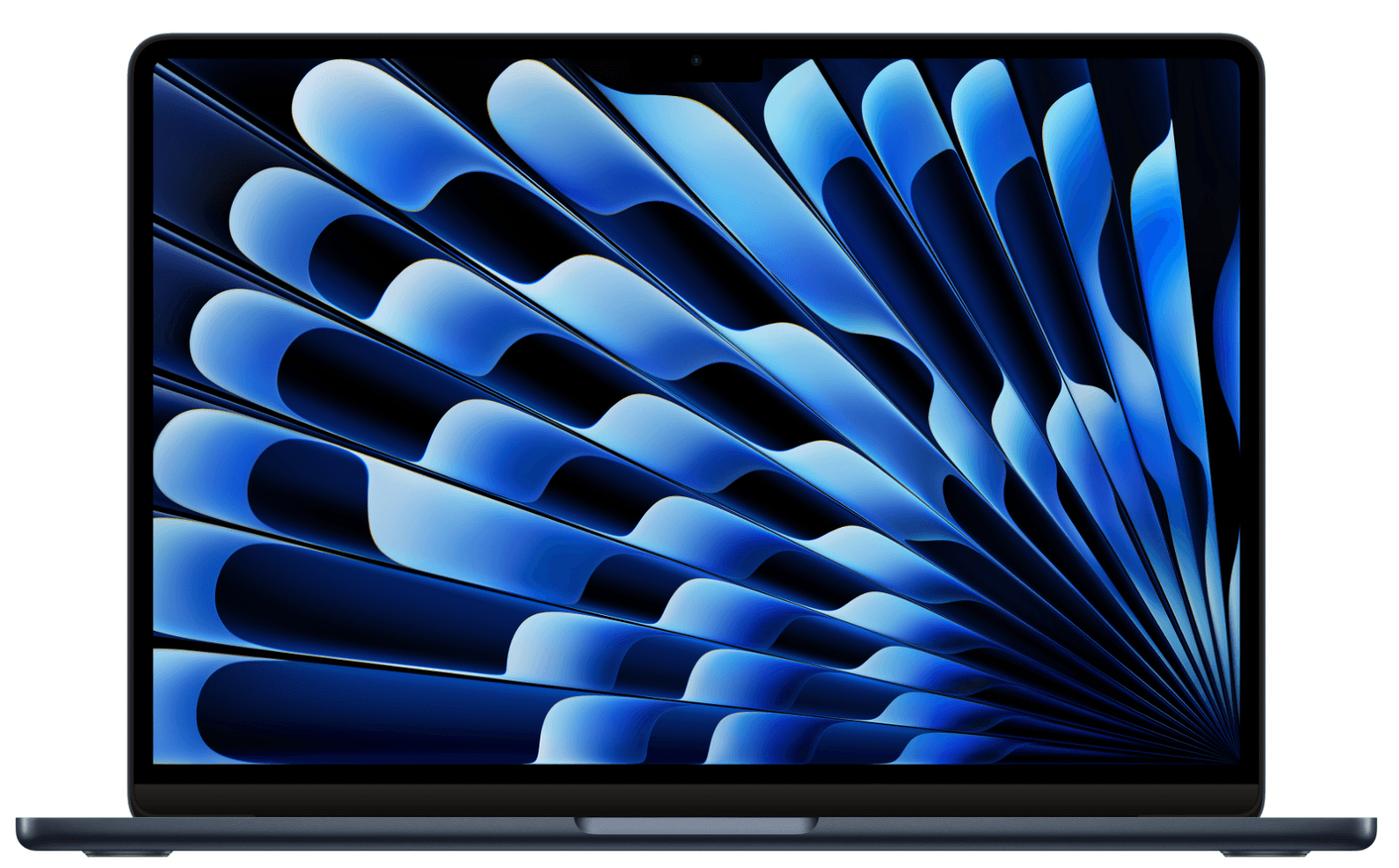
- Laptops for standard business workloads (most non-technical roles): Apple MacBook Air 13.6", M4 16GB 256GB ($1000), HP Elitebook 640 G11 14”, Ultra 5 16GB 512GB ($1,200)
- Laptops for performance-intensive workloads (technical and tool-heavy roles): Apple MacBook Pro 14.2", 14C 32C M4 Max 36GB 1TB ($3,200), Dell Pro 14 Plus 14", Ultra 7 32GB 1TB ($1,800)
Pro tip: When in doubt, go with the mid-tier option. Underpowered devices create daily frustration and a steady stream of IT tickets later.
2. Power and adapters
To set up new hires for success, you will also need to ensure they receive the right power adapter and any region-specific plugs alongside their laptop.
Why it matters
Both in-office and remote employees rely on their devices staying charged throughout the workday. This is why it’s so important for new hires to receive power adapters and chargers that work correctly. This is especially true in a distributed workforce across different countries and time zones, where power standards and adapters vary by location. A missing or incorrect charger can leave a new hire unable to plug in, charge their device, or connect their usual peripherals, hurting productivity from the very start. A clear, standardized approach to power accessories (for example, defining standard charger and adapter bundles by region) significantly reduces IT tickets and onboarding friction.
What you should include
When equipping new hires, follow these best practices:
- Ship every laptop with the original charger plus region-appropriate power cable (US/EU/UK/AU)
- Provide a spare power adapter or cable for roles that travel frequently (e.g., account executives, regional managers, sales reps) since they are more likely to forget, lose, or need chargers in multiple locations
- Include a USB-C hub or dock by default if your standard laptops have limited ports and users routinely plug in multiple peripherals (monitors, mouse, keyboard)
- Choose a set of approved chargers and adapters that IT manages centrally, so replacements are easy to order and track
Equipment examples
Here are some examples of common power accessories and approximate price ranges:
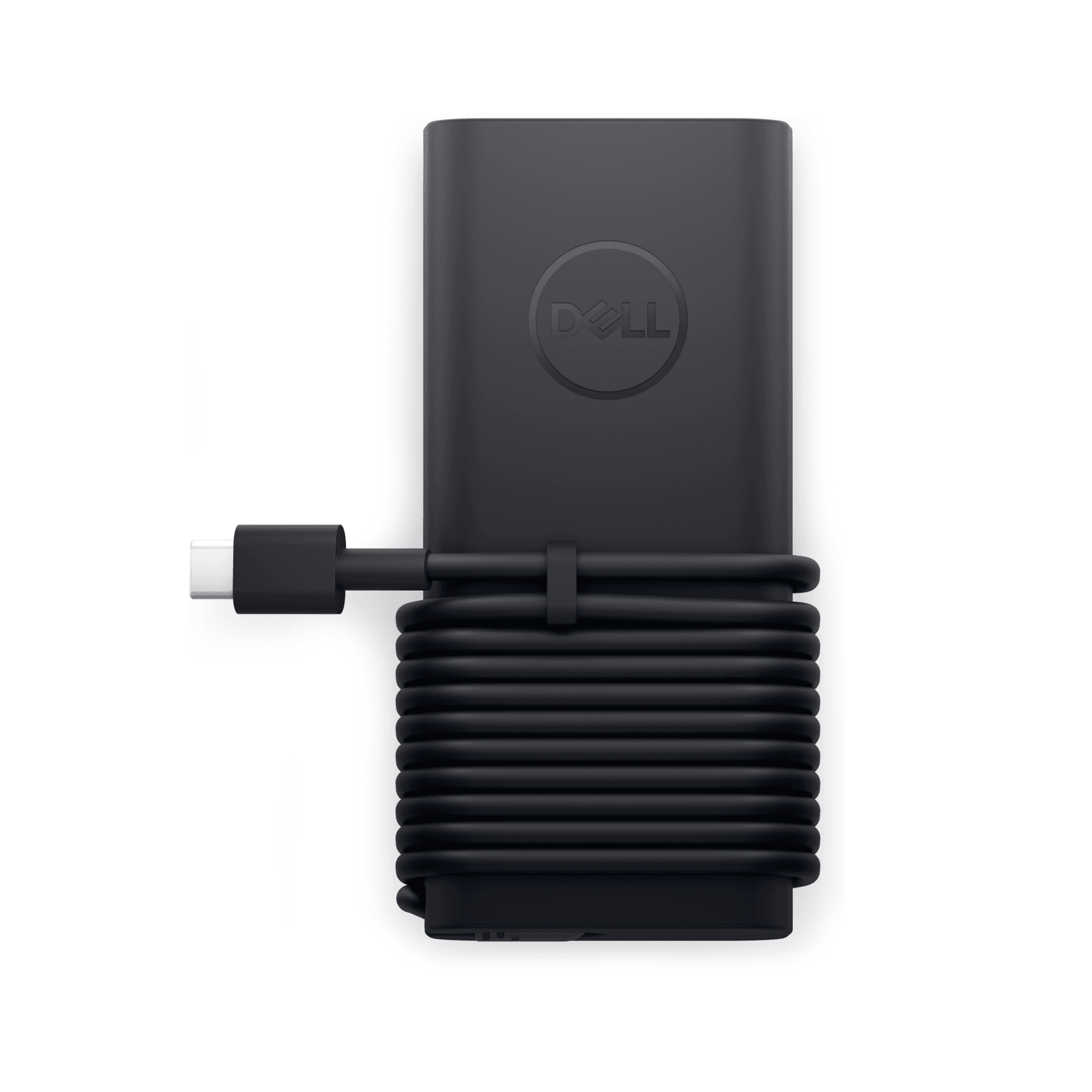
- Laptop chargers (manufacturer original, 60–100 W): Dell USB-C 65W AC Adapter ($65), Lenovo ThinkPad 65W USB-C Slim AC Adapter ($74)
- Regional power cables/plugs (US, EU, UK, AU): Universal Power Cord ($7), USB-C to HDMI 4K Cable ($20)
- USB-C hub/basic dock (3–7 ports: HDMI, USB-A, Ethernet, SD): Microsoft Surface Dock ($200), Lenovo ThinkPad Universal USB-C Dock ($265)
3. Keyboard, mouse, and monitor
Ensuring new hires have the right laptop and power setup is essential. However, for many roles, productivity also depends on peripherals like monitors, keyboards, mice, and headsets.
Why it matters
Providing employees with the right tools to comfortably and efficiently perform their tasks has a direct impact on their productivity and employee satisfaction. Here are some of the key peripherals that you might want to include in a new starter's IT equipment kit and why they matter:
- Keyboard: An ergonomic keyboard can significantly improve comfort and reduce strain for roles that involve heavy typing (e.g., writers, support agents, engineers, coordinators)
- Mouse: A well-designed mouse helps reduce strain and fatigue for people who click and scroll all day, especially in roles that rely on precision or constant navigation (e.g., customer support agents, designers, data analysts, engineers, and sales or account managers)
- Stylus/digital pen: A stylus can be invaluable for roles that sketch, annotate, or review visual work on screen (e.g., product designers, UX researchers, product managers)
- Monitor: An external monitor that lets employees keep documents, dashboards, and tools open side by side can greatly improve speed, productivity, and comfort for roles that juggle multiple tools and sources (e.g., programmers, analysts, designers, and product managers)
What you should include
Here are some practical rules of thumb when it comes to supplementing new hires with additional peripherals:
- Any role that spends most of the day on a computer should get an external keyboard and mouse or trackpad (e.g., people ops managers, engineers, analysts)
- Provide at least one external monitor (24–27") as standard for computer-based roles, and make dual monitors the default for data-heavy or multi-tool roles (e.g., software engineers, designers, finance analysts, product owners)
- Standardize on a set of approved models for keyboards, mice, and monitors to simplify global support, purchasing, and replacements
Equipment examples
Here are some examples of common peripherals you may want to procure and approximate costs:
- Monitors (24–27", 1080p or higher): Dell P2425H 24", Full HD Monitor ($185), Samsung Essential S3 FHD 22" ($60)
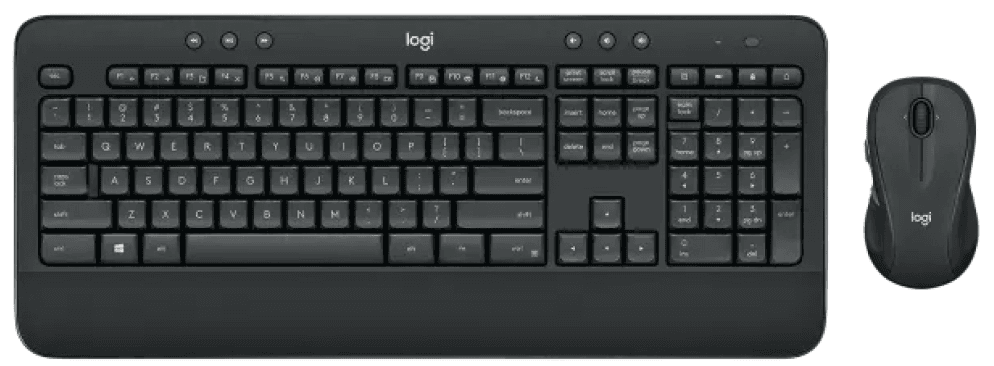
- Keyboard and mouse (wireless, standard, or ergonomic): Logitech MK545 Advanced Wireless Keyboard and Mouse Combo ($60), Apple Magic Keyboard with Touch ID and Numeric Keypad ($180)
- Stylus/digital pen: Apple Pencil Pro ($130), Apple Pencil (1st Generation) ($100)
Find out how to choose IT equipment for any role.
4. Headset and webcam
For collaboration-heavy and client-facing roles, a quality headset with a microphone and a reliable webcam are essential parts of the standard IT kit.
Why it matters
With remote and hybrid work now the norm, many teams rely on video and voice calls for their day-to-day responsibilities. Some roles are especially communication-heavy (such as sales, customer success, support, and demo-focused product roles) and spend a large part of the day on calls. Poor audio or video quality can lead to lost time, reduced effectiveness, misunderstandings, and general frustration. For customer-facing teams in particular, it can directly impact deals, renewal conversations, and how customers perceive your company’s professionalism and brand.
What you should include
Here are some practical guidelines to shape your headset and webcam strategy for a new starter:
- Add an HD external webcam when laptop cameras are low quality or for highly client-facing roles (e.g., enterprise account executives, implementation consultants, partnership managers).
- Treat high-quality audio as a must-have for roles that spend much of their day on calls (sales, support, recruiting, team leads)
- Consider providing a noise-canceling headset with a microphone to every remote new hire, so calls are clear from day one
- Include simple “test your setup” instructions so new hires can check audio and video before their first candidate interview, client call, or team standup
Equipment examples
Here are some examples of common collaboration peripherals and approximate price ranges:
- Headset with microphone (over-ear/on-ear, basic noise cancellation, all-day comfort): Plantronics Blackwire 5220 ($110) or Poly (Plantronics) Voyager 4320 USB-A Wireless Headset ($179)
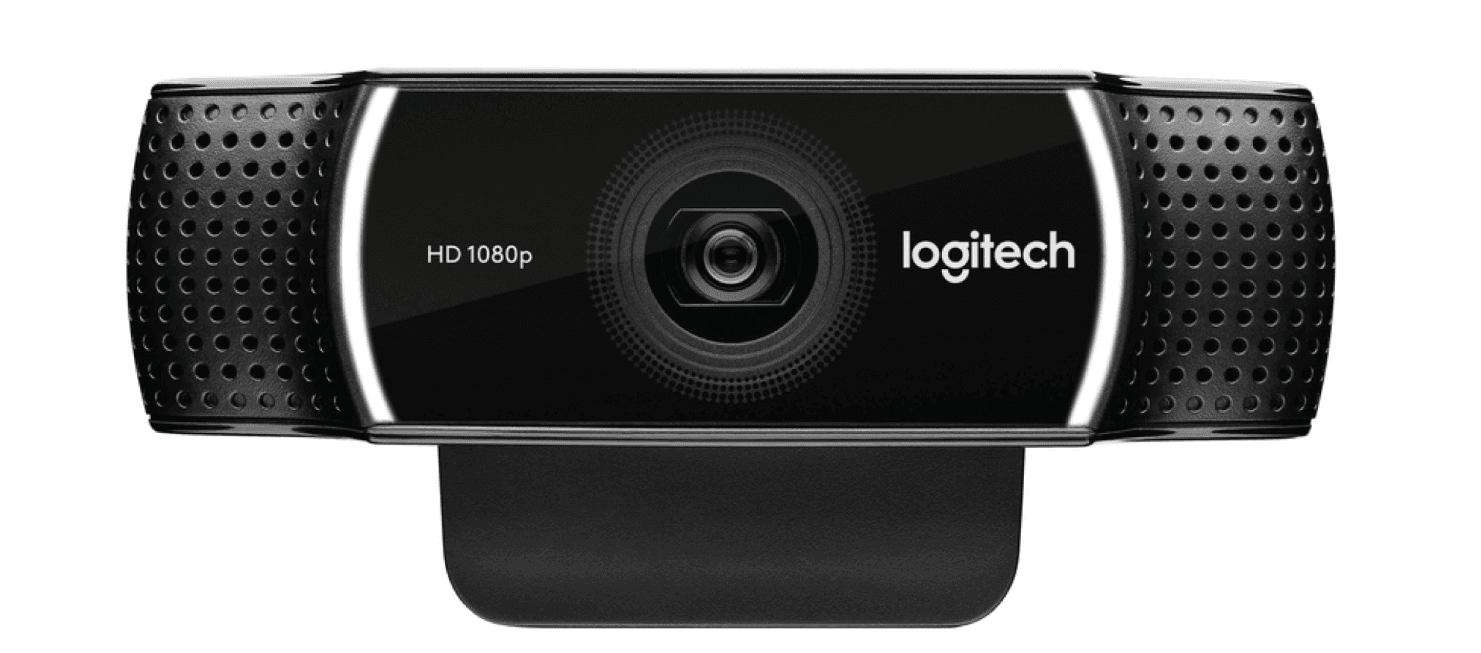
- Webcam (if laptop camera is insufficient, 1080p, simple USB plug-and-play): Logitech C922 Pro HD Stream Webcam ($180), Dell WB3023 2K QHD webcam ($88)
5. Connectivity and dongles
When planning IT equipment for new hires, you should treat connectivity as a core part of the setup. That includes making sure they have the right adapters and dongles to connect to networks, external monitors, and other peripherals.
Why it matters
The majority of modern work, whether remote or office-based, relies heavily on fast and reliable connectivity. Without it, workflows are disrupted, collaboration breaks down, and client or stakeholder meetings can be derailed. Over time, this can translate into lost productivity, missed opportunities, and even delayed or lost deals. Missing or incorrect dongles can also disrupt work, leaving new hires unable to plug in, connect to displays, access reliable internet, or use key tools.
What you should include
Here are some practical ways to make sure new hires have the connectivity they need from day one:
- Set and communicate a minimum internet standard for remote hires (e.g., 25–50 Mbps download speed), and ask them to confirm their home connection meets it
- Provide Wi-Fi extenders or mesh devices when employees’ workspaces have weak connectivity or are far from the router
- Include dongles and adapters (USB-C to HDMI, USB-C to USB-A, Ethernet adapters) where laptops lack the necessary ports
- Offer mobile hotspots or data plans for roles with unreliable home internet or frequent travel (e.g., field sales, regional managers, implementation consultants)
Equipment examples
Here are some examples of common connectivity accessories:
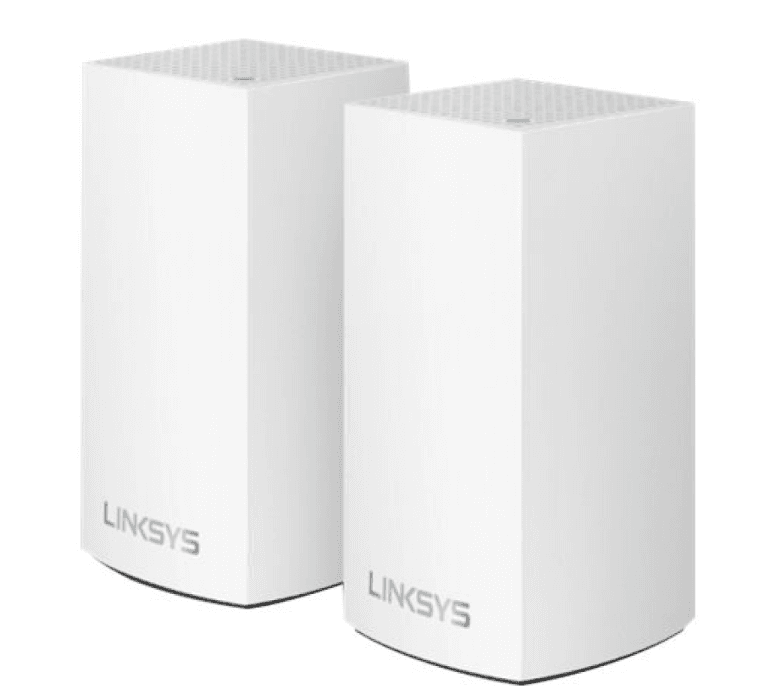
- Wi-Fi extender/mesh node: Netgear EX3700 Dual-band WiFi Range Extender ($50), Linksys Velop Dual-Band Intelligent Mesh WiFi 5 System ($170)
- Adapters/dongles (USB-C to HDMI, USB-C to USB-A, Ethernet adapters): YubiKey 5C NFC ($55)
- Mobile hotspot/MiFi device: Typically $80–$200, plus a monthly data plan
6. Security and device protection
Your device strategy should cover not just what equipment you buy, but also how you protect it: both digitally and physically.
Why it matters
Distributed and hybrid teams mean devices (and data) are everywhere: homes, co-working spaces, airports, and cafés. This increases the likelihood of lost or stolen devices, unauthorized access, and exposure of sensitive information. These risks are especially serious for teams handling payroll, HR, and finance data. Device theft can also disrupt day-to-day work, particularly for frequent travelers. Failing to put basic protections in place can lead to costly incidents, regulatory problems, and damage to employee trust. Ensuring strong security protections means people can work flexibly from wherever they are, without exposing the company to unnecessary risk.
What you should include
Here are some of the key measures you can put in place to help protect devices and data:
- All laptops must be encrypted, password-protected, and enrolled in device management before they leave IT or your vendor
- Enable multi-factor authentication (MFA) on all critical systems, especially for admins, finance teams, HR, and IT
- Provide hardware security keys (FIDO/U2F) for high-risk roles such as IT admins, payroll, and finance teams, in HRIS/CRM/payroll systems
- IT must be able to remotely lock or wipe devices in case of loss, theft, or offboarding
- Use basic physical protections where appropriate (privacy screens for people working with sensitive data in public spaces and cable locks for shared or high-traffic environments)
Examples of physical security add-ons
Here are some examples of common physical security add-ons and approximate costs:
- Laptop privacy screen: Typically $30–$50, and reduces visual hacking risk in public or shared spaces, and is especially useful for traveling executives, HR business partners, etc
- Cable lock: Typically $20–$40, and serves as a basic deterrent against casual theft for employees working from shared offices, co-working spaces, or hot desks
Read also: A Lost Laptop Is an Inconvenience, a Stolen Identity Is a Catastrophe
Before shipping: what software, accounts, and access must be in place for new employees?
Before you ship any IT equipment to a new hire, make sure it’s use-ready on arrival, with the right software, accounts, access, and security settings already in place.
Why it matters
IT equipment (particularly laptops) without the appropriate software and access is not truly usable, even if it arrives on time. When new hires spend their first day installing applications and requesting logins, you lose momentum, reduce productivity, and weaken confidence in the onboarding process. Ensuring software is preinstalled and access is preprovisioned helps minimize IT tickets, configuration errors, and security risks.
What you should include
Before shipping a new hire their IT kit, make sure you’ve covered the following:
- OS and security: Ship devices with a standard, supported OS version (company-approved macOS/Windows), and manage OS updates, patches, and security policies centrally through your Mobile Device Management (MDM) or endpoint management solution
- Device protection: Ensure full-disk encryption, firewall, and automatic screen lock are enabled and correctly configured
- Core productivity and collaboration tools: Preinstall the essential tools your new hire will use from day one (email, calendar, document suite, password manager, etc.), and standardize your primary chat and video platforms
- Role-specific tools and permissions: Preassign or preinstall critical role-specific applications and set the right permission levels (e.g., admin, manager, regular user) before the start date
- Accounts and access: Configure SSO, RBAC, and core accounts (email and key apps), and test that the new hire can sign in everywhere they need to on day one
Pro tip: Use role or department templates so IT can apply the right app bundle automatically based on job title/team.
See also: 4 Reasons to Use Zero Touch Deployment to Supply Devices to Remote Workers
How to manage equipment logistics for a global workforce
Your new hire's IT kit is ready. The next step is making sure equipment is shipped and tracked in a consistent, reliable way, no matter where your new hires are based. Here are some key considerations to keep in mind when managing global IT equipment logistics:
Centralized process
Manage equipment logistics through a single, centralized process, rather than leaving it to individual managers or ad-hoc local decisions. A central approach makes it clear who is responsible and how equipment should be handled at each step. It typically includes:
- Coordinated ordering, configuration, and shipping managed by IT or a central operations team
- Shipping equipment directly to the new hire’s home or primary work location, with tracking details shared in advance
- Defined internal timelines for ordering and shipping so devices consistently arrive before or on day one
Ship devices as close to the employee as possible
When you hire globally, sending every laptop from your main office to your new hires quickly becomes slow and expensive. Instead, it’s best practice to aim to:
- Avoid shipping all devices from a single headquarters location to employees worldwide, as this often leads to delays, customs issues, and extra fees
- Whenever possible, buy and ship devices from within the employee’s country or region to shorten delivery times and reduce costs
Pro tip: Consider using a reliable global IT asset partner like Deel that can manage procurement, shipping, and tracking across regions, so your team still has a single source of truth for all devices.
Read: How to Safely Ship Laptops and IT Equipment Internationally
Standard packaging and instructions
A consistent unboxing experience helps new hires get started confidently without extra IT hand-holding. To support this:
- Include a simple “start here” guide in every box with login steps, Wi-Fi setup, and support contact details
- Add clear return and offboarding instructions so equipment recovery expectations are set from day one
Asset tracking
Tracking your devices is essential for security and optimization. Every device should be visible and attributable at any given point. To do this:
- Log every device in an asset management system and assign it to a specific employee and location
- Track serial numbers, specifications, and status (in use, spare, in repair, returned)
- Use this data when employees change roles, relocate, or leave, so assets are redeployed efficiently and nothing goes missing
Procure, track, secure, and manage IT equipment with Deel IT
Deel IT simplifies IT setup for new starters, turning device procurement and provisioning into a seamless, transparent, and hassle-free process. Choose from 240+ equipment options in our extensive catalog, configure devices, and ship them worldwide from a single platform, eliminating the need to juggle multiple vendors and manual processes.
With Deel IT, you gain:
- End-to-end IT procurement automation: Procure, configure, track, and manage IT assets seamlessly, from order to delivery and eventual recovery
- Global shipping to 130+ countries: Deliver pre-configured equipment safely and securely to employees worldwide from a single platform
- Automated lifecycle tracking and visibility: Monitor assets from deployment through refresh and return, always knowing where devices are, who they’re assigned to
- Secure offboarding and remote device control: Remotely lock and wipe devices, and trigger retrieval workflows during employee offboarding or when equipment is lost or stolen
- Flexible financing options: Lease or buy devices to align with your IT and HR budgets
- 24/7 global IT support: Always-on support across time zones to resolve device, access, and operational issues quickly
Book a demo to find out how Deel IT simplifies device management and setup for your global workforce.
Deel IT

FAQs
What should be in an onboarding kit for new employees?
An onboarding kit for new employees should include a pre-configured laptop and all essential peripherals. This typically covers power cables, adapters, keyboard, mouse, headset, webcam, and any required connectivity devices.
What are the 5 pillars of onboarding?
The 5 pillars of onboarding are:
- Pre-boarding: Getting everything ready before the new hire's first day of work (contracts, system access, laptop, welcome emails)
- Orientation: Helping them understand the company structure, goals, and key policies
- Role clarity and training: Explaining their responsibilities, success metrics, and tools, and providing them with the training to do the job
- Social integration: Introducing them to their team, buddy/mentor, and key stakeholders so they feel included and connected
- Ongoing support & feedback: Ensure regular check-ins, reviews, and guidance during the first months to answer questions and support their growth
What happens on the first day of onboarding?
On the first day of onboarding, the focus is on getting the basics set up and helping the new hire feel welcomed and oriented. Typically, this includes:
- Welcome and introductions: Meet the manager, team, and assigned buddy/mentor
- HR and admin basics: Verify documents, review key policies, payroll/benefits overview.
- IT setup: Receive pre-configured laptop, essential peripherals, logins, MFA, and access to core tools
- Company overview: Short intro to the company’s mission, values, structure, and working style
- Role overview: Review their responsibilities, priorities for the first weeks, and the 30-60-90 day plan
What is a 30-60-90-day onboarding plan?
A 30-60-90 day onboarding plan is a structured roadmap for a new hire’s first three months, breaking the process into clear phases:
- First 30 days (Learn): Focus on understanding the company, tools, processes, and their role. Lots of training, shadowing, and asking questions
- Days 31–60 (Contribute): Start taking ownership of defined tasks, working more independently, and applying what they’ve learned with support
- Days 61–90 (Own and Improve): Fully own key responsibilities, deliver measurable results, and begin suggesting improvements or taking on more complex projects
Dr Kristine Lennie holds a PhD in Mathematical Biology and loves learning, research and content creation. She had written academic, creative and industry-related content and enjoys exploring new topics and ideas. She is passionate about helping create a truly global workforce, where employers and employees are not limited by borders to achieve success.


