
Article
30 min read
6 IT Accessories for Boosting Employee Productivity

Author
Dr Kristine Lennie
Last Update
November 19, 2025

Table of Contents
How IT accessories drive productivity
Headsets: Clear audio for focus and professional calls
Monitors: More screen space, fewer mistakes
Docking stations: One cable, no chaos
Keyboards: Comfort and accuracy
Mice and trackpads: Precision tools for everyday navigation
Webcams: Professional presence from any location
How Deel IT helps you streamline device and accessory management
Key takeaways
- HR teams are responsible for ensuring employees have the right IT equipment on day one so they can get started quickly and avoid delays.
- Investing in the right accessories drives productivity, helps employees work more efficiently, and enhances overall satisfaction.
- With Deel IT, you can choose from 240+ equipment options and handle everything—from shipping and tracking to managing and retrieving devices—through one platform.
When employees lack the right equipment to optimize their workflows, mitigate fatigue, or communicate clearly, productivity suffers. IT is flooded with repetitive tickets, and HR and People Ops are forced to deal with mounting complaints and frustration. This incurs costs in the form of lost time, lower engagement, and avoidable turnover.
The good news? A targeted investment in the right IT accessories (headsets, monitors, docking stations, keyboards, mice, and webcams) can turn all of this around. The challenge is knowing where to start: which accessories actually move the needle, which specs matter, and which brands are worth the budget.
This guide unpacks which IT accessories deliver real productivity gains, and how to match them to the roles that need them most.
How IT accessories drive productivity
The right IT accessories can make a substantial impact on productivity. Here are some of the key benefits they deliver:
- Faster workflows: Tools that expand screen space or improve precision and accuracy make multitasking easier, reduce mistakes, and accelerate complex work
- Ergonomics, comfort, and long-term health: Ergonomic IT accessories improve working setups by reducing strain on hands, wrists, shoulders, and eyes, lowering the risk of repetitive strain injuries, so employees can stay in deep focus longer
- Communication quality: High-quality communication tools reduce misunderstandings, improve clarity, and keep meetings running smoothly, so conversations stay focused and productive
- Reduced meeting fatigue: Meetings are more streamlined and less draining, with less time spent troubleshooting and more time focused on discussion and decision-making
- Professional presence and customer experience: Top-quality equipment, clear sound, and sharp video create a more professional presence in interviews, sales calls, and customer support, directly influencing conversion rates and customer satisfaction
- Mobility and hybrid work: Accessories that boost mobile-friendly setups make it easy for employees to move between locations, keeping productivity high wherever they work
- Lower IT overhead: Standardizing a set of approved IT accessories simplifies procurement, setup, and support, reducing tickets and speeding up resolution times
By removing friction from communication, setup, and daily workflows, the right accessories help employees spend more time on high-value work, leading to higher-quality output and better business results.
See also: Top 6 IT Essentials Every New Hire Needs on Day One
Headsets: Clear audio for focus and professional calls
As online meetings replace many in-person discussions, a good headset is key to maintaining clear communication, minimizing distractions, and keeping productivity high.
How headsets improve productivity
Here are some of the key ways the right headset can make work smoother and more effective:
- Noise-canceling headsets create a “focus bubble” for employees in noisy homes, open-plan offices, or while traveling (for example, in airports or shared spaces), helping them stay concentrated wherever they work
- High-quality audio enables employees to hear clearly during meetings, reducing misunderstandings, repetition, and fatigue from trying to follow unclear conversations
- Reliable, comfortable headsets make it easier for employees to join and contribute to meetings without distractions or discomfort, improving overall collaboration quality
Which employees need a headset?
Not every role needs the same level of audio equipment. To assess who does, look at how communication or call-heavy the role is, and whether employees travel frequently or work in shared spaces. Use the following rule of thumb:
- Must-have: Roles where communication is essential, or where call quality and professionalism directly impact outcomes (such as support agents, sales and customer success teams, and recruiters)
- Nice-to-have: Roles that involve regular cross-team collaboration and a few virtual meetings most days (such as managers and individual contributors in cross-functional or project-based work)
- Not essential: Roles with minimal meeting time that communicate mostly through written channels and asynchronous workflows
What to look for when choosing employee headsets
When selecting headsets for employees, look for the following key features:
- Active noise cancellation (ANC): Helps employees stay focused and maintain concentration in noisy environments
- Wireless connectivity: Supports mobility and comfort for remote, hybrid, and flexible work setups
- UC certification (Teams, Zoom, Google Meet, etc.): Ensures seamless compatibility and reduces IT support issues
- Variety of designs (over-ear and in-ear): Accommodates different comfort preferences, hairstyles, and accessibility needs
Example headsets:
-
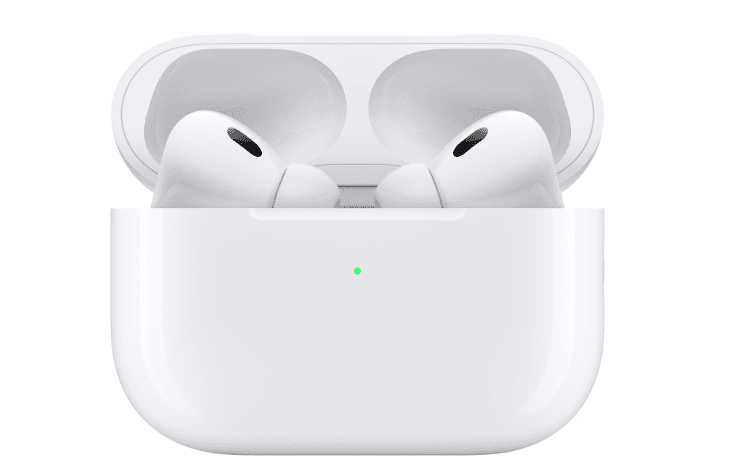
Apple AirPods Pro (2nd generation)
- What makes it stand out: Seamless pairing and switching across Apple devices, strong ANC, and Transparency mode make it ideal for mobile, mixed-use work
- Best for: Apple-centric employees and leaders who move frequently between home, office, and travel, and want one pair of earbuds that does it all
- Price: From $249.00
-
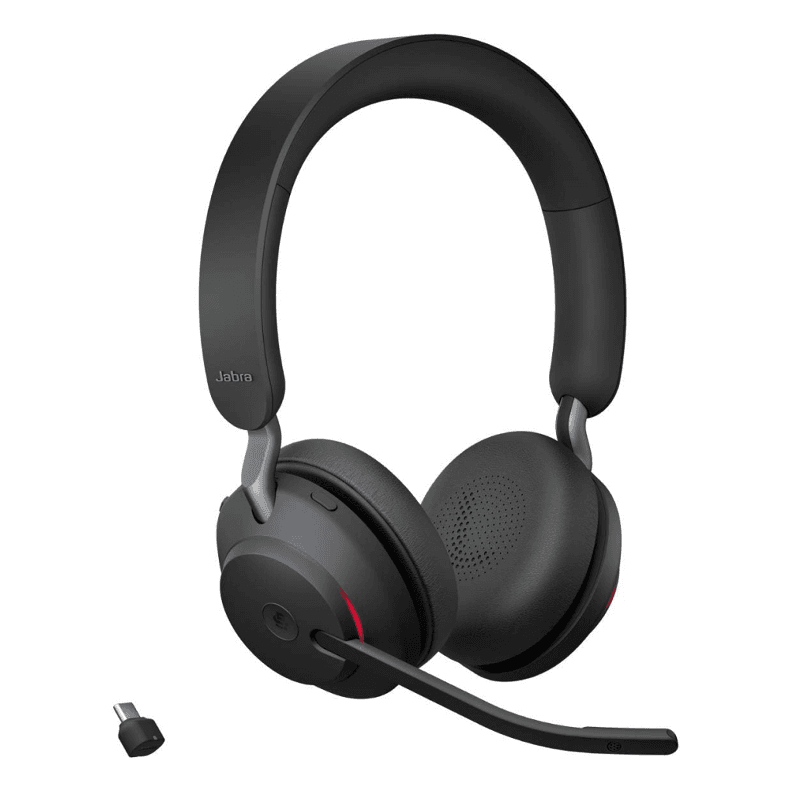
Jabra Evolve2 65
- What makes it stand out: Dedicated work headset with a boom mic, strong battery life, and good passive noise isolation for full days of calls
- Best for: Sales, customer support, and recruiting teams who spend most of their day on calls and virtual meetings
- Price: From $163.00, offering strong value for standardizing across call-heavy teams
Evaluating your IT budget? Read: IT Budgeting & Workforce Planning: What HR & IT Leaders Need to Know
Monitors: More screen space, fewer mistakes
External monitors remain an essential part of many workplace setups. They’re typically most relevant for stationary or desk-based roles, but investing in the right displays can make a meaningful difference to how employees work day to day.
How monitors improve productivity
External monitors can enhance employee productivity in several ways:
- Larger screens let employees view multiple documents and applications side by side, reducing copy-paste errors and missed details while speeding up task completion
- Sharper, well-sized displays make long reading or data-heavy work less tiring and more efficient, especially for employees who spend hours in spreadsheets, analytics tools, or dashboards
- Ultrawide and curved monitors allow employees to keep dashboards, timelines, and multiple tools visible at once, helping them switch between tasks faster and manage complex workflows more smoothly
- Additional screen space and visibility help employees maintain momentum and complete routine tasks more quickly, improving overall speed and output
Which employees need an external monitor?
To determine which employees need a monitor, consider how data-heavy, multitasking, or desk-based the role is, and whether employees spend most of their time working across multiple tools or documents. Use the following rule of thumb:
- Must-have: Roles that rely on coding, data analysis, dashboards, or complex multitasking (such as engineering, finance, and analytics)
- Nice-to-have: Roles that involve frequent document review, writing, or cross-functional collaboration (such as marketing, legal, and project management)
- Not essential: Roles that are primarily mobile or field-based and spend little time working from a desk
What to look for when choosing external monitors
You should take into consideration the following features when choosing a monitor:
- Screen size: Impacts how comfortably employees can view and organize their work, with larger displays supporting multitasking and detailed tasks more effectively (e.g., 23.8" vs. 34")
- Resolution: Affects text clarity and image sharpness, with higher resolutions like QHD or 4K better suited for design, analytics, and other detail-oriented work.
- USB-C hub functionality: Simplifies desk setups by combining power, video, and data transfer through a single cable, reducing clutter and setup time.
- Curved or ultrawide options: Provide a wider, continuous workspace ideal for developers, designers, and analysts who need to view multiple tools or dashboards side by side.
Example monitors:
-
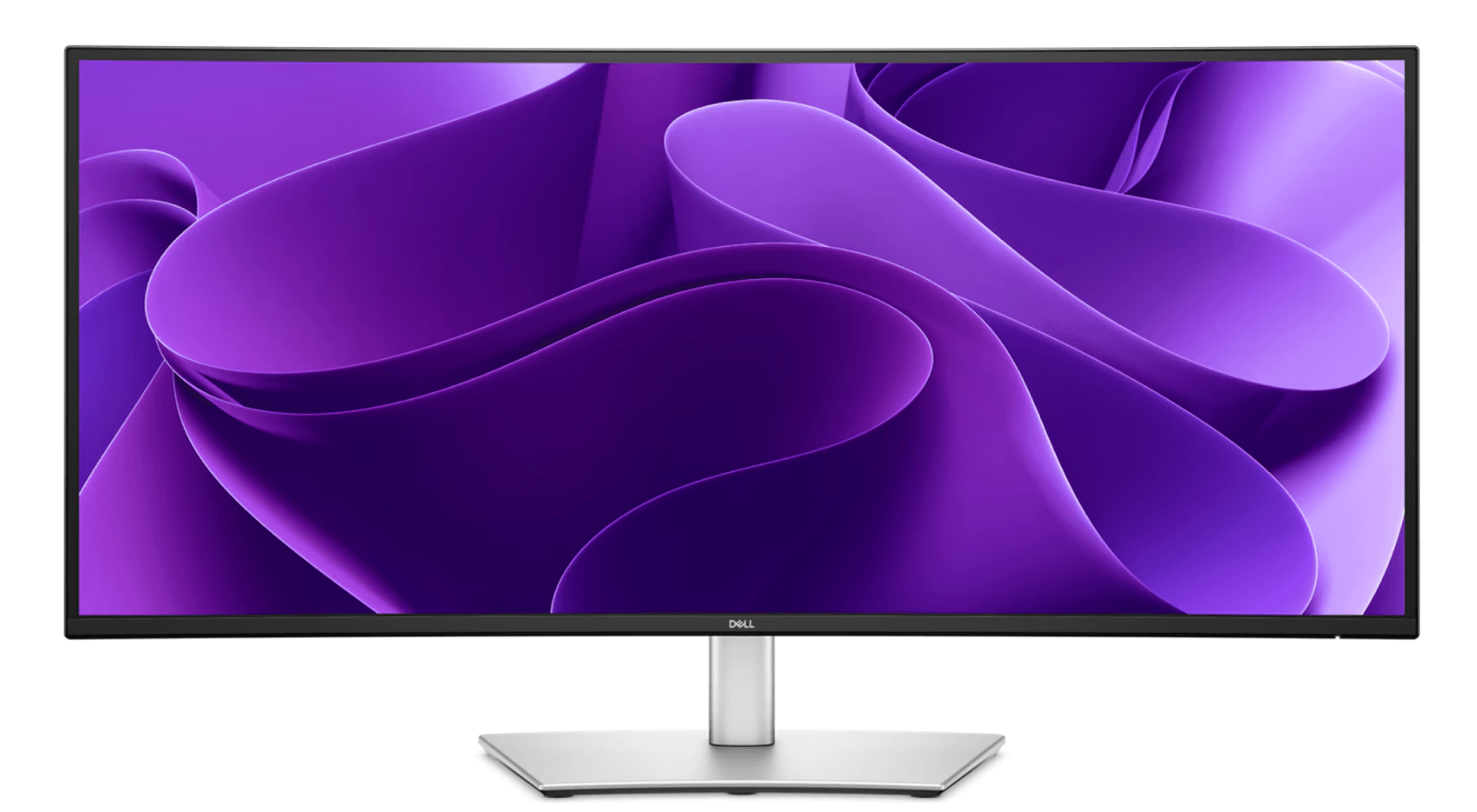
Dell P3425WE 34.1" Curved USB-C Monitor
- What makes it stand out: Ultrawide curved screen, ideal for multitasking and data-heavy work
- Best for: Power users in analytics, engineering, design, operations, product, and leadership who need multiple dashboards and documents visible at once
- Price: From $673.00, a targeted, high-impact investment for key roles
- Samsung LF24T350 24" Full HD LED Monitor
- What makes it stand out: Slim-bezel design and crisp Full HD resolution make it a strong choice as a secondary display, adding useful screen space for multitasking and document review
- Best for: Employees in roles such as finance, operations, general administration, and support whose workflows benefit from an external monitor alongside their laptop
- Price: From $210.00, an accessible way to expand workspace and boost productivity across hybrid or office setups
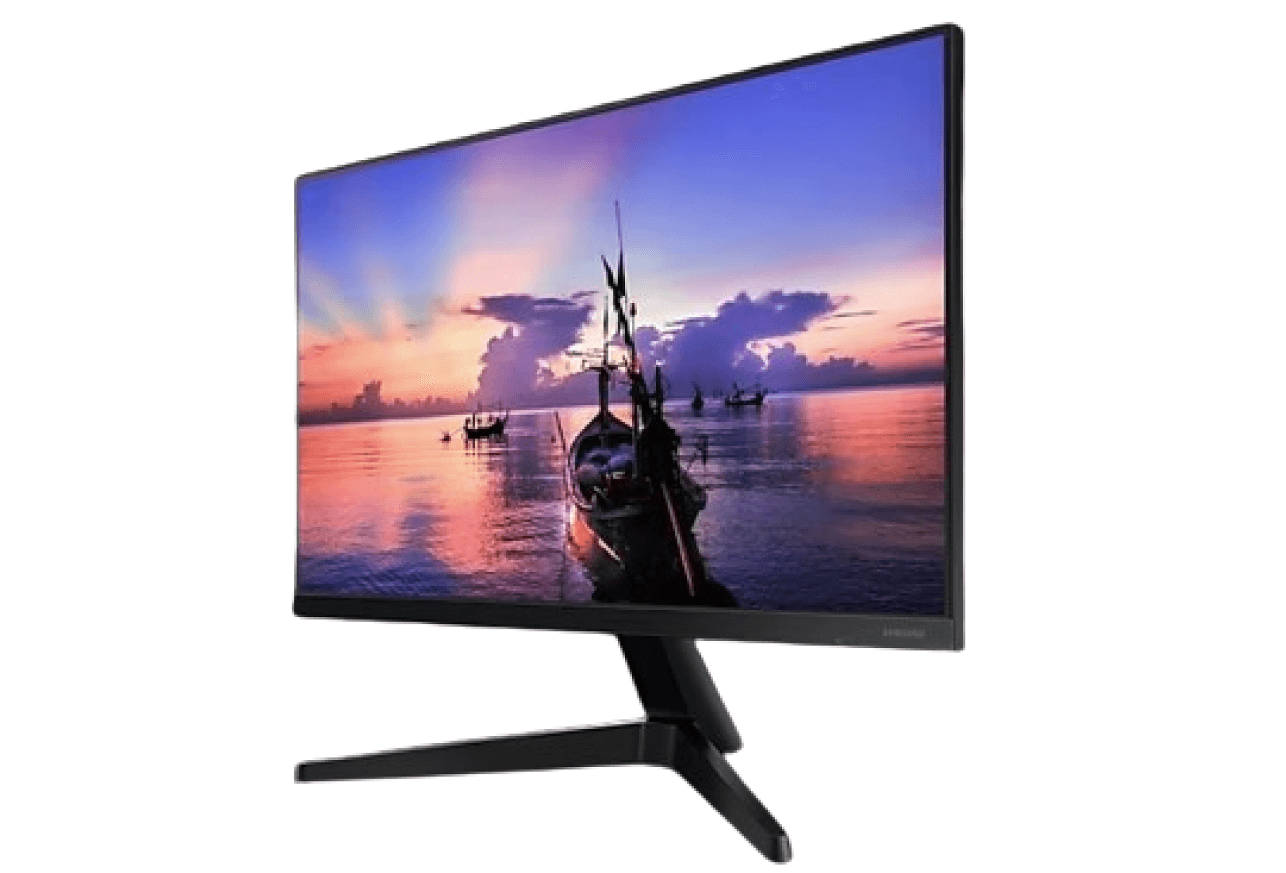
Samsung LF24T350 24" Full HD LED Monitor
Docking stations: One cable, no chaos
Often overlooked, a docking station can make a big difference to how smoothly employees start their day. It connects all essential accessories (monitors, keyboard, mouse, headset, and Ethernet) through a single cable, removing the hassle of plugging and unplugging devices.
How docking stations improve productivity
Here are some of the key ways in which docking stations boost productivity:
- Docking stations enable employees to plug in once and connect to power, external displays, Ethernet, and peripherals instantly
- A single connection makes it easy for employees to move between workspaces, without reconnecting multiple devices each time
- Reliable access to external displays, wired internet, and other peripherals helps employees stay focused and avoid the small technical issues that slow teams down
Which employees need a docking station?
When deciding who needs a docking station, consider how often employees move between locations, use multiple peripherals, or share desks in hybrid environments. Broadly, employees can be grouped into three levels of need:
- Must-have: Hybrid employees who move between home and office or use hot desks with external monitors, keyboards, and other accessories (for example, consultants, managers, or sales teams)
- Nice-to-have: Office-based staff with dual-monitor setups who want a cleaner desk and faster, single-cable connectivity (such as finance analysts, designers, or operations staff)
- Not essential: Fully remote employees with a simple laptop and single-monitor setup connected directly to the screen (for example, writers, support specialists, or policy researchers)
What to prioritize when choosing docking stations
When choosing docking stations, it’s worth paying attention to a few important aspects:
- USB-C or Thunderbolt support: Ensures compatibility with modern laptops and high-resolution monitors, enabling fast data transfer and reliable performance
- Sufficient ports and connectivity options: Employees should be able to connect all necessary peripherals (such as monitors, USB devices, Ethernet, and audio equipment) without additional adapters
- Adequate power delivery (PD) wattage: Provides enough power for laptops to charge while running multiple connected devices, avoiding the need for separate chargers
- Cross-platform compatibility: Important for organizations running both Windows and macOS devices to ensure consistent connectivity across teams
Example docking stations
-
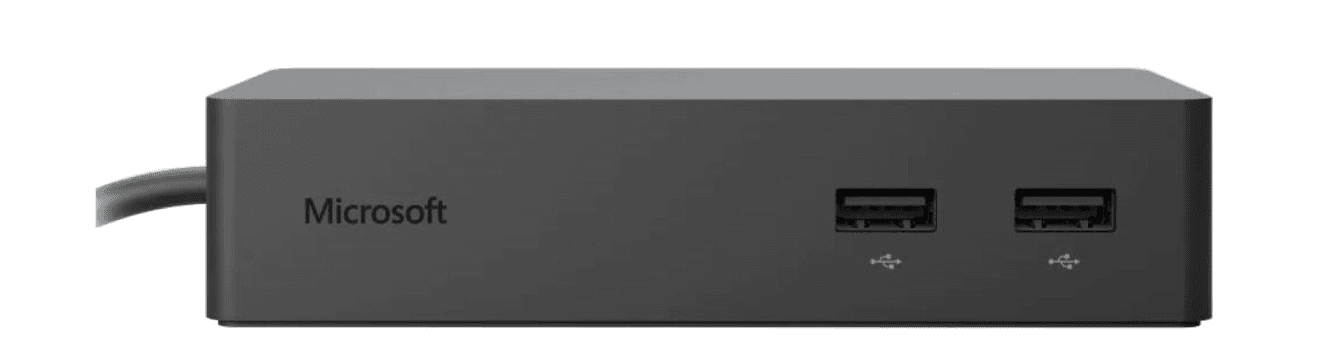
Microsoft Surface Dock
- What makes it stand out: Designed specifically for Surface devices, it delivers reliable performance and seamless integration with Windows.
- Best for: Teams already using Microsoft Surface laptops or tablets who want a simple, consistent docking experience.
- Price: From $194.00
-
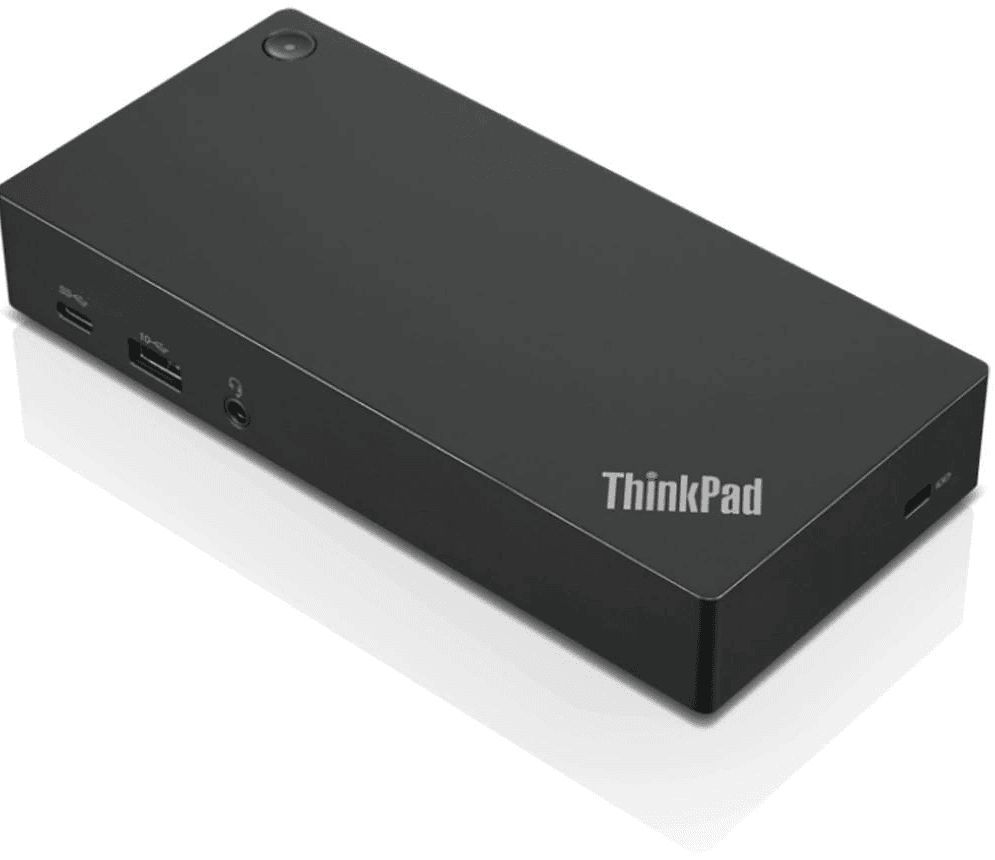
Lenovo ThinkPad Universal Thunderbolt 4 Smart Dock
- What makes it stand out: Thunderbolt 4 connectivity delivers high bandwidth for multiple high-resolution monitors and rapid data transfer across peripherals.
- Best for: Engineering, design, and analytics teams that depend on fast, stable connections and multi-monitor setups.
- Price: From $265.00
Keyboards: Comfort and accuracy
External keyboards complement laptops, docking stations, and multi-monitor setups, helping employees create a stable, flexible, and portable workstation. They’re a simple, affordable accessory that supports employees across varied roles and workflows, from remote and hybrid setups to traditional office desks.
How keyboards improve productivity
Here’s how keyboards boost employees’ productivity:
- Ergonomic, high-quality designs reduce typing effort and errors, which is especially important for employees who produce or review large volumes of text, data, or documentation
- Support for natural posture helps prevent strain on hands, wrists, and shoulders, allowing employees to stay comfortable during long stretches of typing
- Comfortable key travel and intuitive layouts reduce strain and help employees stay focused for longer
- Quiet keys keep open offices and shared spaces more pleasant and less distracting for everyone
Which employees need a separate keyboard?
External keyboards are accessible and generally beneficial for most employees. However, it’s worth prioritizing those with the most typing-intensive or ergonomically demanding work. Here’s how to think about who benefits most:
- Must-have: Roles that involve continuous typing, coding, or data-heavy work (such as software engineers, finance analysts, legal teams, and content creators)
- Nice-to-have: Employees who use laptop stands or work primarily from a fixed desk setup, where an external keyboard supports better posture and comfort (for example, designers, project managers, and other hybrid or office-based laptop users)
- Not essential: Roles that only require light or occasional typing and are comfortable using the built-in laptop keyboard (such as field employees, consultants, or team leads who mostly review rather than create content)
What to prioritize when choosing docking stations
Look for the following features when choosing keyboards:
- Wireless options: This reduces cable clutter and supports flexible desktop layouts
- Ergonomic designs: Serves employees with existing strain or those in intensive typing roles
- Numeric keypads: These are essential for finance, operations, and compensation teams working heavily with numbers
Example keyboards
-
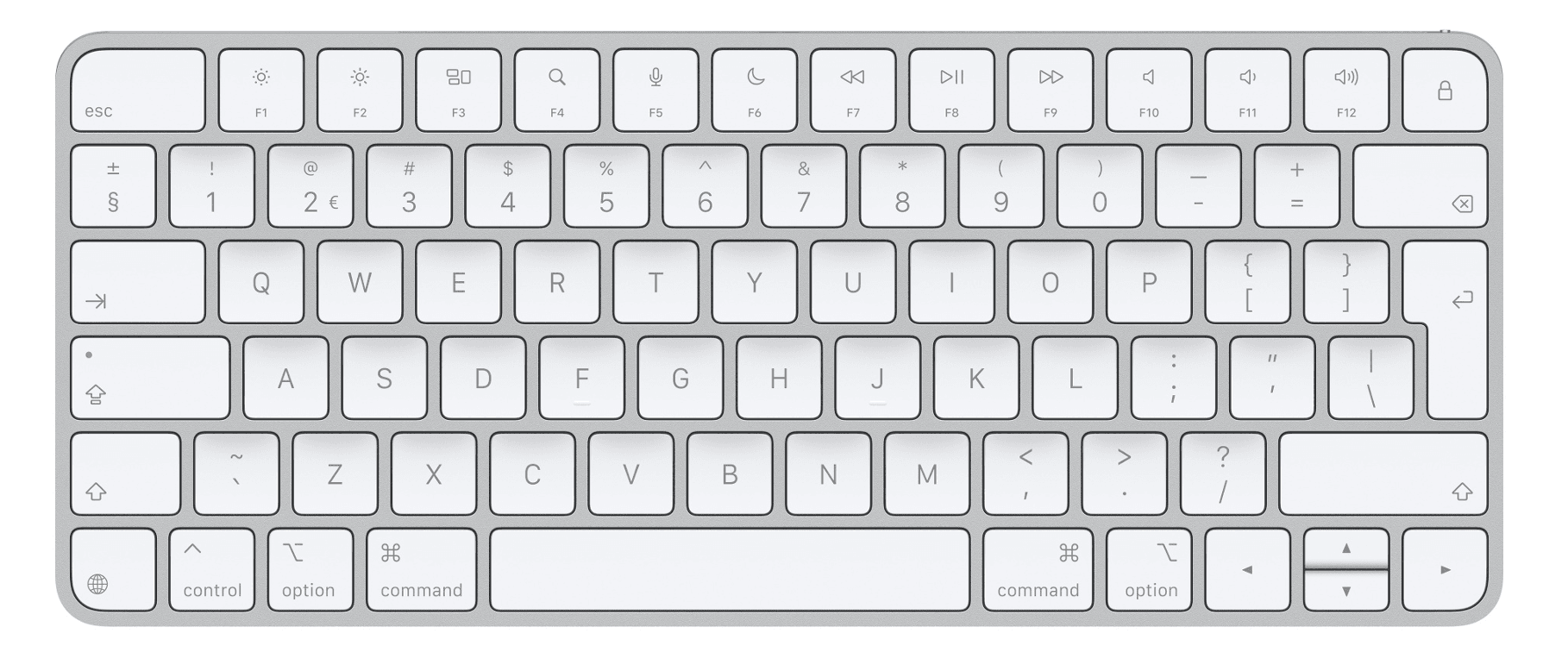
Apple Magic Keyboard (USB–C)
- What makes it stand out: A slim, minimalist design with responsive keys that fits neatly into Apple-based workstations.
- Best for: MacBook and iMac users, especially managers and creatives who value a clean setup and comfortable typing experience.
- Price: From $99.00
-
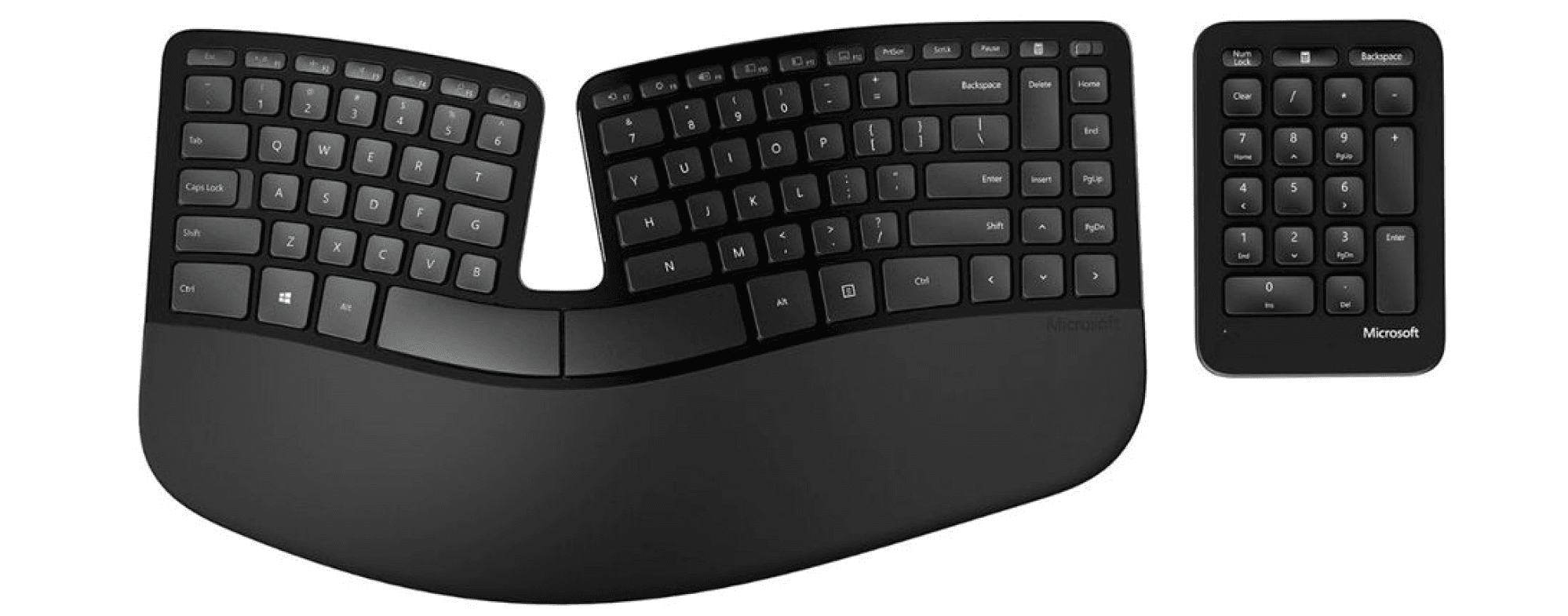
Microsoft Sculpt Ergonomic Wireless Keyboard and Numeric Pad
- What makes it stand out: A split, curved layout and cushioned palm rest encourage a more natural typing posture and reduce wrist strain
- Best for: Heavy typists or employees who experience wrist or shoulder discomfort and need stronger ergonomic support
- Price: From $113.00
Mice and trackpads: Precision tools for everyday navigation
Together with keyboards, mice and trackpads are among the most common IT accessories that boost employee output and comfort.
How mice and trackpads improve productivity
Here are some of the key ways the right mouse or trackpad can make daily work smoother and more efficient.
- Mice and trackpads improve precision and accuracy, reducing time lost to misclicks or awkward dragging in detailed tools and applications
- Responsive sensors and smooth tracking help employees move quickly between tasks and maintain a steady workflow
- Ergonomic shapes and proper sizing prevent hand and wrist strain during long work sessions, supporting lasting comfort
- Reliable wireless connectivity keeps desks clean and clutter-free while allowing employees to position their workspace for comfort and efficiency
Which employees need a mouse or trackpad?
Mice and trackpads are useful for most employees, but the level of need depends on how precise or intensive their daily work is. Prioritize who receives an external device using the following guidelines:
- Must-have: Roles that rely on accuracy and control in complex or creative tools, where precise movement directly impacts output (such as software engineers, data analysts, designers, and operations specialists)
- Nice-to-have: Employees who spend much of the day navigating web apps, documents, or spreadsheets and benefit from added comfort and speed (for example, HR staff, project managers, and finance analysts)
- Not essential: Minimalist or highly mobile employees who are fully comfortable using the built-in laptop trackpad for everyday tasks (such as sales representatives, consultants, or field workers)
What to prioritize when choosing mice and trackpads
When selecting a mouse or trackpad, consider the features that balance comfort, speed, and compatibility.
- Shape, size, and handedness: This affects long-term comfort and determines how well the device fits each user’s working style
- Customizable buttons and advanced scroll features: These help power users complete repetitive actions faster and streamline common workflows
- Trackpads with gesture support: Recognizing multi-finger movements (such as swiping, pinching, or tapping) makes switching between apps, scrolling, and zooming faster and more intuitive
Example mice and trackpads
-
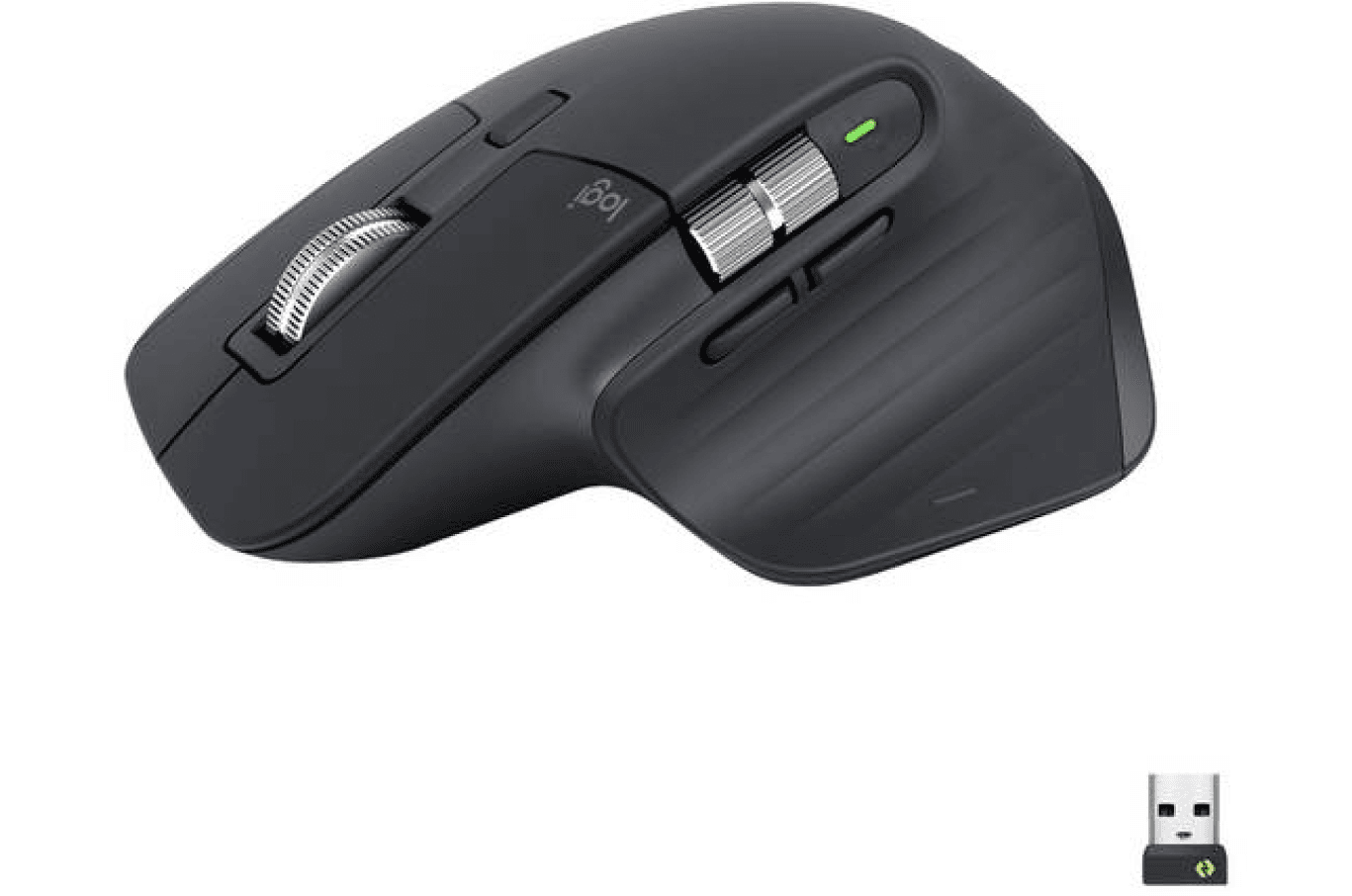
Logitech MX Master 3S Performance Wireless Mouse
- What makes it stand out: Wireless connectivity, a precise sensor, a fast scroll wheel, and customizable buttons make it easy to move quickly through complex apps and large files.
- Best for: Power users in analytics, design, product, and operations who spend their day switching between multiple tools.
- Price: From $141.00
-
Apple Magic Wireless Trackpad (USB-C or standard)
- What makes it stand out: Wireless design and a large, smooth glass surface with full macOS gesture support make scrolling, swiping, and navigation feel fast and effortless
- Best for: Mac users who rely on gestures for window management, creative work, and quick multitasking.
- Price: From $162.00

Webcams: Professional presence from any location
The rise of hybrid and remote work means much of daily communication now happens online, often across teams and time zones. However, not all laptops have cameras that deliver the quality needed for professional calls, demos, or client presentations. External webcams offer a simple but significant upgrade, helping employees present themselves clearly and confidently from anywhere.
See also: Equipment Provisioning for Remote and Global Teams Policy Template.
How webcams improve productivity
Here are some of the main ways a webcam can improve employee productivity:
- High-quality webcams present employees clearly and professionally, helping them make a strong impression in virtual settings
- Clear, well-framed video elevates presentations and client meetings, whereas poor camera quality can distract or undermine company credibility
- Reliable, high-definition video makes it easier to read facial expressions and non-verbal cues, improving communication and collaboration
- Consistent, stable visuals elevate the quality of interviews, customer calls, and leadership updates, strengthening overall engagement and connection
Which employees need a webcam?
Webcams are essential for some roles more than others, depending on how often employees engage in video communication or represent the company externally. Here’s how the need typically breaks down:
- Must-have: Roles that regularly join external-facing video calls (such as recruiters, sales representatives, customer success teams, and senior leaders)
- Nice-to-have: Employees on distributed or hybrid teams who rely on frequent internal video meetings to collaborate and maintain team culture (for example, product managers, designers, and operations staff)
- Not essential: Roles that rarely use video or primarily join meetings from shared spaces equipped with high-quality room systems (for example, finance analysts, legal teams, or on-site technical staff).
What to prioritize in webcams
When choosing webcams, focus on the features that balance quality, usability, and security.
- 1080p resolution: A solid standard for most employees, while 4K models are ideal for executives or client-facing roles.
- Low-light performance and automatic adjustment: Keeps employees clear and well-lit across a range of lighting conditions.
- Physical privacy shutters: These provide peace of mind and help reinforce good security habits
Example webcams
-
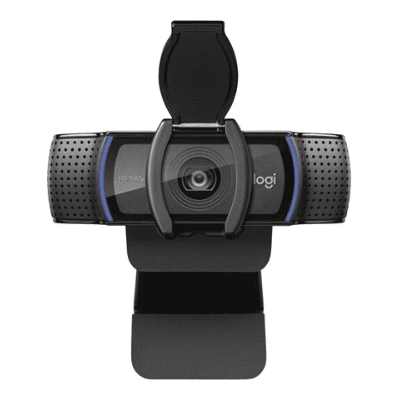
Logitech C920S Pro Full HD Webcam
- What makes it stand out: Delivers sharp 1080p video and includes a built-in privacy shutter, offering reliable quality at a reasonable price
- Best for: Everyday employees who need a dependable webcam for regular internal and external meetings
- Price: From $79.00
-
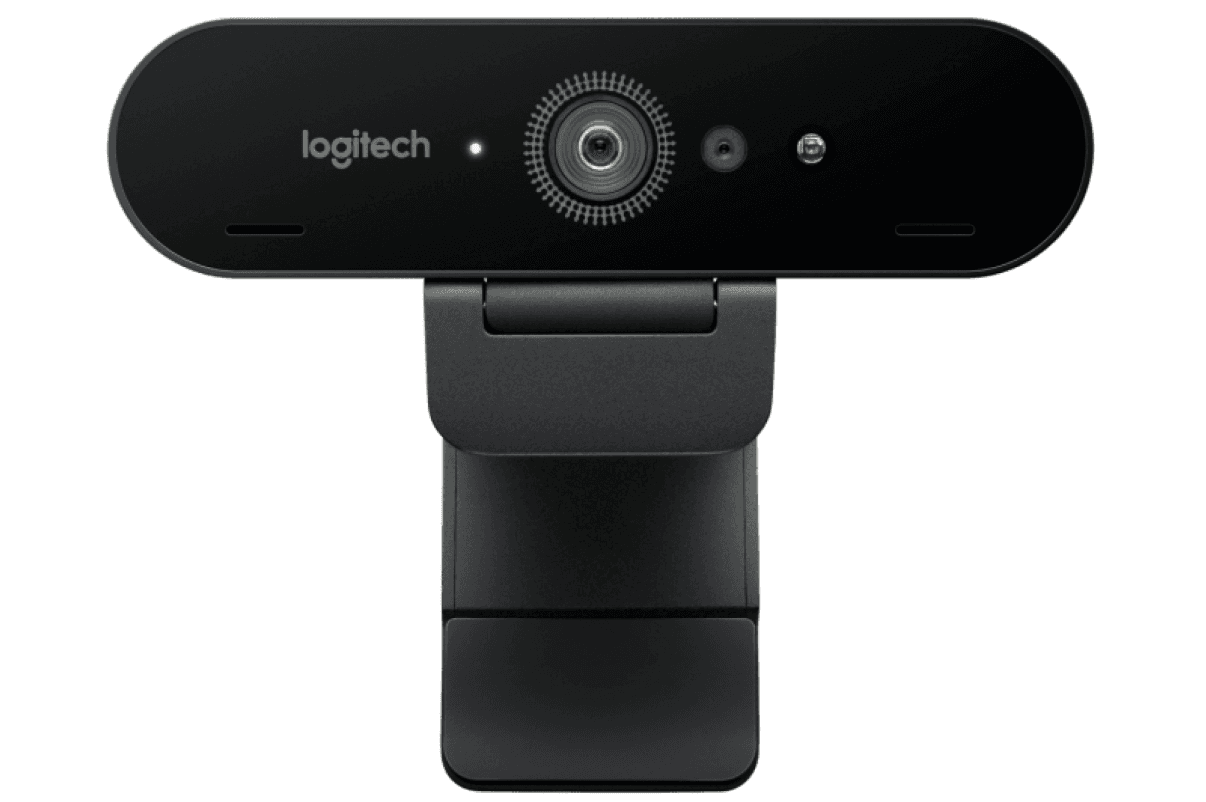
Logitech Brio 4K Ultra HD Webcam
- What makes it stand out: Captures crisp 4K video with HDR and advanced light correction, creating a clear, professional on-camera look
- Best for: Executives, sales leaders, marketing teams, and webinar hosts whose on-screen presence shapes the company’s brand image
- Price: From $200.00
Learn also about the top IT procurement challenges faced by employers and how to solve them.
How Deel IT helps you streamline device and accessory management
Deel IT helps you equip your entire global workforce —from laptops and peripherals to essential accessories and ergonomic setups. Choose from a catalog of 240+ options, then ship, track, and manage every device remotely through a single platform.
Here’s why Deel IT is the ideal partner for your cross-border IT needs:
- Global delivery: Deliver equipment to employees in 130+ countries, with customs, tax compliance, and local logistics fully managed for you
- Setup and security: Ensure seamless onboarding with preconfigured devices loaded with company settings, security policies, and all required software
- Lifecycle tracking: Track every device’s location and status in real time from a single, easy-to-navigate dashboard
- Maintenance and repairs: Manage warranties, coordinate local repairs or replacements through trusted regional partners, and minimize downtime with temporary devices
- Streamlined offboarding: Securely lock and wipe devices to protect sensitive data, then arrange safe retrieval, refurbishment, or recycling
Book a demo and see how Deel IT streamlines everything from shipping to offboarding.
FAQs
What is an IT accessory?
An IT accessory is any piece of equipment that supports how you use your primary devices (like your laptop or desktop). These include:
- Headsets and webcams
- Keyboards and mice
- Monitors and laptop stands
- Docking stations and USB hubs
- Ergonomic accessories (wrist rests, monitor arms, etc.)
How to make a desk job more comfortable?
You can make employees’ desk jobs more comfortable by giving them the right IT equipment and accessories. External monitors set at eye level help reduce hunching and neck strain, while ergonomic keyboards and mice lower the risk of wrist and shoulder discomfort. Quality headsets allow employees to stay in a natural posture on calls instead of leaning forward or holding devices awkwardly. Simple additions like laptop stands, docking stations, and USB hubs also create a more stable, clutter-free setup, so employees are not constantly adjusting cables or working in awkward positions.
What is the best setup for working from home?
The best setup for working from home combines reliable IT equipment with good ergonomics, matched to the employee’s role and responsibilities. Ideally, employees have a powerful-enough laptop, one or two external monitors at eye level (especially for roles that require multitasking across multiple tools or large data sets), and a docking station so everything (keyboard, mouse, monitor, ethernet, and power) connects with a single cable. An ergonomic keyboard and mouse, along with a high-quality headset and webcam, further support comfort, focus, and clear communication, all of which contribute to improved productivity.
What equipment is needed in an office?
An effective office setup starts with reliable core IT equipment plus a few standard accessories. Most employees need a business-grade laptop or desktop, with one or more external monitors provided (where the role requires multitasking or working with large amounts of data). External keyboards and mice, headsets for calls, webcams for meeting rooms or shared spaces, and docking stations for hot desks help keep workstations consistent and easy to use. Standardizing a small set of accessories—like monitor arms, laptop stands, and charging hubs—also keeps desks ergonomic, tidy, and ready for anyone to sit down and work.
Dr Kristine Lennie holds a PhD in Mathematical Biology and loves learning, research and content creation. She had written academic, creative and industry-related content and enjoys exploring new topics and ideas. She is passionate about helping create a truly global workforce, where employers and employees are not limited by borders to achieve success.