Article
2 min read
6 Practical Steps to Keep Remote Workers Productive When Laptops Fail
IT & device management

Author
Dr Kristine Lennie
Last Update
June 10, 2026

Table of Contents
Step 1: Build a replacement strategy before devices fail
Step 2: Set up virtual workspaces so employees can work from any device
Step 3: Create a secure fallback option while replacement devices are in transit
Step 4: Diagnose and resolve device issues remotely before replacing hardware
Step 5: Reduce preventable device failures through proactive maintenance
Step 6: Turn device recovery into a repeatable process
Manage device failures at scale with Deel IT
A laptop failure can bring remote work to a halt. For an office-based employee, replacing a device may be as simple as visiting the IT team. For a remote worker in another country, the same issue can mean days of downtime while support teams diagnose the problem, source a replacement, and navigate shipping or customs delays.
The good news is that much of this disruption is avoidable. With the right recovery options, replacement processes, and support workflows in place before a device fails, remote employees can often regain access to their work in minutes instead of waiting days for new hardware.
This guide walks through six practical steps HR and IT teams can use to reduce downtime, maintain security, and keep distributed employees productive when laptops fail.
Step 1: Build a replacement strategy before devices fail
Start with the basics: when an employee's laptop fails, how quickly can you get a working device into their hands?
For distributed teams, the answer isn't always straightforward. Replacement devices may need to be sourced, configured, shipped internationally, and cleared through customs. Without a plan in place, a single hardware failure can leave an employee offline for days.
A strong replacement program should include:
Regional device inventory: Keeping spare devices closer to employees reduces shipping delays and customs-related disruptions
Role-based device configurations: Employees receive hardware, applications, and permissions appropriate for their role without lengthy setup processes
Standardized replacement workflows: Clear processes help ensure devices are assigned, shipped, and activated consistently
Secure return and decommissioning procedures: Failed devices can be recovered, wiped, repaired, or retired without creating security risks
Inventory visibility and forecasting: Tracking device availability helps prevent shortages as teams grow across regions
Maintaining spare inventory introduces additional cost, but for many distributed organizations, the productivity impact of waiting days for a replacement is significantly more expensive.
Read: Why new hires start without equipment — and how to fix it
Step 2: Set up virtual workspaces so employees can work from any device
Once you have a replacement process in place, the next challenge is minimizing downtime while employees wait for hardware to arrive.
Virtual workspaces help separate productivity from the physical device. When applications, files, and settings are hosted centrally, employees can often continue working from another approved device while repairs or replacements are underway.
One way to achieve this is through Virtual Desktop Infrastructure (VDI), which hosts the operating system, applications, and data in the cloud rather than on the physical device.
The benefits are straightforward:
Faster recovery: Employees can regain access to their work environment in minutes rather than waiting for replacement hardware
Consistent security and configuration: Applications, policies, and settings are managed centrally rather than device by device
Less dependence on physical hardware: Productivity is no longer tied to a single laptop
VDI does come with trade-offs. Performance depends on reliable internet connectivity, and infrastructure costs can increase as deployments scale. For globally distributed teams, it works best alongside strong network connectivity and clear cost management practices.
Step 3: Create a secure fallback option while replacement devices are in transit
A replacement strategy helps ensure employees eventually receive a working device. Virtual workspaces help reduce downtime while they wait. But neither approach covers every scenario.
Employees may not have immediate access to another corporate device, and some applications or workflows may not be fully supported through a virtual environment. Organizations need a secure fallback option that allows employees to continue working until a repaired or replacement device is available.
One option is a secure bring-your-own-device (BYOD) program. Rather than allowing employees to access company systems directly from personal devices, organizations can provide a controlled corporate environment that separates business applications and data from the employee's personal files and activity.
A secure BYOD fallback should include:
Isolated corporate workspaces: Company applications and data remain separate from personal files, reducing security and privacy concerns
Managed access controls: Access to corporate systems is governed through approved security policies rather than unmanaged personal accounts
Device compliance validation: Security requirements are verified before access is granted, helping maintain compliance standards
Temporary access workflows: Employees can regain access quickly while replacement hardware is being prepared or shipped
Clear employee guidance: Defined policies help employees understand when BYOD is permitted and what security requirements apply
Once established, the process can be activated quickly whenever a device failure occurs, helping employees continue working without turning personal devices into unmanaged security risks.
Find out how to build a secure BYOD policy.
Resources for managing remote device failures
Standardize how your team responds to device issues with this Free IT Policy Template
Close the gap between HR events and IT action using our Onboarding & Offboarding Guide for Distributed Teams
Assess how automated your provisioning actually is with this IT Provisioning Self-Assessment
Find out whether 24/7 IT support makes sense for your team by trying this 24/7 IT Support Self-Assessment
Step 4: Diagnose and resolve device issues remotely before replacing hardware
By this point, employees should have a way to continue working, whether through a replacement device, a virtual workspace, or a secure BYOD option. The next step is determining whether the failed device actually needs to be replaced.
Many issues that appear to require a replacement are actually the result of software conflicts, driver problems, failed updates, or configuration errors that can be resolved remotely.
Remote diagnostics allow IT teams to investigate issues without waiting for a device to be shipped back or replaced. By accessing device telemetry, running health checks, and applying fixes remotely, support teams can often restore functionality faster and at a lower cost than replacing the device altogether.
Key capabilities to have in place include:
Remote device visibility: Access to device health information helps IT teams identify problems without relying solely on employee reports
Automated diagnostics and health checks: Standardized troubleshooting reduces investigation time and helps identify root causes more quickly
Remote remediation tools: Software updates, configuration changes, and driver fixes can often be deployed without requiring hands-on support
Structured triage workflows: Consistent troubleshooting processes help ensure issues are resolved efficiently and escalated appropriately when needed
Verification and documentation: Confirming that issues have been resolved helps prevent recurring problems and improves future troubleshooting
Remote diagnostics are most effective when they become the first step in the response process rather than an afterthought. Resolving issues remotely reduces downtime, lowers replacement costs, and helps employees return to work faster.
Discover how to manage remote IT support effectively.
Step 5: Reduce preventable device failures through proactive maintenance
Not every laptop failure is unavoidable. Many disruptions stem from aging hardware, outdated software, declining battery health, or devices that remain in service long after performance begins to deteriorate.
A proactive maintenance program helps organizations improve device reliability and extend hardware lifespan by addressing these issues before they lead to downtime. While it won't eliminate every failure, it can significantly reduce the number of incidents that require emergency support, repairs, or replacements.
Rather than waiting for employees to report problems, organizations should regularly assess device health, performance, and lifecycle status across their fleet.
The table below highlights key areas that contribute to long-term device reliability.
| Maintenance area | Why it matters | Recommended action |
|---|---|---|
| Battery health | Aging batteries can lead to shutdowns and reduced mobility | Monitor battery health and replace aging components |
| Software and firmware | Outdated systems can affect stability, performance, and security | Maintain regular update schedules |
| Device performance | Ongoing slowdowns often indicate underlying issues | Review resource usage and optimize configurations |
| Storage capacity | Limited storage can affect application performance and reliability | Monitor utilization and remove unnecessary files |
| Hardware lifecycle | Older devices are more likely to fail unexpectedly | Replace devices before they become unreliable |
Small maintenance issues are often easier and less expensive to address than full device failures. Over time, proactive maintenance helps reduce downtime, improve employee productivity, and lower the cost of supporting distributed devices.
Step 6: Turn device recovery into a repeatable process
Even the best-maintained device fleets experience failures. The difference is that employees and IT teams already know what happens next.
Without a documented response process, teams waste time deciding who owns the issue, how support should be engaged, and what steps need to happen before an employee can resume work. Clear procedures create consistency, helping organizations handle device failures the same way regardless of location, team, or circumstance.
A device failure response plan should cover:
Reporting procedures: Employees know exactly how and where to report device issues.
Response and escalation paths: Clear ownership helps ensure requests are routed to the right people at the right time.
Approved continuity options: Employees understand when and how to use alternatives such as Virtual Desktop Infrastructure (VDI) or secure BYOD access.
Replacement and return processes: Defined workflows help coordinate repairs, replacements, device retrieval, and recovery.
Communication expectations: Employees, managers, and IT teams understand what updates will be provided throughout the process.
These procedures should be documented in onboarding materials, IT policies, and employee handbooks so they're available before a failure occurs—not while one is already in progress.
A documented response plan helps turn device failures from unexpected disruptions into routine operational events that can be handled consistently and efficiently.
Read: Most common after-hours IT issues and how to handle them
Manage device failures at scale with Deel IT
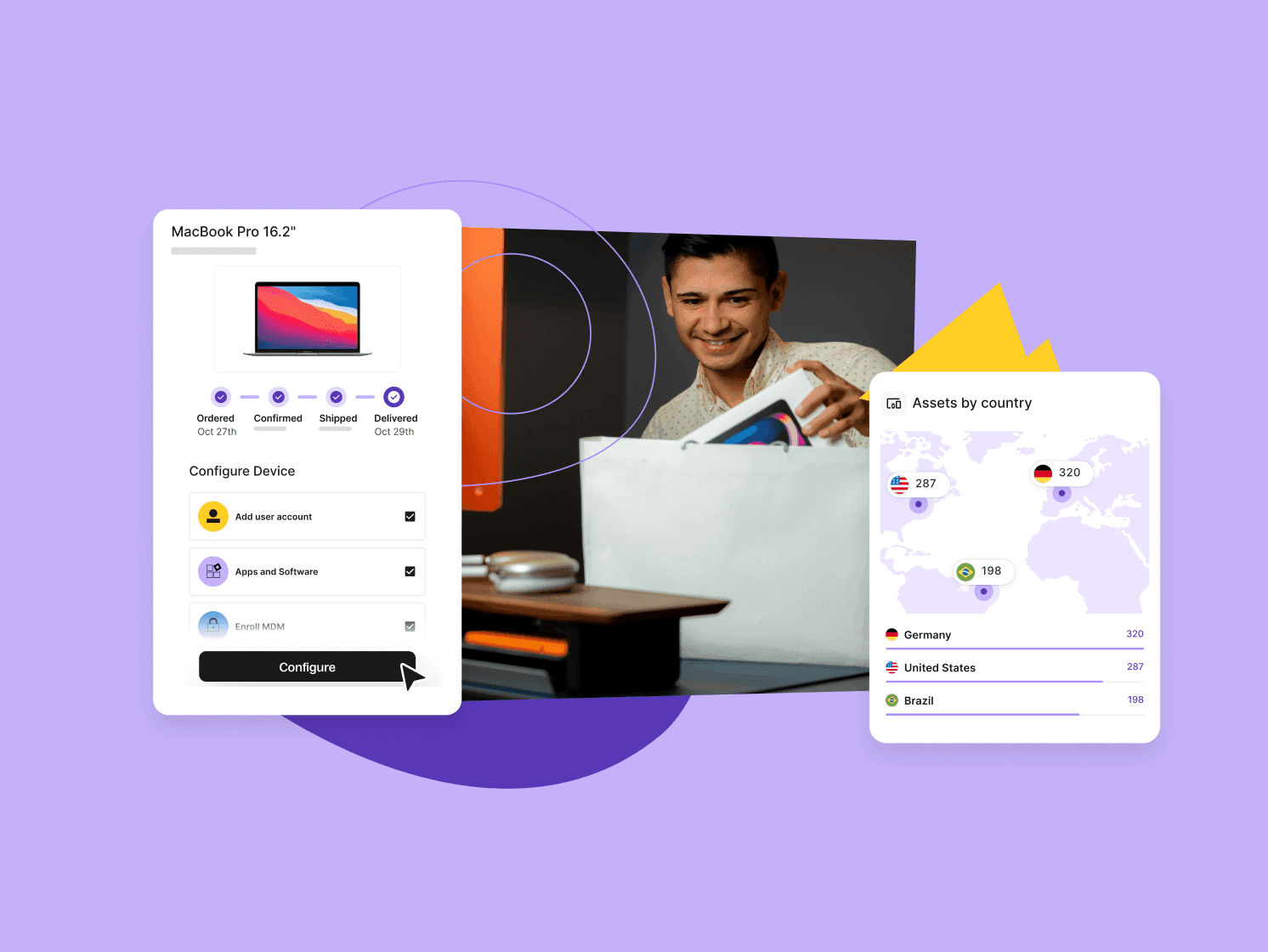
Deel IT is an end-to-end global IT platform that combines Mobile Device Management (MDM) (powered by JumpCloud), endpoint protection (powered by CrowdStrike Falcon), access management, device procurement, and global logistics into a single platform, helping organizations reduce downtime and respond to device failures more efficiently.
Device repairs and replacements: Repair damaged devices, retrieve failed hardware, and ship replacement equipment to employees worldwide
Device recovery and reuse: Recover, warehouse, and redeploy existing devices to reduce replacement costs and extend hardware lifecycles
Global device logistics: Procure, ship, deliver, and collect devices across 130+ countries, with customs and paperwork handled
24/7 IT support: Help employees resolve device issues and get assistance whenever problems occur, regardless of time zone
Proactive device management: Monitor device health, enforce policies, and identify issues before they disrupt work
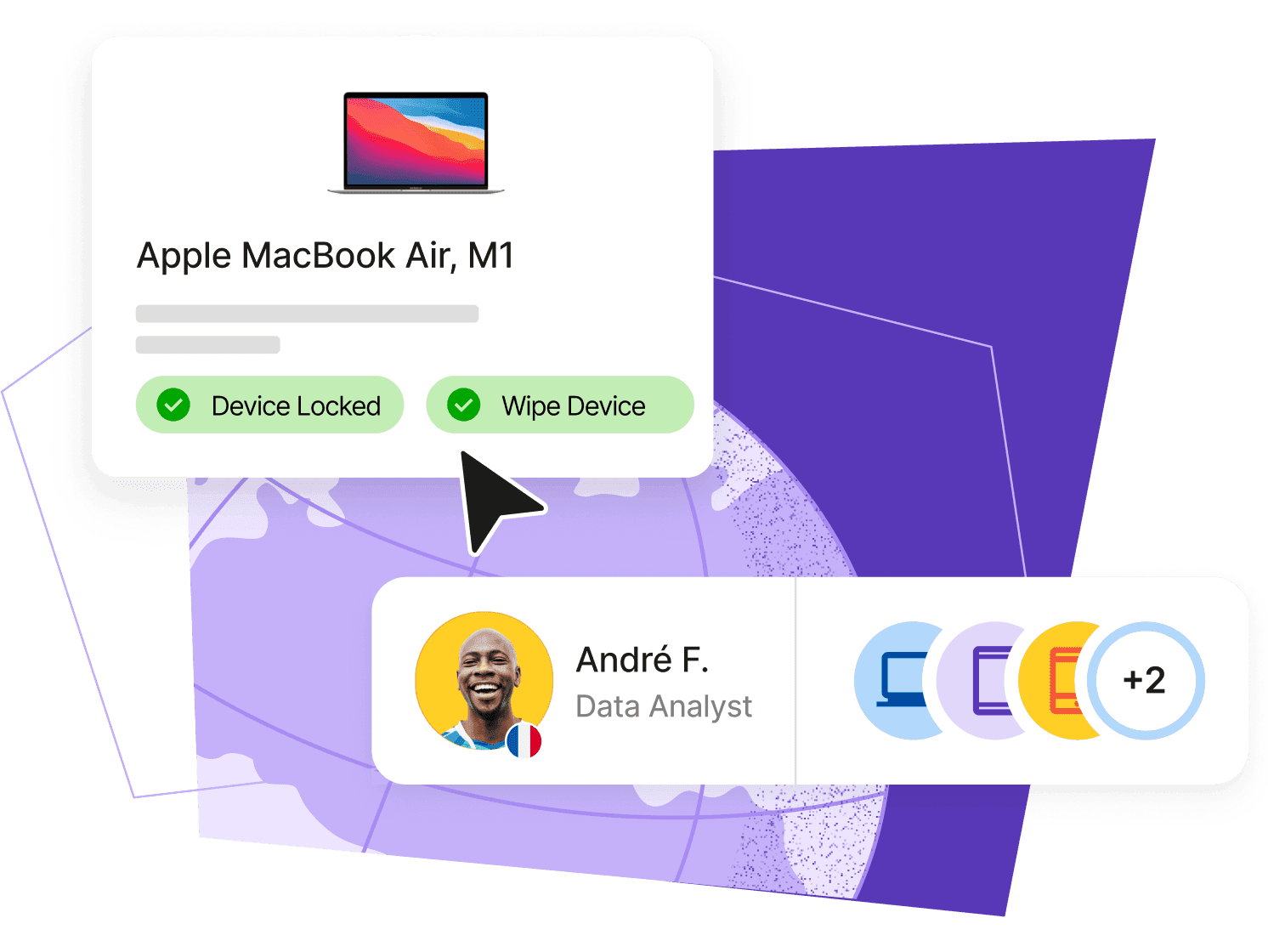
Certified data erasure: Securely wipe recovered or retired devices to protect company data and support compliance requirements
Access and security management: Keep employees securely connected to the tools they need as devices are repaired, replaced, or reassigned
End-to-end lifecycle management: Manage procurement, deployment, support, repairs, replacements, and recovery from a single platform
Book a demo to see how Deel IT simplifies global device management.
Deel IT
Procure, deliver, manage, and secure devices anywhere

FAQs
What should a remote employee do the moment their laptop fails?
Report it to IT immediately using whatever channel is defined in your escalation policy — help desk portal, Slack, email — and switch to an approved backup method. If your team has VDI or a BYOD enclave set up, that's the fastest path to continuing work while a replacement is arranged.
How can teams cut the downtime caused by hardware failures?
The biggest reductions come from combining virtual workspaces (for immediate access recovery), pre-configured spare-device pools (for fast physical replacements), and proactive monitoring (to catch failures before they happen). No single approach covers every failure scenario — the combination does.
What makes a BYOD enclave different from just logging in on a personal device?
A secure enclave isolates corporate data and applications from the personal environment entirely. IT can enforce security policies and manage access without touching personal files or applications. Logging into corporate apps on a personal device without an enclave leaves data exposed and gives IT no control over the environment.
How do managers maintain accountability when an employee's device is down?
Through written escalation policies and outcome-based approaches rather than device monitoring. The employee should know what to do and where to report; managers should assess impact based on results, not activity metrics. Lightweight health monitoring — CPU, uptime, error rates — supports operational decisions without crossing into surveillance.
Dr Kristine Lennie holds a PhD in Mathematical Biology and loves learning, research and content creation. She had written academic, creative and industry-related content and enjoys exploring new topics and ideas. She is passionate about helping create a truly global workforce, where employers and employees are not limited by borders to achieve success.