Article
2 min read
7 Essential Steps to Pre‑Configure Laptops for Remote Hires
IT & device management

Author
Dr Kristine Lennie
Last Update
August 11, 2026

Table of Contents
Step 1: Define role-based hardware configurations
Step 2: Package applications and manage licenses
Step 3: Select the optimal procurement model
Step 4: Build a secure baseline image and policies
Step 5: Automate enrollment with MDM and zero-touch provisioning
Step 6: Test, quality assure, and document setup
Step 7: Ship devices with asset tracking and lifecycle planning
Manage the full laptop lifecycle with Deel IT
When a new hire starts remotely, their laptop is the first thing they interact with. If it arrives unconfigured, missing apps, or stuck in setup prompts, that's the experience they remember. Pre-configuring laptops before shipment fixes this, but doing it well requires more than copying files to a device.
This guide covers the key steps for global IT teams to build a repeatable, secure laptop deployment process.
Step 1: Define role-based hardware configurations
The right laptop for a content designer is not the right laptop for a business analyst, and neither of those is right for a developer running local containers. Standardizing hardware by role helps IT teams control costs, simplify procurement, and ensure employees receive equipment that supports their work from day one.
Rather than selecting devices individually for every new hire, establish a small number of approved hardware standards that can be reused across the organization.
A typical hardware framework might look like this:
| Device tier | Typical roles | Key requirements |
|---|---|---|
| Standard | HR, marketing, customer success | Portability, battery life, and everyday productivity |
| Power user | Designers, analysts, and engineers | Higher RAM, faster CPUs, and graphics capability |
| Executive | Leadership teams | Lightweight design, premium build quality, long battery life |
To build scalable hardware standards:
Create device tiers for different role types: Define standard hardware profiles for knowledge workers, power users, engineers, executives, and other common employee groups
Set minimum specifications for each tier: Establish requirements for memory, storage, processing power, battery life, and other performance criteria based on expected workloads
Standardize peripherals by role: Define which employees receive docks, monitors, headsets, privacy screens, or other accessories as part of their standard setup
Account for regional requirements: Include country-specific keyboard layouts, power adapters, cellular connectivity, and other local considerations in procurement standards
Build for the full device lifecycle: Select hardware with enough performance headroom to remain effective throughout its planned refresh cycle
Documenting role-based hardware standards helps reduce provisioning delays, improve purchasing consistency, and simplify long-term device management.
Find out how to choose IT equipment for any role.
Step 2: Package applications and manage licenses
A device isn't ready simply because it's enrolled and secure. Employees also need the applications, configurations, and licenses required to do their jobs from day one. Standardizing software deployment helps IT teams reduce setup time, improve consistency, and avoid unnecessary licensing costs.
Rather than installing applications individually for each employee, define role-based software packages that can be deployed automatically during provisioning.
A typical software catalog might look like this:
| Role | Common applications | Licensing approach |
|---|---|---|
| Designer | Adobe Creative Cloud, Figma | Per-user licenses |
| Sales | CRM, Zoom, Slack | SaaS subscriptions |
| Engineer | IDEs, Git clients, VPN tools | Enterprise seat assignments |
| General business | Microsoft 365 or Google Workspace, Slack | Per-user or per-seat licensing |
To manage applications and licenses effectively:
Create role-based application packages: Define the standard software each role receives during provisioning
Offer optional applications through self-service catalogs: Reduce support requests by allowing employees to install approved tools when needed
Automate application configuration: Preconfigure settings such as SSO endpoints, default servers, VPN profiles, and required plug-ins before employees sign in
Control software update schedules: Manage application versions and rollout windows to reduce disruption and compatibility issues
Reclaim licenses automatically during offboarding: Return unused licenses to the pool as employees leave or change roles
Standardized software deployment helps employees become productive faster while improving software governance and reducing unnecessary licensing spend.
Read: Software asset management (SAM)
Step 3: Select the optimal procurement model
Once you've defined your hardware standards, the next decision is how devices will be purchased, owned, and distributed. The procurement model you choose affects everything from security and compliance to refresh cycles, logistics, and total cost of ownership.
Different organizations will have different requirements, but most programs are built around company-owned devices, leasing arrangements, or limited Bring Your Own Device (BYOD) policies.
Most organizations choose between the following procurement models, each offering a different balance of control, flexibility, and operational complexity:
| Model | Typical use case | Key consideration |
|---|---|---|
| Company-owned devices | Organizations that require strong control over security and device management | Higher upfront investment and device retrieval responsibilities |
| Leasing | Organizations that want predictable refresh cycles and lower upfront costs | Less flexibility if workforce needs change significantly |
| Limited BYOD | Contractors, temporary workers, or lower-risk roles | Increased support, security, and compliance considerations |
To choose the right procurement model:
Assess your security and compliance requirements: Organizations with strict security controls typically need more oversight than a BYOD model can provide
Consider the geographic distribution of your workforce: The more countries you support, the more important global shipping, repair, and retrieval capabilities become
Evaluate total cost of ownership, not just acquisition costs: Factor in refresh cycles, support, logistics, warranty coverage, and device recovery when comparing options
Consider workforce flexibility: Leasing and BYOD models may be easier to scale for contractors, temporary workers, or rapidly changing headcount
Align the model with your operational capacity: Consider whether your IT team has the resources to manage procurement, deployment, repairs, and device recovery internally
A clear procurement strategy helps IT teams scale globally without introducing unnecessary operational overhead or inconsistent device standards.
Read: Top IT procurement challenges and how to solve them
Step 4: Build a secure baseline image and policies
Every device should start from the same secure foundation before it reaches an employee. A standardized baseline helps IT teams enforce security requirements consistently, simplify compliance, and reduce support complexity by ensuring devices are configured the same way from day one.
Rather than configuring devices individually, define a baseline that applies to every laptop regardless of role or location, then layer role-specific requirements on top.
A typical security baseline includes:
| Control area | Example requirement | Purpose |
|---|---|---|
| Device encryption | FileVault or BitLocker enabled | Protect data if a device is lost or stolen |
| Endpoint protection | EDR software is installed and active | Detect and respond to threats |
| Identity security | Multi-Factor Authentication (MFA) enforced through Single Sign-On (SSO) | Prevent unauthorized access |
| Secure connectivity | VPN or secure access solution configured | Protect remote connections |
| Patch management | Automatic updates enabled | Reduce exposure to known vulnerabilities |
A secure baseline should be documented, version-controlled, and applied consistently across every device. Security settings, operating system configurations, access controls, and patching requirements should be reviewed regularly to ensure the baseline remains aligned with current threats and compliance requirements.
Read: How to improve IT compliance with automated device management
Resources to support remote laptop deployment
Standardize your procurement and provisioning policy with this Equipment Provisioning Policy Template
Close offboarding gaps before devices go missing, use this: Employee Offboarding Checklist Template
Assess whether your provisioning workflow is ready to scale with our How Automated Is Your IT Provisioning? self-assessment
Align IT and HR on the full employee lifecycle by using our Guide to HR-IT Communication for Employee Lifecycle Execution
Step 5: Automate enrollment with MDM and zero-touch provisioning
A secure baseline only works if every device is enrolled and configured before the employee starts using it. Zero-touch provisioning allows laptops to ship directly to employees while automatically enrolling in your Mobile Device Management (MDM) platform at first boot, eliminating the need for manual setup or IT staging.
A typical zero-touch deployment workflow looks like this:
| Step | Action |
|---|---|
| 1 | Device is purchased and registered with Apple Business Manager or Windows Autopilot |
| 2 | Device ships directly to the employee |
| 3 | Employee connects to Wi-Fi and signs in |
| 4 | MDM enrollment, security policies, and required applications deploy automatically |
| 5 | Device is ready for use without IT intervention |
To build a reliable zero-touch deployment process:
Integrate procurement and enrollment systems: Ensure devices are automatically associated with your MDM platform before shipment
Standardize deployment profiles by role: Create reusable configurations for different employee groups rather than configuring devices individually
Test changes before broad rollout: Use pilot groups or staged deployments to validate new policies and applications
Monitor enrollment success rates: Track failures and remediation requirements to identify issues before they affect new hires
Restrict access to compliant devices: Use conditional access policies to ensure only enrolled and compliant devices can access company resources
Automated enrollment reduces deployment effort, improves consistency, and helps employees become productive faster, regardless of where they are located.
Step 6: Test, quality assure, and document setup
Shipping a device without verifying it first is a gamble that often results in first-day troubleshooting calls. A short quality assurance review before shipment helps identify hardware defects, enrollment failures, missing applications, and configuration gaps before they become the employee's problem.
Pre-shipment QA checklist:
☐ Operating system loads correctly and connects to Wi-Fi without prompts
☐ Audio, webcam, and all ports function correctly
☐ Battery holds charge and meets expected endurance requirements
☐ Required applications launch, authenticate, and sync successfully
☐ Encryption is active and confirmed in the MDM console
☐ MDM enrollment is verified, and compliance status is healthy
☐ Serial number and asset tag are captured and attached to the asset record
Beyond technical validation, document the device before it ships. Include a one-page QuickStart guide covering sign-in instructions, device care, and IT support contacts. A QR code linking to setup documentation or a short onboarding video can help reduce first-day support requests, particularly for distributed teams operating across multiple time zones. It's also good practice to capture device condition photos and attach them to the asset record before shipment to simplify future support, repair, or return processes.
A consistent QA process helps ensure devices arrive secure, compliant, and ready to use.
Step 7: Ship devices with asset tracking and lifecycle planning
Shipping a laptop is the beginning of its lifecycle, not the end of the deployment process. Once a device is assigned, IT teams need processes for tracking ownership, monitoring compliance, managing repairs, recovering devices during offboarding, and retiring hardware securely at end of life. Without a structured lifecycle program, devices become difficult to track, recover, and refresh at scale.
To maintain control throughout the device lifecycle:
Track every device from procurement through retirement: Maintain a complete record of ownership, status changes, repairs, and replacements
Use asset tags and verified ownership records: Ensure every device is linked to a specific employee and location throughout its lifecycle
Plan for device returns before they're needed: Include return instructions, shipping materials, and recovery processes as part of the original deployment plan
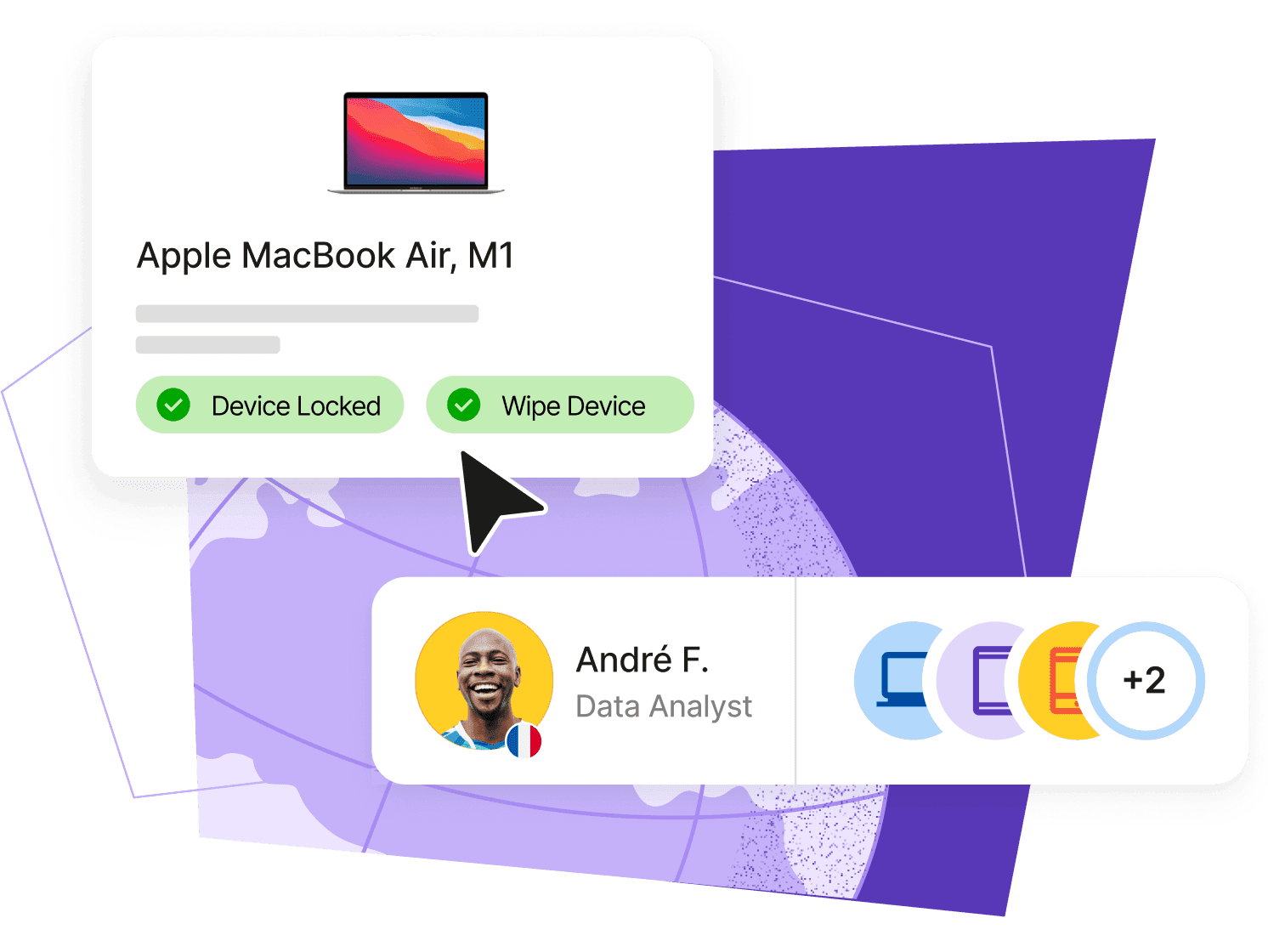
Automate offboarding actions where possible: Use MDM tools to initiate remote lock, wipe, and retrieval workflows when employees leave the organization
Document disposal and recycling activities: Maintain records of certified data erasure, recycling, and chain-of-custody requirements for retired devices
A structured lifecycle management process helps organizations maintain visibility, improve asset utilization, and reduce the risk of devices being lost, forgotten, or left unmanaged.
Real-world laptop pre-configuration use cases
The steps above can be adapted to different hiring and deployment scenarios. Here are a few common examples:
Onboarding a remote engineer: An engineering hire may need a higher-spec laptop with additional RAM and processing power, along with preconfigured IDEs, Git clients, VPN access, and security tools. Using a role-based hardware profile and zero-touch provisioning means these requirements can be applied automatically before or during the employee's first sign-in.
Equipping a new hire in another country: Global hiring introduces additional considerations such as local keyboard layouts, power adapters, shipping, and customs. Standardized regional procurement and device profiles help IT teams deliver the right equipment while maintaining consistent security and configuration requirements across locations.
Provisioning laptops for contractors or temporary workers: Short-term workers may require a different procurement model and more limited application or data access. IT teams can use predefined device and access policies to provide the tools required for the role while maintaining appropriate security controls.
Reassigning a laptop after offboarding: When an employee leaves, IT teams can revoke access, retrieve the laptop, securely erase company data, verify the device's condition, and prepare it for reassignment. Connecting offboarding, MDM, and asset tracking helps maintain visibility throughout this process.
Manage the full laptop lifecycle with Deel IT
From procurement and provisioning through to offboarding and device recovery, Deel IT helps organizations manage laptops across a distributed workforce without relying on manual coordination between HR, IT, and logistics teams.
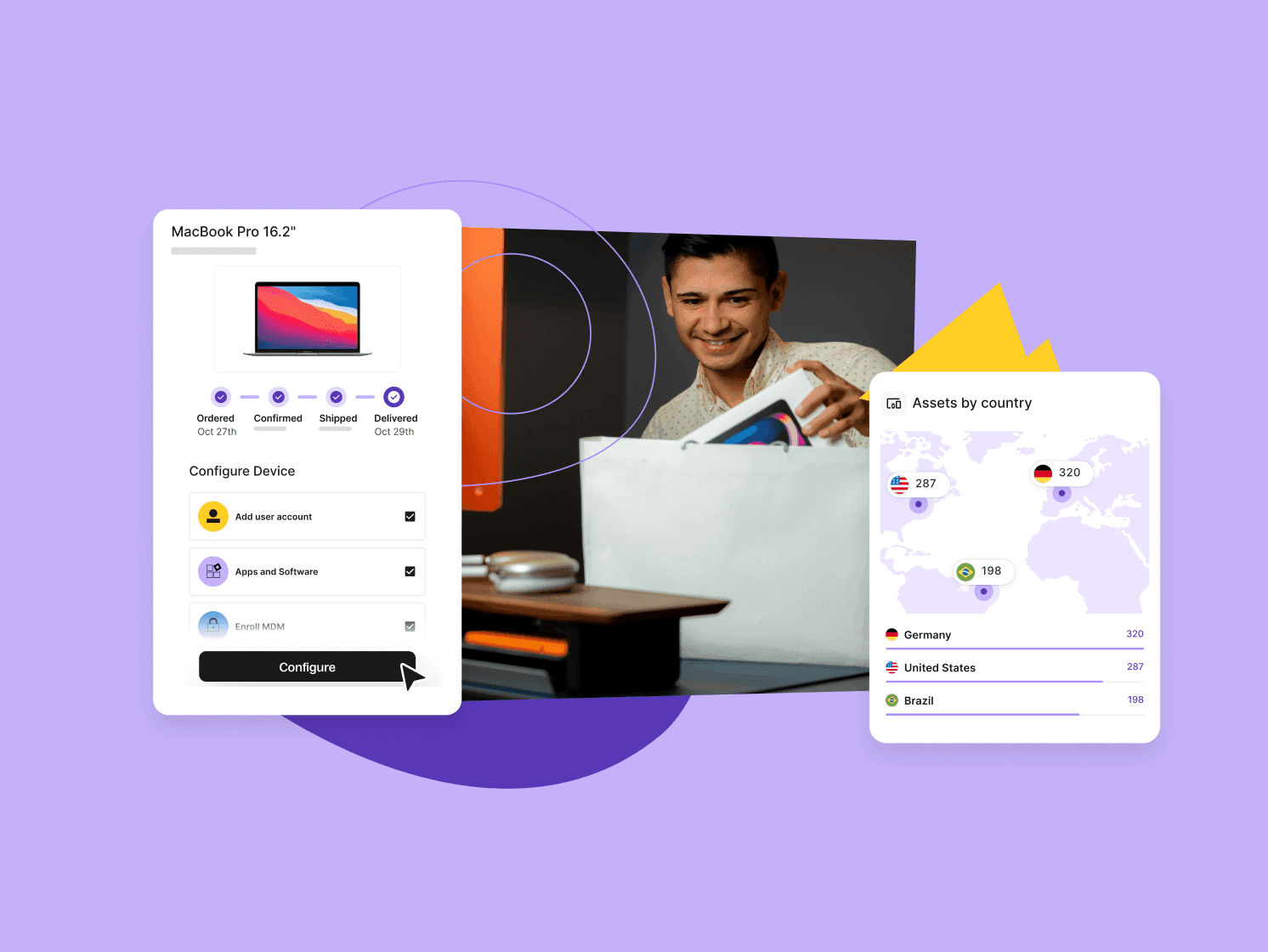
Day-one device readiness, triggered by HR events: When a new hire is added to Deel, device procurement, configuration, and shipping can begin automatically — reducing delays and eliminating manual handoffs between HR and IT.
Global device logistics from a single platform: A catalog of 240+ devices ships to 130+ countries with 99.5% on-time delivery, helping organizations standardize hardware globally while simplifying customs, shipping, and returns.
Centralized asset tracking and visibility: Track device ownership, shipment status, assignment history, and lifecycle events from a single system of record, helping IT teams maintain accurate inventory across distributed teams.
Zero-touch deployment and device management: Deel IT uses JumpCloud-powered Mobile Device Management (MDM) to enroll devices automatically at first sign-in, apply policies, deploy applications, and maintain compliance throughout the device lifecycle.
Built-in security and access controls: Access management, Single Sign-On (SSO), Multi-Factor Authentication (MFA), and Role-Based Access Control (RBAC) help ensure employees receive the right access at the right time.
Automated offboarding and device recovery: When an employee leaves, Deel IT can revoke access, initiate device retrieval workflows, and support secure device reassignment or retirement from the same platform used for onboarding.
24/7 support for distributed teams: Employees can access IT support around the clock, regardless of their location or time zone.
Book a demo to learn how.
Deel IT
Procure, deliver, manage, and secure devices anywhere

FAQs
When should laptop pre-configuration start before a new hire's first day?
Start at least one week before the hire's start date to allow time for configuration, shipping, and any troubleshooting if something arrives damaged or mis-enrolled. For international shipments, two weeks is a safer buffer given customs processing times. Connecting HR systems to your provisioning workflow means the countdown starts automatically when the hire is confirmed, rather than when someone remembers to file a ticket.
What security measures are required on remote work laptops?
At minimum: full-disk encryption, endpoint protection, enforced MFA, and an always-on VPN or equivalent secure access. These should be in place before the device leaves your control — not configured by the employee on arrival.
How can IT automate provisioning at scale?
MDM platforms with zero-touch provisioning (Apple Business Manager for macOS, Windows Autopilot for Windows) handle enrollment and configuration automatically at first boot. The step that most teams miss is connecting HR lifecycle events to the provisioning trigger — so configuration starts when a hire is confirmed, not when IT manually picks up the request.
What software should be pre-installed for remote employees?
Core productivity suites (Microsoft 365 or Google Workspace), collaboration tools (Slack, Zoom, or Teams), and role-specific applications should all be pre-loaded and pre-configured via MDM profiles. The goal is that the employee authenticates and works — they don't install, configure, or troubleshoot.
How can companies pre-configure laptops for employees in different countries?
Companies can combine standardized hardware and software profiles with regional procurement requirements, such as local keyboard layouts and power adapters. Global logistics, MDM, and zero-touch provisioning can then help maintain consistent configurations across locations.
Why is MDM important for remote laptop deployment?
MDM helps IT teams remotely enroll devices, apply security policies, deploy applications, monitor compliance, manage updates, and take actions such as locking or wiping devices when necessary.
How should companies manage laptops after an employee leaves?
A structured offboarding process should include revoking access, retrieving the device, securely erasing company data, updating the asset record, and either preparing the laptop for reassignment or retiring and recycling it securely.
Dr Kristine Lennie holds a PhD in Mathematical Biology and loves learning, research and content creation. She had written academic, creative and industry-related content and enjoys exploring new topics and ideas. She is passionate about helping create a truly global workforce, where employers and employees are not limited by borders to achieve success.