Article
1 min read
How to Build the Right IT Setup for Designers: A Practical Checklist
IT & device management

Author
Dr Kristine Lennie
Last Update
July 03, 2026

Table of Contents
Step 1. Primary device provisioning
Step 2. Peripherals, displays, and accessories
Step 3. Design software installation and licensing
Step 4. Access provisioning and identity setup
Step 5. Security and endpoint configuration
Step 6. Onboarding and support readiness
Step 7. Offboarding and licence reclaim preparation
IT that scales with your design team: how Deel IT helps
Key takeaways
Designers rely on high-performance hardware, specialized creative software, and the right peripherals to do their best work. Powerful devices, design tools, asset libraries, and collaboration platforms all need to be ready before day one, because missing just one element can slow creative work from the start.
Getting designers productive from day one requires treating onboarding as a coordinated IT workflow rather than a series of individual setup tasks, with hardware, peripherals, software, access, security, and support prepared in the right sequence before the first login.
Deel IT helps organizations automate IT setup from a single platform with a global device catalog, application delivery, security, and lifecycle workflows, helping designers get the hardware, software, and creative tools they need from day one.
Designers have specific IT requirements that generic onboarding checklists can often miss. When those requirements are overlooked, new hires can spend their first days troubleshooting their setup instead of contributing meaningful work.
This checklist covers everything IT needs to get a designer fully operational: the right hardware, software, peripherals, access, and security configuration from day one.
Step 1. Primary device provisioning
Getting hardware right for designers means accounting for performance requirements that go beyond standard office workloads. Design tools are resource-intensive: rendering, exporting, and running multiple applications simultaneously demand more from a machine than most roles require. You will need to:
☐ Provision a machine that meets the minimum specifications for the design stack in use (typically at least 16 GB RAM, a dedicated GPU for 3D or video work, and sufficient SSD storage for large asset libraries)
☐ Confirm display output compatibility—designers frequently use external monitors and need the correct ports or adapters included during provisioning
☐ Verify that the machine ships pre-imaged with Mobile Device Management (MDM) enrolled before delivery, not after first login
☐ Confirm the keyboard layout and regional power adapter match the designer's location
☐ Document the device serial number, assigned user, and provisioning date in the central fleet record
Find out how to choose IT equipment for any role.
Step 2. Peripherals, displays, and accessories
Designers rely on peripherals that most IT checklists treat as optional. A missing stylus, an uncalibrated display, or the wrong mouse can meaningfully affect output quality and slow down work from the start. Make sure you:
☐ Confirm whether the designer requires a drawing tablet or stylus (standard for brand, illustration, and UX roles)
☐ Provision an external monitor if required, confirming the required resolution, color accuracy (sRGB or P3), and whether a color-calibrated display is needed
☐ Include any required adapters, docking stations, or USB hubs in the initial shipment
☐ Confirm headphone or audio requirements for video or motion design roles
☐ Verify that all peripherals are included in the same shipment as the primary device to avoid staggered setup delays
Here are 6 IT accessories for boosting employee productivity.
Step 3. Design software installation and licensing
Design software licensing is one of the most common IT gaps for this role. Seat-based licences, team plans, and per-app subscriptions all need to be confirmed and assigned before the designer's first day, not after they ask. Key steps include:
☐ Confirm which design tools are in use across the team (Adobe Creative Cloud, Figma, Sketch, Affinity, Canva Pro, or others) and assign the correct license tier
☐ Verify that the designer's license includes all required applications within the suite, as Creative Cloud plans vary significantly by included applications
☐ Install or provision access to any prototyping or handoff tools (Figma, Zeplin, InVision, Framer, or equivalent)
☐ Confirm access to stock asset platforms, font libraries, and brand asset management tools used by the team
☐ Document the license assignment in the central SaaS management system so it can be reclaimed during offboarding
Read also: How to Reduce IT Costs Without Cutting What Matters
Step 4. Access provisioning and identity setup
Access provisioning for designers spans more systems than most IT teams anticipate. Beyond standard company tools, designers need access to brand asset libraries, project management platforms, shared drives, and collaboration tools, all of which should be provisioned from the start. You will need to:
☐ Enroll the designer in Single Sign-On (SSO) and confirm access to all required applications through the identity provider
☐ Enforce Multi-Factor Authentication (MFA) across all connected applications before the first login
☐ Provision access to shared design asset libraries, brand guidelines repositories, and file storage (Google Drive, Dropbox, SharePoint, or equivalent)
☐ Confirm access to project management and collaboration tools (Notion, Jira, Asana, Linear, or equivalent) with the correct team and project permissions
☐ Assign Role-Based Access Control (RBAC) permissions that match the designer's seniority and team, avoiding over-provisioning access to production environments or client data
☐ Verify that access to any client-facing tools or external platforms is provisioned with the correct permission level
Read: IAM Best Practices for IT Teams
Step 5. Security and endpoint configuration
Designers frequently work with unreleased product visuals, brand assets, and client materials, all of which carry confidentiality requirements. Endpoint security configuration needs to reflect that, not default to a generic policy. To reduce the risk of unauthorized access, data loss, or accidental sharing, you need to:
☐ Confirm full-disk encryption is enabled and verified during provisioning
☐ Apply endpoint management policies covering operating system updates, screen lock timeouts, and firewall configuration
☐ Confirm cloud storage sync settings are configured to prevent unauthorized local copies of sensitive design files
☐ Verify the device is enrolled in remote lock and wipe capabilities before it leaves the warehouse
☐ Confirm the designer has been briefed on the acceptable use policy for design assets, client materials, and external sharing
Read: How to Improve IT Compliance with Automated Device Management
Step 6. Onboarding and support readiness
A designer who can't reach IT support on their first day (or who has to wait until business hours in a different time zone) loses productive time that compounds quickly. Support readiness is as much a part of the IT setup as the hardware itself. You should:
☐ Confirm the designer knows how to reach IT support and the expected response time
☐ Verify the ticketing system is accessible from day one and the designer's account is active
☐ Confirm a named IT contact or onboarding buddy is assigned for the first week
☐ Check that the designer's device, access, and software are fully operational before the start date, not on it
☐ Log the completed setup in the central system of record so the configuration is documented and auditable
See also: Guide to After-Hours IT Support for a Global Workforce
Step 7. Offboarding and licence reclaim preparation
Setting up offboarding readiness at the point of onboarding is the step most IT checklists skip. For designers, this matters more than most roles: creative assets, client files, and expensive software licences all need a clear recovery path. You will need to:
☐ Confirm all software licenses assigned to the designer are logged and attributed in the SaaS management system
☐ Verify the device is enrolled in MDM and remote wipe capabilities are enabled
☐ Confirm shared asset libraries and file storage use team-level ownership rather than individual accounts to prevent access loss when the designer leaves
☐ Document the device serial number, assigned applications, and access permissions in a single record that can be used during offboarding
☐ Confirm the offboarding trigger from HR automatically initiates access revocation and device recovery workflows
Download: Employee Offboarding Checklist Template
IT that scales with your design team: how Deel IT helps
Getting a designer fully set up — the right hardware, the right software, the right access, and the right security configuration — involves more moving parts than a standard onboarding. When those parts are managed across separate tools and vendors, something always falls through.
Deel IT brings the entire IT lifecycle into one platform, connecting devices, identity, application access, and support to your HR system.
Here is what Deel IT handles across the designer lifecycle:
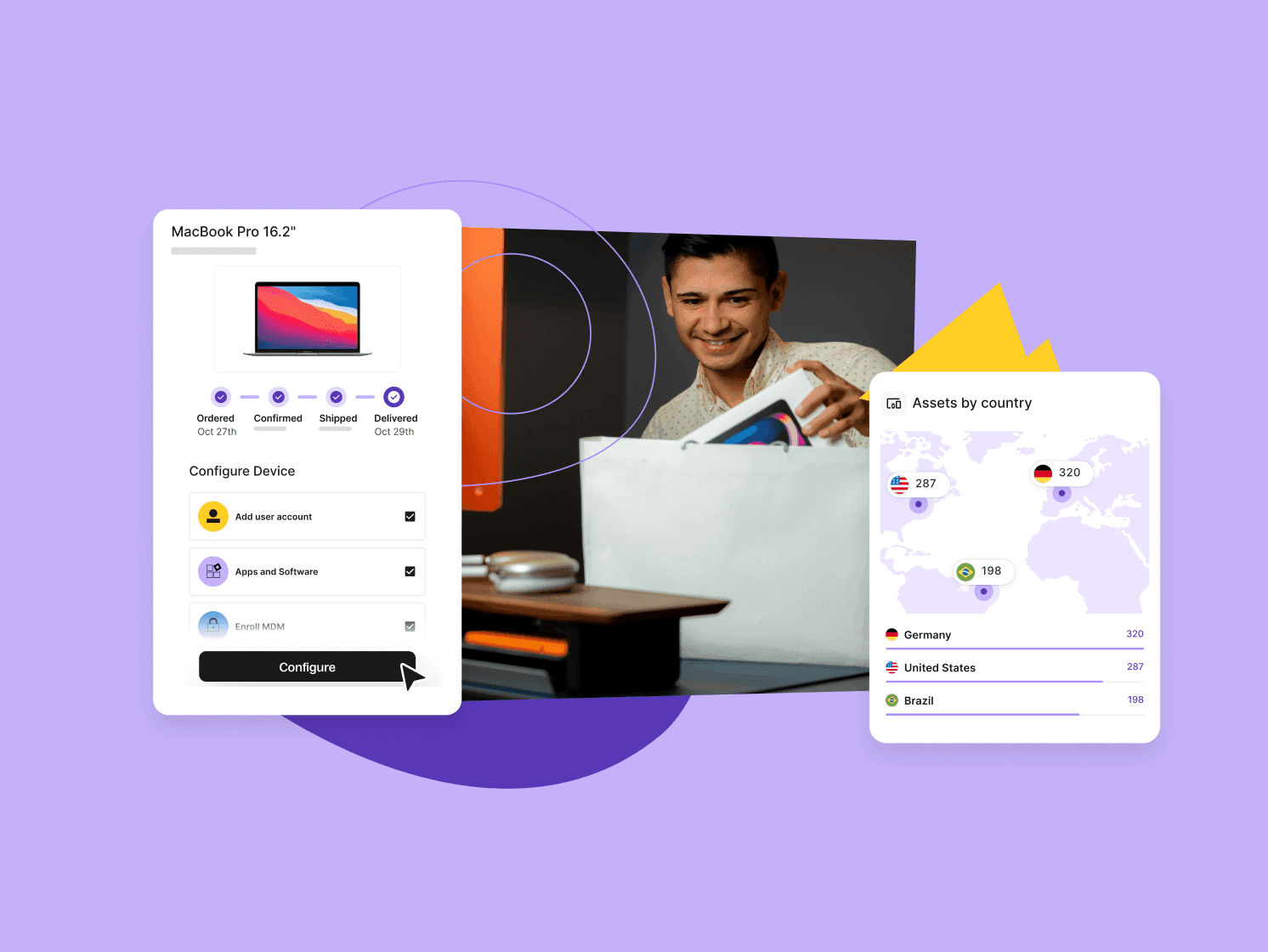
Global device procurement across 130+ countries: Source, configure, and ship pre-configured hardware to any designer, with customs and paperwork fully handled
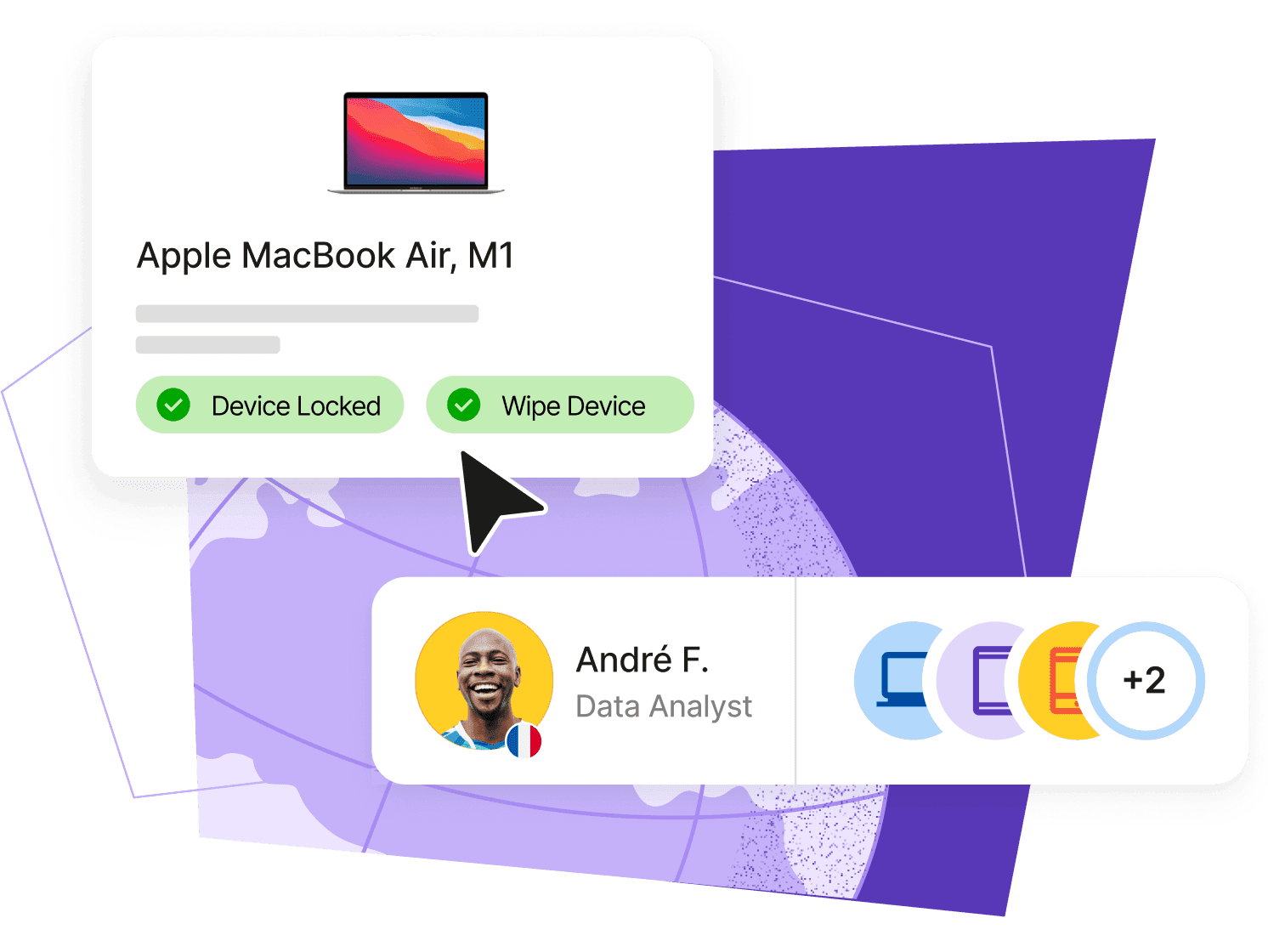
MDM enrollment at provisioning, not after first login: Every device ships with policy enforcement already applied, encryption, screen lock, OS update requirements, and remote wipe capability confirmed before the device leaves the warehouse
Role-based access provisioning tied to your HRIS: The moment a designer is confirmed in your HR system, SSO, MFA, and application access are provisioned automatically — no manual tickets, no waiting
Centralised SaaS and licence management: Every design tool licence is tracked, attributed, and visible in one place — so you know what's assigned, what's unused, and what needs to be reclaimed at offboarding
Automated offboarding across devices and access: When a designer leaves, access is revoked automatically, the device enters the recovery workflow, and licences are reclaimed — all triggered automatically from the HR event
24/7 global IT support: Designers working across time zones get live IT support whenever they need it, embedded in the same platform managing their devices and access
Certified data erasure: Devices can be wiped with full audit documentation, so client assets and unreleased work don't leave the building with the hardware
Book a demo with Deel IT to see how the full designer setup runs as a single automated workflow.
Deel IT
Procure, deliver, manage, and secure devices anywhere

FAQs
What hardware specifications do designers actually need?
Designers require machines with higher performance specs than standard office workloads because design tools are resource-intensive—they need at minimum 16GB of RAM, sufficient SSD storage for large asset libraries, and in many cases a dedicated GPU for 3D or video work. Standard business laptops often fall short on these requirements, which means designers spend their first days experiencing lag, crashes, or working around performance limitations rather than producing work. The device should also ship pre-imaged with MDM enrolled before delivery and include the correct display output ports or adapters, since designers frequently use external monitors and need them available from day one.
Why do peripherals matter as much as the primary device for designers?
A missing stylus, an uncalibrated monitor, or the wrong adapter can meaningfully affect both design quality and productivity from the start, yet these items are often treated as optional add-ons rather than core setup requirements. Peripherals like drawing tablets, color-calibrated displays (sRGB or P3), docking stations, and audio equipment all need to be included in the same initial shipment as the primary device to avoid staggered setup delays. When designers have to wait for peripherals to arrive separately or troubleshoot compatibility issues after they've already started, they lose productive days that compound quickly.
How should design software licensing be managed at onboarding?
Design software licensing is one of the most common IT gaps for this role because seat-based licenses, team plans, and per-app subscriptions vary significantly and need to be confirmed before day one, not after the designer asks. You need to document which specific tools your team uses (Adobe Creative Cloud, Figma, Sketch, Affinity, Canva Pro, etc.), confirm the correct license tier for each designer's role (Creative Cloud plans vary by included applications), and ensure access to prototyping, handoff, stock asset platforms, and font libraries is all assigned upfront. When this step slips, designers spend their first hours provisioning their own tools or working without the required applications.
What access beyond standard company tools do designers need?
Designers need access to brand asset libraries, design file storage, project management platforms, and collaboration tools all configured before their first login—this spans more systems than most IT teams anticipate. Beyond SSO and standard company applications, they require role-based access to shared design repositories, file storage (Google Drive, Dropbox, SharePoint), project management tools (Notion, Jira, Asana), and any client-facing platforms, all with correct permission levels set at provisioning. When access provisioning is incomplete, designers can't access design files, brand guidelines, or past work, which blocks their ability to contribute meaningfully.
Dr Kristine Lennie holds a PhD in Mathematical Biology and loves learning, research and content creation. She had written academic, creative and industry-related content and enjoys exploring new topics and ideas. She is passionate about helping create a truly global workforce, where employers and employees are not limited by borders to achieve success.